# Adnuntius Documentation

Welcome to Adnuntius Documentation! Here you will find user guides, how-to videos, API documentation and more; all so that you can get started and stay updated on what you can use us for.

## To get started, choose your Product:

<table data-view="cards"><thead><tr><th></th><th align="center"></th><th></th><th data-hidden data-card-target data-type="content-ref"></th></tr></thead><tbody><tr><td></td><td align="center"><strong>Adnuntius Ad Server</strong></td><td></td><td><a href="/pages/eLd7LCm1zdEEjdC6vByo">/pages/eLd7LCm1zdEEjdC6vByo</a></td></tr><tr><td></td><td align="center"><strong>Adnuntius Marketplace</strong></td><td></td><td><a href="/pages/SKSQDUZue6jqZYYvhcxb">/pages/SKSQDUZue6jqZYYvhcxb</a></td></tr><tr><td></td><td align="center"><strong>Adnuntius Self-Service</strong></td><td></td><td><a href="/pages/C6k6Fqwetkz94kNYg1KX">/pages/C6k6Fqwetkz94kNYg1KX</a></td></tr><tr><td></td><td align="center"><strong>Adnuntius Data</strong></td><td></td><td><a href="/pages/HHtRsEqK4fqcq0NiO4l0">/pages/HHtRsEqK4fqcq0NiO4l0</a></td></tr><tr><td></td><td align="center"><strong>Adnuntius Connect</strong></td><td></td><td><a href="/pages/-MJWLz3zFbgCw2IzaSmn">/pages/-MJWLz3zFbgCw2IzaSmn</a></td></tr><tr><td></td><td align="center"><strong>Adnuntius Email Advertising</strong></td><td></td><td><a href="/pages/-M4tPMUmI6QbJfXP07et">/pages/-M4tPMUmI6QbJfXP07et</a></td></tr></tbody></table>

## Other Useful Information

<table data-view="cards"><thead><tr><th align="center"></th><th data-hidden data-card-target data-type="content-ref"></th></tr></thead><tbody><tr><td align="center">Identification &#x26; Privacy</td><td><a href="/pages/sMCJFfL7ruZ2G1lnP9mq">/pages/sMCJFfL7ruZ2G1lnP9mq</a></td></tr><tr><td align="center">Header Bidding</td><td><a href="/pages/-LVIXqc6x29GBRNR6ix4">/pages/-LVIXqc6x29GBRNR6ix4</a></td></tr><tr><td align="center">Adnuntius Slider</td><td><a href="/pages/-LXz1hJ0SYPeeyUuaN3S">/pages/-LXz1hJ0SYPeeyUuaN3S</a></td></tr><tr><td align="center">Whitelabeling</td><td><a href="/pages/-MYFNLnoLilIub_M2EVh">/pages/-MYFNLnoLilIub_M2EVh</a></td></tr><tr><td align="center">Firewall Access</td><td><a href="/pages/-MbAI0V0YvvqLw3RUN0Z">/pages/-MbAI0V0YvvqLw3RUN0Z</a></td></tr><tr><td align="center">Ad Server Logs</td><td><a href="/pages/-MktVVHlLk0XsIhx1Ap3">/pages/-MktVVHlLk0XsIhx1Ap3</a></td></tr><tr><td align="center">Cxense Segments</td><td><a href="/pages/-LRkhEuBk8OuRG_lW9VR">/pages/-LRkhEuBk8OuRG_lW9VR</a></td></tr><tr><td align="center">GAM Deal Set Up</td><td><a href="/pages/Jls99DxR7Wh4Av1A48Vg">/pages/Jls99DxR7Wh4Av1A48Vg</a></td></tr><tr><td align="center">MCP Server</td><td><a href="/pages/LMMJ17P27mUfU1Ksm1hb">/pages/LMMJ17P27mUfU1Ksm1hb</a></td></tr></tbody></table>

## Troubleshooting

* [Frequently Asked Questions](/troubleshooting/faq)
* [How do I contact Support](/troubleshooting/how-do-i-contact-support)
* [Adnuntius System Status](https://status.adnuntius.com)


# Overview

Adnuntius Advertising lets publishers connect, manage and grow programmatic and direct revenue from any source in one application.

Add value with new and rich formats that are fast to implement and simple to operate at scale, integrate data effortlessly to activate user insights, and much more. It is by far one of the world's fastest and most flexible advertising platforms on the market.

1. [Getting Started](/adnuntius-advertising/adnuntius-ad-server)
2. [User Interface Guide](/adnuntius-advertising/admin-ui)
3. [API Documentation](/adnuntius-advertising/admin-api)
4. [Requesting Ads](/adnuntius-advertising/requesting-ads)


# Getting Started

Choose below if you are a publisher or an agency (or advertiser).

{% content-ref url="/pages/rrhAKVQz38R5cJEKfgDf" %}
[Ad Server for Agencies](/adnuntius-advertising/adnuntius-ad-server/ad-server-for-agencies)
{% endcontent-ref %}

{% content-ref url="/pages/-M3gXvT5bmUdArj5ntY4" %}
[Ad Server for Publishers](/adnuntius-advertising/adnuntius-ad-server/adnuntius-adserver)
{% endcontent-ref %}


# Ad Server for Agencies

This page helps agencies and other buyers get started with Adnuntius Ad Server quickly.

You will find full documentation of the underlying platform (Adnuntius Advertising) [here](/adnuntius-advertising/admin-ui). The purpose of this guide however, is to make it easier for new customers to get started. This guide is split into basic features which cover the steps to get started, and the more advanced features which help you get more value from Adnuntius.

{% hint style="info" %}
This guide assumes that you have been given access to Adnuntius Advertising. However, if you haven't please contact us at <support@adnuntius.com>.
{% endhint %}

## 1 Basic Features

### 1.1 Inventory

When you add a creative to Adnuntius and want to generate a creative tag that you can send to a publisher, then you are asked to select an ad unit before the tag is created.

![When creating creative tags you are asked to select an ad unit first.](/files/T2dxShFvYijTD1pXZi21)

in order to create creative tags you must therefore first create those ad units (and a couple of other things as well to keep things tidy inside your system). When you later run a campaign you can split reporting per ad unit so that you better know what inventory performs and what does not. Here are three examples on how you can choose to set up your inventory.

1. Let's say that you create three ad units: *sitex.com - top banner - frontpage, sitex.com - top banner - sports section, and sitey.com - skyscraper - frontpage*. When you run campaigns you will have reporting split by site (sitex vs sitey), by placement (top banner vs skyscraper), and by section (frontpage vs sports section). This one-time setup takes longer, but you are rewarded with more granular reporting.
2. Let's say that you create two ad units: *sitex.com - top banner, and sitey.com - top banner - frontpage*. Now your one-time setup goes faster since you reduce the granularity, but you get less detailed reporting in return.
3. Let's say that you create one ad unit: *top banner*. Now you spend only minutes on the inventory section, but you only get high-level reporting back (more specifically; you only see the ad unit "top banner" in reports without having it split by site, section or anything else).

{% hint style="info" %}
Please note that this applies only when you use Adnuntius as an adserver. If you are connected to an **Adnuntius** **Marketplace** then you will not have to create inventory at all, as this has been done by publishers that operate live within that marketplace.
{% endhint %}

You can, if you'd like, start quickly with alternative 3 and then work to produce more granular inventory over time. Below is an overview of the most relevant objects you will find in the inventory section. [Here you will also find a schematic of how these objects relate to one another.](/adnuntius-advertising/admin-ui/inventory)

<table><thead><tr><th width="544.6551724137931">Object</th><th>Resources</th></tr></thead><tbody><tr><td><strong>Earnings account:</strong> aggregates your spending across multiple sites that all belong to the same publishing group. Allows you to (automatically if wanted) share reports with publishing partners. Example: Schibsted ASA</td><td><a href="/pages/-Lj0hkdAMJbZgRe5xfMe">Documentation</a><br><a href="https://admin.adnuntius.com/earnings-accounts">Start creating</a></td></tr><tr><td><strong>Site:</strong> aggregates your spending across multiple ad units. Allows you to (automatically if wanted) share reports with publishing partners, and to target your campaigns and creatives to one or more sites. Example: aftenposten.no</td><td><a href="/pages/-Lj0iEFHJzW8Qza6H1gT">Documentation</a><br><a href="https://admin.adnuntius.com/sites">Start creating</a></td></tr><tr><td><strong>Ad unit:</strong> counts your impressions, clicks and much more for a single placement on a site. Example: aftenposten.no - top banner</td><td><a href="/pages/-Lj0inGvQumF5GAZQoCL">Documentation</a><br><a href="https://admin.adnuntius.com/ad-units">Start creating</a></td></tr></tbody></table>

### 1.2 Advertising

Now that you have your inventory in place you're ready to start creating campaigns. The overview explains how to perform the most important advertising tasks.

<table><thead><tr><th width="545">Object</th><th>Resources</th></tr></thead><tbody><tr><td><strong>Understand the advertising section.</strong> The link to the right leads you to a page that teaches you the main parts of the advertising section.</td><td><a href="/pages/-LRgSky8Yd99m9Gu9yGd">Documentation</a></td></tr><tr><td><strong>Create an advertiser.</strong> An advertiser is an advertising client that buys your services. If you have no advertisers yet, try creating your own company as an advertiser.</td><td><a href="/pages/-M2t8JrGrz6muWerMANo">Documentation</a><br><a href="https://admin.adnuntius.com/advertisers">Start creating</a></td></tr><tr><td><strong>Create an order.</strong> An advertiser can contain one or more orders. An order is also a folder for line items, and also determines which team that the campaign should belong to.</td><td><a href="/pages/-M2tAmgBPJMpnW9wp-JQ">Documentation</a><br><a href="https://admin.adnuntius.com/orders">Start creating</a></td></tr><tr><td><strong>Create a line item</strong>. A line item determines start and end dates, delivery objectives, targeting and more.</td><td><a href="/pages/-M2tDkDkFi5AYbuunDHX">Documentation</a><br><a href="https://admin.adnuntius.com/line-items">Start creating</a></td></tr><tr><td><strong>Upload a creative.</strong> A line item needs one or more creatives to work. Try also to target the creative. Remember to use a creative size that is supported by the ad units you want to serve to.</td><td><a href="/pages/-M2wzZXPBHYklU54k6nj">Documentation</a><br>(Creation starts from the line item)</td></tr><tr><td>Try to generate an ad impression using the <strong>Ad Tag Generator</strong>. This tool helps you verify that your ads are serving as they should.</td><td><a href="/pages/-M3SONIcZ9_dFrEIf2H2">Documentation</a><br><a href="https://admin.adnuntius.com/ad-tag">Start testing</a></td></tr></tbody></table>

## 2 Advanced Features

Here are some additional features that helps you get more out of your adserver.

<table><thead><tr><th width="482">Object</th><th>Resources</th></tr></thead><tbody><tr><td><strong>Layouts</strong> let you determine what file types, looks and feels and other information to serve with your advertising.</td><td><a href="/pages/-M31Lh2cQUbFRkAcPZlF">Documentation</a><br><a href="https://admin.adnuntius.com/admin/layouts">Go to layouts</a></td></tr><tr><td><strong>Custom events</strong> let you measure additional events in addition to <a href="/pages/-M3D7MPCZWRx_aFHMzuz">what we already measure</a> for you.</td><td><a href="/pages/-M31MKF2tGp93Ui5cKU4">Documentation</a><br><a href="https://admin.adnuntius.com/admin/custom-events">Go to custom events</a></td></tr><tr><td><strong>Log data</strong> lets you download detailed data about each event (impression, viewable impression, click etc) and get in-depth information about each of these events.</td><td><a href="https://adnuntius.com/blog/adnuntius-brings-the-big-data">Introduction to log data</a><br><a href="https://admin.adnuntius.com/admin/data-exports">Go to data exports</a></td></tr><tr><td><strong>Tiers</strong> let you organize your campaigns into priority levels, so that you can ensure that your VIPs get first look before the second priority campaigns, and so on.</td><td><a href="/pages/-M31OypsRT9CKxOH8rcJ">Documentation</a><br><a href="https://docs.adnuntius.com/adnuntius-advertising/admin-ui/admin/tiers">Go to tiers</a></td></tr></tbody></table>


# Ad Server for Publishers

This page helps you as a publisher get onboarded with Adnuntius Ad Server quickly and painlessly.

You will find full documentation of the underlying platform (Adnuntius Advertising) [here](/adnuntius-advertising/admin-ui). The purpose of this guide however, is to make implementation easier for new customers. The steps below contains the basic steps. There are more advanced functions that you can read up on under the full documentation, but these steps should make you familiar with the platform's basic features.

If you are working as an ad operations representative for a publisher or buyer, and your normal day-to-day job involves campaign booking, management and reporting, then you can most likely jump to step 5 below. Step 5 involves creating an ad unit, which is probably not part of your daily routine, but it is useful to know how ad units work since creatives will be served inside these ad units.

This guide assumes that you have been given access to Adnuntius Advertising. However, if you haven't please contact us at <support@adnuntius.com>.

| What and Why                                                                                                                                                                                                                                                       | Choices                                                                                                                                        |
| ------------------------------------------------------------------------------------------------------------------------------------------------------------------------------------------------------------------------------------------------------------------ | ---------------------------------------------------------------------------------------------------------------------------------------------- |
| **1.** Understand the inventory section. The link to the right leads you to a page that teaches you the main parts of the inventory section.                                                                                                                       | [Documentation](/adnuntius-advertising/admin-ui/inventory)                                                                                     |
| **2.** Create an earnings account. Earnings accounts let you aggregate earnings that one or more sites have made. Here is how you create an earnings account.                                                                                                      | <p><a href="https://admin.adnuntius.com/earnings-accounts">Start testing</a></p><p><a href="/pages/-Lj0hkdAMJbZgRe5xfMe">Documentation</a></p> |
| **3.** Create a site group. If you only have one site you can skip this. If you have more than one, you can start by creating one site group called "All sites".                                                                                                   | <p><a href="https://admin.adnuntius.com/site-groups">Start testing</a></p><p><a href="/pages/-Lj0ibuuDsfqKb3Xzrox">Documentation</a></p>       |
| **4.** Create a site. A site is a domain where you would like ads to go. Start by creating one site so that you learn the process, and then you can create more later.                                                                                             | <p><a href="https://admin.adnuntius.com/sites">Start testing</a></p><p><a href="/pages/-Lj0iEFHJzW8Qza6H1gT">Documentation</a></p>             |
| **5.** Create an ad unit. Start by creating one ad unit so that you learn the process, and then you can create more later.                                                                                                                                         | <p><a href="https://admin.adnuntius.com/ad-units">Start testing</a></p><p><a href="/pages/-Lj0inGvQumF5GAZQoCL">Documentation</a></p>          |
| **6.** Understand the advertising section. The link to the right leads you to a page that teaches you the main parts of the advertising section.                                                                                                                   | [Documentation](/adnuntius-advertising/admin-ui/advertising)                                                                                   |
| **7.** Create an advertiser. An advertiser is a client that wants to advertise on your sites. If you have no advertisers yet, try creating your own company as an advertiser (which may be useful for house ads anyway).                                           | <p><a href="https://admin.adnuntius.com/advertisers">Start testing</a></p><p><a href="/pages/-M2t8JrGrz6muWerMANo">Documentation</a></p>       |
| **8.** Create an order. An advertiser can contain one or more orders. An order is also a folder for line items, and also determines which team that the campaign should belong to.                                                                                 | <p><a href="https://admin.adnuntius.com/orders">Start testing</a></p><p><a href="/pages/-M2tAmgBPJMpnW9wp-JQ">Documentation</a></p>            |
| **9.** Create a line item (with targeting and creatives). A line item determines start and end dates, delivery objectives and more. Try targeting the creative to the ad unit you created in step 5, and remember to use a size that is supported by that ad unit. | <p><a href="https://admin.adnuntius.com/line-items">Start testing</a></p><p><a href="/pages/-M2tDkDkFi5AYbuunDHX">Documentation</a></p>        |
| **10.** Try to generate an ad impression using the Ad Tag Generator. Just choose your ad unit, copy its properties, and then click the tab "Request Ads". Do you see your ad?                                                                                      | <p><a href="https://admin.adnuntius.com/ad-tag">Start testing</a></p><p><a href="/pages/-M3SONIcZ9_dFrEIf2H2">Documentation</a></p>            |

These first steps should show you the basics of getting up and running. You can now create more sites, ad units and line items, so that you will soon have set up your account for implementation ([documented here](/adnuntius-advertising/requesting-ads)).


# User Interface Guide

This guide shows you how to use the Adnuntius Advertising user interface. The Adnuntius Advertising user interface is split into the following five main categories.

{% content-ref url="/pages/-LRgiKRvmw93kL60yJla" %}
[Dashboards](/adnuntius-advertising/admin-ui/dashboards)
{% endcontent-ref %}

{% content-ref url="/pages/-LRgSky8Yd99m9Gu9yGd" %}
[Advertising](/adnuntius-advertising/admin-ui/advertising)
{% endcontent-ref %}

{% content-ref url="/pages/-LRgiPLIIypSGp8cxqXl" %}
[Inventory](/adnuntius-advertising/admin-ui/inventory)
{% endcontent-ref %}

{% content-ref url="/pages/-LRgiQswrd4IveJCl6pW" %}
[Reports and Statistics](/adnuntius-advertising/admin-ui/reports)
{% endcontent-ref %}

{% content-ref url="/pages/-LRgiRiarlisc-btm44i" %}
[Admin](/adnuntius-advertising/admin-ui/admin)
{% endcontent-ref %}

## Switching between Networks

If you have access to multiple networks, you can switch between them by clicking the icon formed as four stacked boxes in the top right corner, next to blue "new" button.

<figure><img src="/files/opOSeVDcfHwDuxCq3bTT" alt=""><figcaption><p>Change between networks if you have access to multiple networks.</p></figcaption></figure>

## Switching between Applications

If you have access to multiple applications (for example Adserver and Data), you can switch between them by clicking in the upper right corner.

![Switching between applications.](/files/-MY9Me1cVGgXXrMfbrXY)


# Dashboards

How to create dashboards in Adnuntius Advertising.

Dashboards are pages consisting of widgets in which you can define the content, so that you can keep control of what is going on in Adnuntius Advertising. You can create any number of dashboards and change between them in the left-most column as soon as they are created.

To create a new dashboard go to <https://admin.adnuntius.com/workspace> and click "new" in the upper right corner. Give your dashboard a **name** and **description** of your choice and then start adding widgets.

The **type** lets you choose whether your dashboard should be personal to you, the [Team ](/adnuntius-advertising/admin-ui/users/users-teams-and-roles-1)you are part of, or shared with the entire Network (all users).

![Creating dashboards: an example.](/files/-M2t7B3-9J1eCMIEgHHs)

**Bar charts, line charts and tree maps** allow you to design graphs based on date range, object type (orders, line items, creatives, sites or ad units), objects and metrics (impressions, viewables, clicks and much more).

**Tables** provide overview of orders and line items for different purposes. Examples include:

* Running line items: Keep an eye on running line items, and easily see which line items are overdelivering or underdelivering.
* Undeliverable line items: Quickly identify the campaigns that you need to make changes to in order for them to start running.
* Ended line items: If you haven't set up automated reporting, an overview of ended line items can help you keep overview of the reports you should be sending out.
* Paused line items: See which line items are paused.
* Starred line items: Keep an extra eye on your favorites.
* Orders: Overview of active orders.

![Overview of widgets to choose from.](/files/-M2t4zAj1kIsX1jseqcI)


# Advertising

The Advertising section is where you manage advertisers, orders, line items, creatives and explore available inventory.

Here is how the various objects hang together: an advertiser is the top level object, and contain multiple orders, which in turn can contain multiple line items, which in turn can contain multiple creatives. Creatives will then be served inside ad units, which are set up under the inventory section.

![The hierarchy of the objects under Advertising, and how the connect to ad units.](/files/-M2t9xp7vlhkVL7k7jD5)

## Concept Summary

| Concept                                                                               | Description                                                                                                                                                                                                                                         |
| ------------------------------------------------------------------------------------- | --------------------------------------------------------------------------------------------------------------------------------------------------------------------------------------------------------------------------------------------------- |
| [Advertiser](/adnuntius-advertising/admin-ui/advertising/advertisers)                 | Adding an Advertiser (for instance; CocaCola) is a natural first step when a salesperson has closed a sale with a new buyer. An advertiser can contain multiple orders.                                                                             |
| [Order](/adnuntius-advertising/admin-ui/advertising/orders)                           | Determines who has access to the campaign, what set of sites that impressions can be delivered to (see [Teams ](/adnuntius-advertising/admin-ui/admin#teams)for more information), and business rules across the line items belonging to the order. |
| [Line item](/adnuntius-advertising/admin-ui/advertising/line-items)                   | Determines start and end dates, delivery objectives (impressions, clicks or conversions), pricing, targeting, creative delivery and prioritization. One line item can contain multiple creatives.                                                   |
| [Line Item Template](/adnuntius-advertising/admin-ui/advertising/line-item-templates) | Line item templates lets you add targeting, pricing, frequency capping and much more to a template, that can be re-used whenever you create a campaign that should inherit those settings from your template.                                       |
| [Creative](/adnuntius-advertising/admin-ui/advertising/creatives)                     | The design of the ad that is shown to the end user. Can consist of various assets such as images, text and videos.                                                                                                                                  |
| [Library Creative](/adnuntius-advertising/admin-ui/advertising/library-creative)      | Library creatives enable you to edit creatives across multiple line items from a single central location.                                                                                                                                           |
| [Reach analysis](/adnuntius-advertising/admin-ui/advertising/reach-analysis)          | An analysis you can run to forecast the volume of matching traffic for a line item.                                                                                                                                                                 |

***


# Advertisers

An Advertiser is the top item in the Advertising section, and has children Orders belonging to it.

## Creating an Advertiser

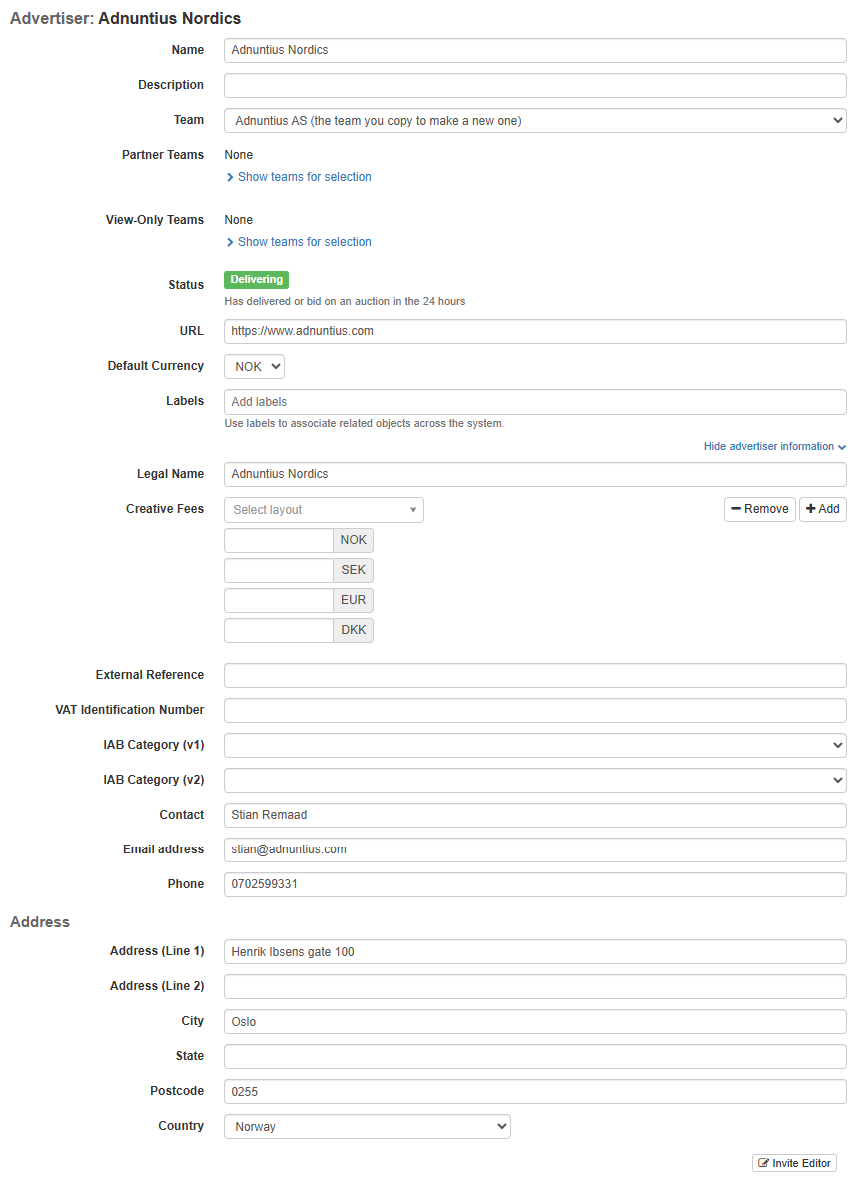
To create an Advertiser, go to [Advertisers under the Advertising section](https://admin.adnuntius.com/advertisers) and click "new" in the upper right corner.

<figure><img src="/files/5MuoGUk6M3CyzhD0aSAy" alt=""><figcaption></figcaption></figure>

Give your advertiser a **name**, and an optional **description** of your choice.

Specify a **team** that this Advertiser should belong to. The team determines which users in Adnuntius will be able to view this Advertiser, while their roles determine if they can make changes to it. [Read more about teams and roles here](https://docs.adnuntius.com/adnuntius-advertising/admin-ui/users).

**Labels** can be added to structure reporting. Let's say you add the label "AgencyX" to a set of advertisers, and then want to run a report only for this group of advertisers. You can then run a report which filters on these advertisers specifically. [Read more about reports.](/adnuntius-advertising/admin-ui/queries/advertising-queries) Labels will also be visible in the global search results on the top center of the screen.

Next you can choose to activate the Advertiser for **Political Advertising**. This is relevant to those who must comply with the law on political advertising (TTPA). When enabling this, certain fields will become mandatory in order for political ads to serve, and you will be able to provide more information about the advertiser, controlling entities, paying parties and budgets.

{% hint style="info" %}
To learn more about the political advertising feature, visit <https://docs.adnuntius.com/political-ads/political-advertising>
{% endhint %}

Add an **external reference** if you want to match the advertiser with the same client in another system. For instance, if Coca Cola is registered in your invoicing system with customer ID 123456, then by adding 123456 as an external reference in Adnuntius you can connect these two different entries in the different systems, as one Advertiser.

A **VAT identification number** can be used to register that number for advertisers. If you use [Adnuntius Self-Service](/adnuntius-self-service/overview) then you can choose to request this VAT number from advertisers when signing up, in which case the number will be stored here.

Adding one or more **IAB categories** to the Advertiser allows you to categorize advertisers so that you can later group them in analyses. You can for example [export data to a cloud service](/adnuntius-data/user-interface-guide/admin/data-exports) (or download via an SFTP server) so that you can analyze the performance of different advertiser categories using a BI/analytics tool like Google Data Studio, Tableau or similar.

Finally, you can add contact information to the Advertiser, and an address, before clicking to save.

## Invite Editor

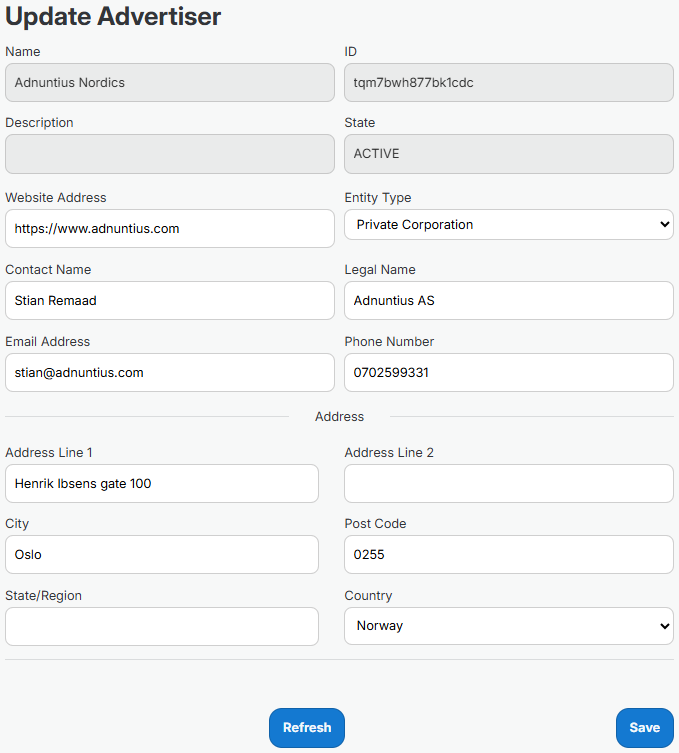
If you want to Advertiser to fill out their own information you can generate a link that can be sent to them. At the bottom right of the screen below you will see the "Invite Editor" button - click that.

<figure><img src="/files/se6EoigcHNoEAEaoh6BU" alt=""><figcaption></figcaption></figure>

You will now see a modal window asking you to fill out the receiver's email and name. When this is sent the receiver will receive an email, containing a link. This link will expire after 72 hours. The link will lead to a page as shown in the example below, enabling them to fill out and store the information.

<figure><img src="/files/mGD7yvSavqM2qedzZFil" alt=""><figcaption></figcaption></figure>

## When an Advertiser is Created

Once an advertiser is created you will see the following tabs below the Advertiser information.

### Orders, Line Items and Creatives

These tabs give you an overview of the orders, line items and creatives belonging to this advertiser.

![Order overview from an Advertiser page](/files/Q08P7RHxRTilesg0Dx30)

### Charts

Charts lets you see the performance of all advertising belonging to this advertiser. You can select the timeframe to look at, the metrics, the presentation of the data, and download data to an Excel file.

![Example chart from Advertiser page](/files/FL8CDhtiZTJrtw0IxFgO)

### Reports

Reports lets you create a report based on a [report template](/adnuntius-advertising/admin-ui/reports/reports-templates-and-schedules), that can be shared with others as a link. You can also schedule reports to be created regularly, and whoever should receive the reports. Once you have created a scheduled report and added a recipient, Adnuntius will automatically send reports to recipients, containing the data you have decided on using in the [report template](/adnuntius-advertising/admin-ui/reports/reports-templates-and-schedules).

![Screenshot showing how a scheduled report can be created](/files/Y2Mo3dm6JpLg8H2IB75I)

### Traffic

The traffic tab shows you the delivery of impressions, clicks, viewables and visible impressions across the line items belonging to this Advertiser.

![Example traffic from an Advertiser page](/files/g8T597fUrCEzppQGbPgf)

### Location

The location tab gives you the traffic to the Advertiser's advertising broken down by country.

![Example locations from an Advertiser page](/files/CpMTWwhakzaEopUW9bIm)


# Orders

An order lets you set targets and rules for multiple line items.

An Order belongs to an Advertiser, and can contain multiple Line Items as its children. To understand the organization of advertising objects, [see here](/adnuntius-advertising/admin-ui/advertising).

## Creating an Order

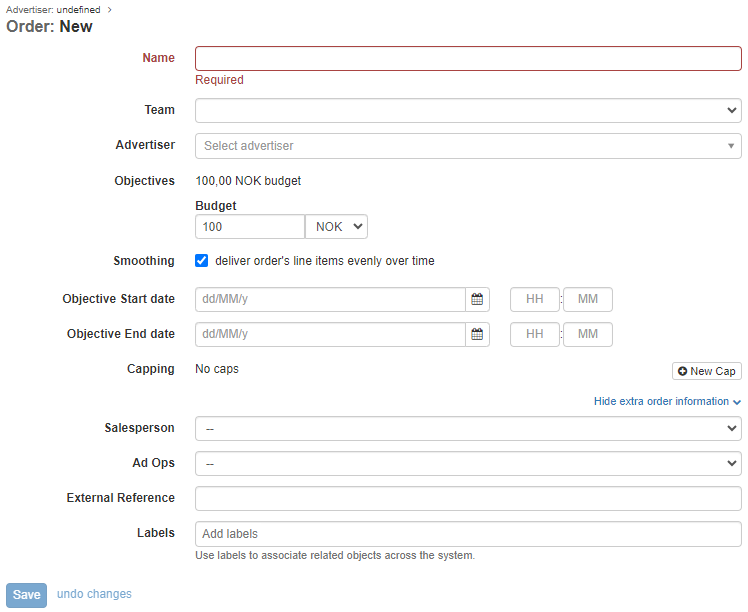
To create a new order go to <https://admin.adnuntius.com/orders> and click "New" in the upper right corner.

<figure><img src="/files/rENE6lWxWWG1WYIHu9ze" alt=""><figcaption></figcaption></figure>

Start by giving your Order a **name** of your choice. Specify a **team** that this Order should belong to. The team determines which users in Adnuntius will be able to view this Order, while their roles determine if they can make changes to it. [Read more about teams and roles here](https://docs.adnuntius.com/adnuntius-advertising/admin-ui/users).

Specify the **Advertiser** to which this Order should belong. **Objectives** can be used to set goals for multiple Line Items collectively.

If you turn on **Smoothing** to deliver the order's line items evenly over time you can set the start and end dates of the Order and its line items.

* When you set start/end dates on an Order and then create a line item, then the Order start/end dates are applied by default to the line item.
* The Order start/end dates will always take precedence over line item start/end dates. If you on a line item set a start date earlier than that on the Order, and/or an end date later than that on the Order, then the Order start/end dates will take precedence and cap the start/end of the line item.

**Capping** can be applied to limit the number of impressions, viewable impressions or clicks each user will see per hour, day, week, month, or over the lifetime of the Order. For example, if you set an Order rate limit to 3 impressions per day, and one of two line items show 3 impressions, then the remaining line item cannot show any impressions until the next day.

If a **salesperson** is responsible for the Order then you can assign it to that user. After you've done that, you can create reports showing how much revenue they have earned, their development over time, and more. You will also find the responsible salesperson for each Order in the Order overview found here: <https://admin.adnuntius.com/orders>

If you have an **ad ops** function in your company then you can add that person to it. When you have done this you can easily keep overview of who has the responsibility for which orders.

![Overview of orders, containing among other salespeople and ad ops users](/files/-LRhkg-DKkfBsOGaneSG)

**Labels** can be added to structure reporting. Let's say you add the label "September" to a set of Orders, and then want to run a report only for this group of Orders. You can then run a report which filters on these specifically. [Read more about reports.](/adnuntius-advertising/admin-ui/queries/advertising-queries) Labels will also be visible in the global search results on the top center of the screen.

## When an Order is Created

When an Order is created you will be able to see the following tabs.

### Line Items

The line item overview gives you a list of line items created under this Order. Here you can also quickly create a new line item to reserve inventory, and create notes that can be shared with other users with access to the Order.

![Overview of line items belonging to the Order](/files/4MumYefp2h4YaFNkXWtG)

### **Order, Line Item and Creative Charts**

Charts provide you with insights into the Order's delivery, and the delivery of its line items and creatives. The numbers presented are the aggregated numbers across all line items belonging to that Order. You can specify the period you want to look at, the metrics important to you, and how you want the data visualized. Once you have the data interesting to you, you can also download it as an Excel file.

![Order chart example](/files/cLqfLfg5uKgx7L4hfYVE)

### Tags

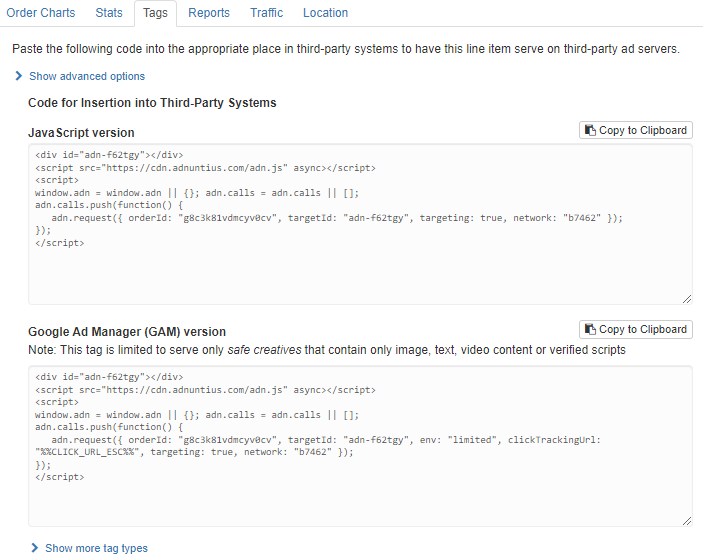
Copy tags to advertise with publishers that are not part of your marketplace. The Javascript version works with any third party system, while the Google version is created for Google Ad Manager specifically.

<figure><img src="/files/3vERMzxTDR9pJGZ0dfw9" alt=""><figcaption></figcaption></figure>

### Reports

Reports lets you create a report based on a [report template](/adnuntius-advertising/admin-ui/reports/reports-templates-and-schedules), that can be shared with others as a link. You can also schedule reports to be created regularly, and whoever should receive the reports. Once you have created a scheduled report and added a recipient, Adnuntius will automatically send reports to recipients, containing the data you have decided on using in the [report template](/adnuntius-advertising/admin-ui/reports/reports-templates-and-schedules).

![Screenshot showing how a scheduled report can be created](/files/hzYIUvYppSIV4l4Ptb0r)

### Traffic

The traffic tab shows you the delivery of impressions, clicks, viewables and visible impressions across the line items belonging to this order.

![Traffic stats example from the Order page.](/files/2xsPTSjzit7ARV04s8ei)

### Location

The location tab gives you the traffic to the Order broken down by country.

![Location stats example from an Order](/files/Lv83NCjltRIcZeaxPEWK)


# Line Items

A line item determines start and end dates, delivery objectives (impressions, clicks or conversions), pricing, targeting, creative delivery and priority.

A Line Item belongs to an Order, and can contain multiple Creatives as its children. To understand the organization of advertising objects, [see here](/adnuntius-advertising/admin-ui/advertising).

## Creating a Line Item

To create a line item go to <https://admin.adnuntius.com/line-items> and click "new" in the upper right corner. First, give your line item a **name** of your choice.

{% hint style="info" %}
Please note that, depending on your privileges, some of the elements explained on this page may not be visible to you. For any questions, contact us at <support@adnuntius.com>.
{% endhint %}

Give the line item a **start and end date and time**. If you choose not to provide an end date the line item will continue delivering until you pause or stop it. Please note that [smoothing ](/adnuntius-advertising/admin-ui/advertising/smoothing)will not work if no end date is set.

![Example line item](/files/8sg8EhLj18VEXEMSEsZJ)

In order for a line item to run, it needs to be assigned to an **Order**.

If your user is the role of a Marketplace Advertiser, then you will see the object "**Type**" and you may be asked to choose between "**Based on Product** (Line item is based off a pre-defined product and can deliver as soon as it's set up)" or "**Based on Proposal** (Line item is based off your own proposal and will require publishers approval to deliver)".

<figure><img src="/files/o6toPVjaOxq5wYcrWVXd" alt=""><figcaption></figcaption></figure>

*- Please note that this step does not apply to administrators or other user roles. -*

If you select the line item to be based on a "**Product**" you may be asked to choose one or have the option to update and change the pre-selected product. A [Marketplace Product](/adnuntius-advertising/admin-ui/design/marketplace-products) allows certain users to package layouts, price conditions and targeting criteria into a product, and make it available to one or more Marketplace Advertisers.

![If you're a Marketplace Advertiser you will be asked to choose a product.](/files/-MW5egcjWmysXBaQNePk)

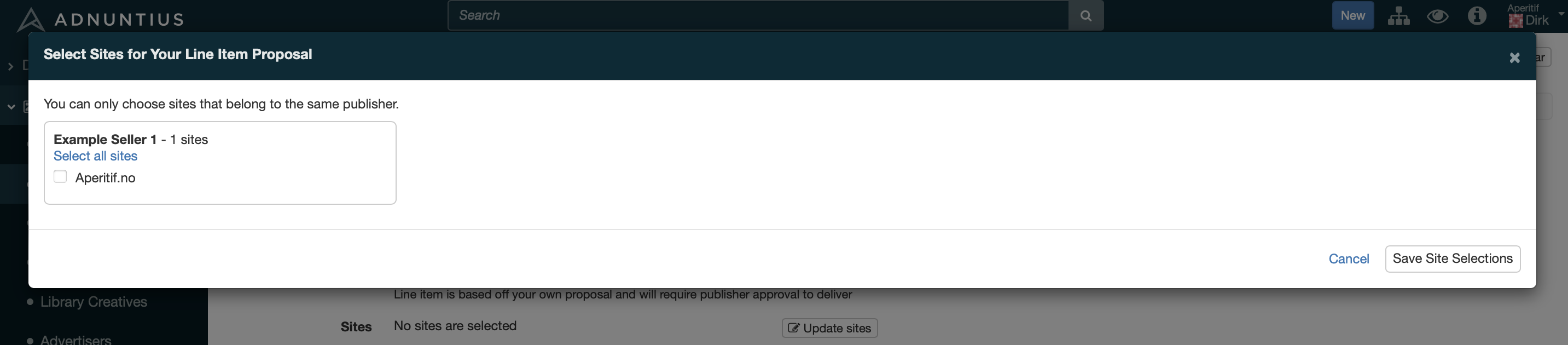
If you select the line item to be based on a "**Proposal**" you need to select one ore more sites that belong to the same publisher. A Line Item Proposal allows a marketplace advertiser to build their own proposal with start and end dates, delivery objectives (impressions, clicks or conversions), pricing and targeting. The line item will be submitted to the publisher for approval before it can deliver.

<figure><img src="/files/OoQNTsyT8g2SMl9HVouo" alt=""><figcaption><p>If you're a Marketplace Advertiser you will be asked to select one ore more sites.</p></figcaption></figure>

The line item's **delivery** shows you certain information about the line item's status.

* "*Delivering*" means that the line item is live and currently delivering impressions.
* "*Ready to deliver*" means that no additional information is needed for the line item to deliver, but it has not yet started delivering any impressions (for instance because the start date is in the future). If your line item remains in this state when it should have started delivering, have a look at these [common reasons](/troubleshooting/faq#my-line-item-state-is-ready-to-deliver-but-it-wont-start-why). You can also run a diagnostics test by clicking the "diagnostics" tab on the line item.
* "*Not deliverable"* means that no impressions can be delivered, either because something is missing (such as a bid or a valid creative) or because the line item is paused or stopped. To see what is missing, look for a yellow warning at the top of the line item page. You can also run a diagnostics test by clicking the "diagnostics" tab on the line item.
* *"Ended"* means that the line item has passed its end date, or that the objectives have been met, causing the line item to stop delivering.

![Example message given when a line item requires something to be able to deliver.](/files/-M2tFnaskvM-n5kkM-Mn)

The system will also provide the following information:

* *"Healthy"* means that, with the current delivery velocity, the line item will deliver the set objectives by the end date.
* *"Over-delivering: 30%"* means that, with its current velocity, the line item will overdeliver (in this example by 30%) or stop before its end date. You can change this by setting smoothing to "even" or "frontloaded" to make Adnuntius pace the delivery of impressions. You may also see the message *"heavy smoothing applied"*, which means that Adnuntius has discovered the over-delivery and has taken steps to slow down and pace the delivery.
* *"Under-delivering: 30%"* means that, with its current velocity, the line item will underdeliver (in this example by 30%) by the end date. This most commonly occurs when there is insufficient traffic under the current targeting on the line item, and/or when there are many line items competing for the same attention.

You can change the campaign's **state**.

* *"Reserved"* means that the line item will not deliver any impressions, but its booked traffic will be considered when running [reach analyses](/adnuntius-advertising/admin-ui/advertising/reach-analysis).
* "*Approved*" means that the line item will start delivering impressions as soon as the line item is *ready to deliver*.
* "*Paused*" means that the line item won't deliver impressions, but the booked impressions are still taken into consideration when running reach analyses.
* "*Stopped*" means that the line item won't deliver impressions, and the booked impressions are cancelled (so the line item will not count into any reach analyses).

The two states "Proposed" and "Submitted" are used in self-service advertising where you want to quality approve campaigns before they go live (for instance, to check that they do not contain illegal or offensive content).

{% hint style="info" %}
If you are interested in self-service advertising, reach out to us anytime at <support@adnuntius.com> and we will help you out.
{% endhint %}

**Objectives** allow you to specify the goal of the campaign. You can choose one or multiple objectives. If you choose multiple objectives, then the line item will stop delivering impressions as soon as it reaches *one of its objectives*. Here are the objectives you may choose between:

* Budget: Stops the line item when the budget has been reached.
* Impressions: Counted whenever an ad from the line item has been delivered by our adserver.
* Clicks: Counted whenever a user clicks on an ad.
* Visible impressions: Counted whenever an ad has one or more pixels shown in the user's viewport.
* Viewable impressions: Counted whenever an ad has 50% or more pixels shown in the user's viewport for 1 second or longer.
* Rendered impressions: Counted whenever an ad has been rendered onto the page (rendering can be controlled with lazy requesting or lazy loading).
* Conversions: Counted whenever a conversion has happened according to how you want to define a conversion (read more below).

**Bids** and **bid strategy** lets you choose how much and how to bid.

* *Standard* means that the line item will bid whatever CPM bid you set on the campaign. If you set 5 EUR as a bid, the line item will bid just that.
* *vCPM* means that the bid will be adjusted to the historical viewability of the request. If you bid 5 EUR but the likely viewability is 80%, then the bid will be adjusted in this one example to 5 x 80% = 4 EUR.
* *Dynamic bidding* dynamically adjusts impression bids up to the provided maximum CPM, to optimise the budget spend. If you bid 5 EUR this means that the system will never bid more than 5 EUR, but will potentially bid lower as long as it doesn't affect the line item's objectives.

### **Type**

Type lets you choose between Auction and Sponsorship.

#### Auction

Auction means that the line item will compete with other line items based on your line item's bid (CPM, CPC or CPA). All bids will be converted to eCPM before the auction takes place. With the Auction model you can enable or disable [smoothing](/adnuntius-advertising/admin-ui/advertising/smoothing), which means that (when enabled) the line item's impressions will be delivered evenly throughout the campaign period.

#### Sponsorhip

Sponsorship means that, rather than running an auction, you can give the line item a share of voice as a percentage. For example, if you give your line item 25% share of voice, this line item will get 25% of the traffic that is targeted to the line item (if you for instance choose an ad unit as targeting, the line item will get 25% of this ad unit's available traffic). Please note that when you choose Sponsorship, the CPM pricing will be disregarded when the system chooses an ad.

{% hint style="info" %}
When specifying a share of voice, take into consideration the [tier](/adnuntius-advertising/admin-ui/admin/tiers) into which your line item is booked. If a tier is allowed to consume 50% of traffic and is the second highest prioritized tier, then consider that a line item with share of voice 25% then these rules will apply: (1) your line item will only get as much traffic as is passed on from the highest tier; and (2) your line item will receive 25% of the 50% of traffic that your tier has been assigned with. So your line item will get 25% x 50%x (100% - what is consumed by higher prioritized tiers).
{% endhint %}

**Smoothing** lets you control the pacing of ad delivery. You can choose between "ASAP", "Even" and "Frontloaded". See the [smoothing](/adnuntius-advertising/admin-ui/advertising/smoothing) page for more detail.

**Capping** lets you limit the delivery of a line item. if you choose to add more than one rate limit, then both limits will be added to the line item, essentially adding two restrictions on top of each other.

* *Type (line item-wide or per user)*: Per user means that you will limit the number of impressions or clicks per user for whatever period you set. Line item-wide means that you will limit the delivery of the whole line item.
* *Count* lets you set the number of impressions or clicks
* *Type* lets you choose if that number should be impressions, visible impressions, viewable impressions, rendered impressions, or clicks.
* *Period* lets you choose whether the X number of impressions or clicks should be per hour, day, week, month or for the line item's lifetime.

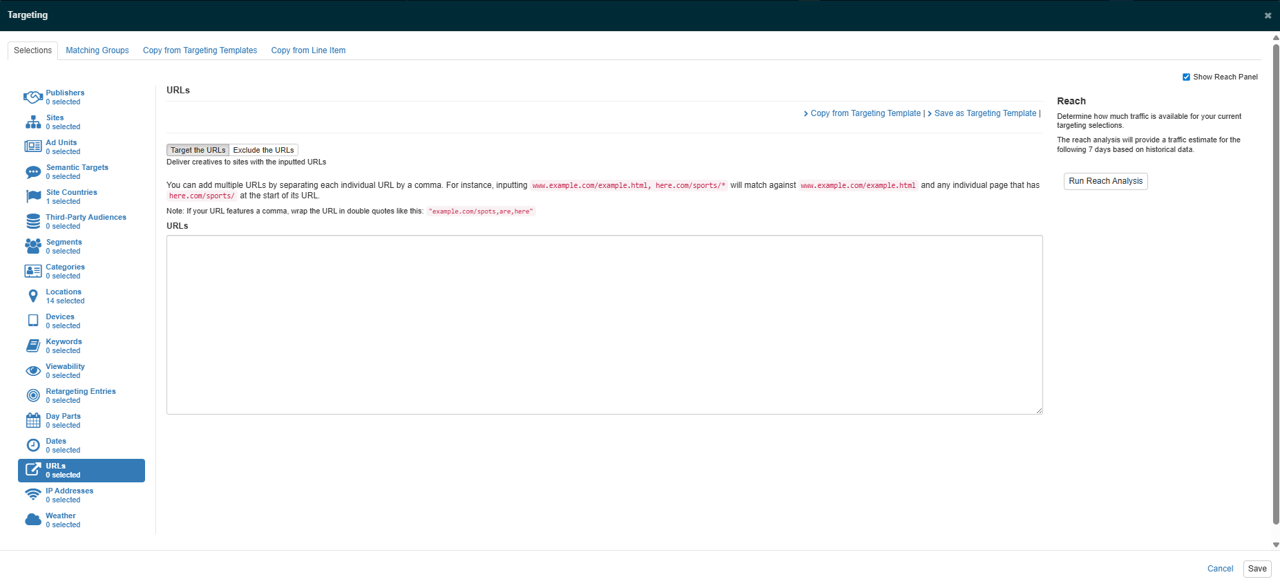
**Targeting** lets you direct the line item's impressions to specific users or content. There are many targeting criteria you can choose between, so [we have set aside a different page for this](/adnuntius-advertising/admin-ui/advertising/targeting). You can apply this targeting to both line items and creatives. Just make sure that when you use targeting on both these levels, that they are not mutually exclusive. For instance, if you target a line item to people sitting in New York, and one of its creatives to people sitting in Miami, then you reach no people with that creative (because no one can be in two places at the same time).

{% hint style="info" %}
Please note that you do not have to add targeting to both line items and creatives, unless you need to further narrow the reach of a creative from the targeting applied to the parent line item.
{% endhint %}

When you target multiple items in the same group (for instance, multiple ad units) your ads will be eligible to be shown in item 1, item 2, OR item N. When you target multiple groups (for instance, one ad unit and one segment) then your ads will only be shown when group 1 AND group 2 matches.

You can upload **creatives** to the line item, or copy creatives from other line items. To learn more about creatives, [see the creatives documentation page](/adnuntius-advertising/admin-ui/advertising/creatives).

**Tiers** let you prioritize this line item above or below other line items. If more than one line item exists within one tier, then those line items will compete for attention according to the *Type* set above. If you have set the type to "auction" then the line items will compete on eCPM pricing, while if you set the type to "sponsorship" then the share of voice is set by the percentage. To create and re-arrange tiers, please see [tiers](/adnuntius-advertising/admin-ui/admin/tiers).

**Companion creatives** let you determine if each creative should be delivered individually, or if they should be served at the same time. This enables you to create for instance so-called "horse shoe ads", where two skyscrapers and a top banner are always shown at the same time, or not at all. You can choose between the following settings:

* Off: Each creative will be delivered individually.
* Any: At least one creative, possibly more or all, will be shown at the same time across multiple ad units that match this line item.
* Multiple: At least two creatives, possibly more or all, will be shown at the same time across multiple ad units that match this line item.
* All: Each creative is shown at the same time across multiple ad units or not at all.

**Creative delivery** allows you to determine whether creatives can be served multiple times on the same page, or if restrictions should apply. "Open" means that the same creative can be delivered multiple times one the same page. "Unique" means that no same creative from this line item can be delivered one the same page. And "one per line item" means that maximum one creative from this line item can be delivered one the same page.

**Creative weighting** lets you control whether the creatives uploaded to your line item should be shown with equal frequency ("Equal"), or if the creatives that receive more clicks should be shown more frequently. Adnuntius measures the clickrate of each creative, and if one creative provides better clickrate then the system will show more of that creative and less of the others. This weighting will however not affect any objectives you set; if you for instance set a line item to deliver 1,000,000 impressions, this weighting does not put that objective into risk.

CPM cost calculation lets you determine if the line item should define CPM based on impressions or rendered impressions. The following choices are available:

* Use [the network's default method](/adnuntius-advertising/admin-ui/admin/network) of calculating CPM advertising costs.
* By impressions: Calculate advertising costs as CPM × impressions ÷ 1000.
* By rendered impressions: Calculate advertising costs as CPM × rendered impressions ÷ 1000.

**Exclusion labels** allow you to ensure that defined line items cannot be delivered on the same page. This can be useful if you for instance have two car dealers that do not want to be shown together. In this case you can add the label "car-dealer" to both line items, which means that these two line items will never be shown on the same page.

{% hint style="info" %}
Please note that in order for companion creatives, creative delivery and exclusion labels to work, ad units must be deployed to the publisher's page according to the [Multi adn.request Calls](/adnuntius-advertising/requesting-ads/intro/adn-request) guidelines.
{% endhint %}

**Labels** let you add labels to a line item to make it easier to search for, and to group line items together in reporting. To learn more about reports, please see the [reports section](/adnuntius-advertising/admin-ui/reports).

## When a Line Item is Created

When a Line Item is created you will be able to see the following tabs.

### Line Item

The line item tab shows you how the line item is delivering. You can specify the period you want to look at, the metrics important to you, and how you want the data visualized. Once you have the data interesting to you, you can also download it as an Excel or CSV file. In the user interface you can also see a breakdown of each creative, and each ad unit added to the line item.

![Example line item statistics](/files/NThat0q1qPLgy242fPoH)

### Creatives

The creaties tab shows you how each of the line item's creatives delivers. You can specify the period you want to look at, the metrics important to you, and how you want the data visualized. Once you have the data interesting to you, you can also download it as an Excel file. You can also do the same to each creative that is part of the line item.

![Example creative stats on a line item page](/files/Yk9QFebf78cxYguAcCDq)

### Reports

The Reports tab lets you create a report based on a [report template](/adnuntius-advertising/admin-ui/reports/reports-templates-and-schedules), that can be shared with others as a link. You can also schedule reports to be created regularly, and whoever should receive the reports. Once you have created a scheduled report and added a recipient, Adnuntius will automatically send reports to email recipients, containing the data you have decided on using in the [report template](/adnuntius-advertising/admin-ui/reports/reports-templates-and-schedules).

The report tab also gives you the audit history of the line item. This means that you can see the changes made to the line item, when they were made, and who made them.

![Create scheduled reports from a line item](/files/hNBfpvDx5MhzqSAwyQZg)

### Articles

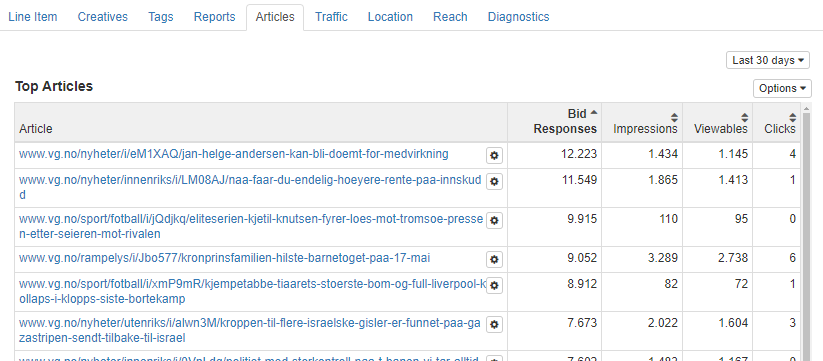
This tab gives you a breakdown of delivery per article. This can be particularly useful when using semantic and/or keyword targeting, to understand which articles display your ad more often. You can also click the cog wheel symbol to target or exclude an article.

<figure><img src="/files/xneamImhx0yp8PktenLX" alt=""><figcaption></figcaption></figure>

### CO2

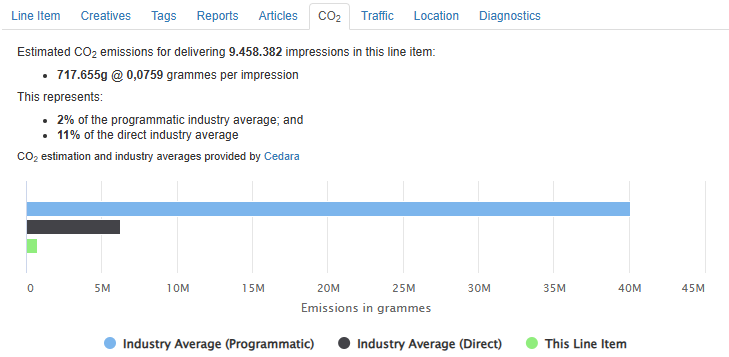
This tab provides insight into how much CO2 your line item has emitted. In the explanation below we use the numbers from the screenshot at the bottom.

* First you will see the sentence "Estimated CO2 emissions for delivering 9,458,382 impressions...". The number of impressions will be the same as what is delivered so far on your line item - except data for up to the last 24 hours. This is because we update the data once per day, so there is a delay of up to 24 hours.
* The first bullet point explains the total emissions (717,655 grams), and emissions per impression.
* We then compare your emissions to the industry average, if you ran the campaign through a traditional programmatic platform (2%). This means that, by running the campaign through Adnuntius, you emit 2% of what you would emit if you ran the campaign through a traditional DSP.
* We also compare your emissions to the direct industry average. This means that, by running the campaign through Adnuntius, you emit 11% of what you would emit if you ran the campaign through another adserver.

<figure><img src="/files/oG0ZKc2FhOvXQqalGlPG" alt=""><figcaption></figcaption></figure>

The measurements are provided by [Cedara](https://www.cedara.io/), a company that measures emissions according to global industry standards including the Global Media Sustainability Framework (GMSF), and helps businesses reduce their overall emissions.

{% hint style="info" %}
We started measuring the numbers January 27th 2025. If your line item started running before this we may show a lower CO2 emissions totals because we haven't measured based on all your impressions. If your line item started delivering after this you should not see any difference.
{% endhint %}

### Traffic

The traffic tab shows you the delivery of impressions, clicks, viewables and visible impressions across the line items belonging to this line item.

![Traffic example from a line item](/files/P4s4KfshYFz9LSzbdFmJ)

### Location

The location tab gives you the traffic to the line item broken down by country.

![Location stats from a line item](/files/uhz8g1twgiMrmjvtUVnr)

### Reach

Reach is an analysis you can run to forecast the volume of matching traffic for a line item. A reach analysis estimates the total number of available impressions, clicks, viewable impressions and more that match your targeting criteria. Please see [Reach Analysis](/adnuntius-advertising/admin-ui/advertising/reach-analysis) for more information on how to read the results.

![](/files/xKpEjm5TywbUCUiCm6mc)

### Diagnostics - Tests

If you experience something wrong with the line item (for instance, it doesn't start delivering as expected), diagnostics is a great way to give you more insight into what might be going on. Before we explain the results you get from clicking "Run diagnostics test", let's explain what "Burn rates" tells you.

A burn rate below 100% means that Adnuntius is slowing down your line item's delivery to avoid delivering its objectives well before its end date. If you have [smoothing](/adnuntius-advertising/admin-ui/advertising/smoothing) enabled for your line item, and the line item is slightly overdelivering, then the system may slow down the burn rate to get the delivery back on track.

If you click "Run Diagnostics Test", you may get a result that looks something like this:

<table><thead><tr><th width="240.44738649828076">Diagnostics example</th><th width="443.5867132161395">Explanation</th></tr></thead><tbody><tr><td>Line Item dates indicate it should be currently running.</td><td>If the line item's start date had been in the future or the end date had been in the past, this could have been the reason why the line item didn't deliver any impressions. However, this check tells you that the dates are not the problem.</td></tr><tr><td>Line Item has no validation warnings.</td><td>When there is some information missing on a line item (for instance, if there is no creative to serve, or that the line item is paused), then there would be a warning in a yellow box on top of the line item page. This check looks for such a warning, but in this case there is no warning, and there is no information missing from the line item.</td></tr><tr><td>Located all assets for the Line Item on the CDN.</td><td>The asset test checks if Adnuntius has successfully been able to find the line item's creative material on our CDN. If you ever see a warning here, try to re-create your creatives, and if that does not work, contact us at support@adnuntius.com.</td></tr><tr><td>There are Ad Units with suitable dimensions.</td><td>The ad unit test checks if there are ad units with the appropriate width and height that can serve one of the creatives.</td></tr><tr><td>Line item delivery is NOT currently limited by smoothing.</td><td>Smoothing might limit the delivery of a line item if enabled, to ensure that the line item will not meet its objectives before the end date. If your line item is limited by smoothing and you want this to stop, try setting the line item's delivery to "unsmoothed".</td></tr><tr><td>There is no frequency capping.</td><td>Frequency capping might limit the delivery of a line item if enabled. If your line item is limited by frequency capping and you want this to stop, try removing the frequency cap from your line item.</td></tr><tr><td>The line item has lost about 25% of auctions in the last 24 hours.</td><td>If your line item loses auctions you may have to increase its bid price if you want it to win more often. Increasing the win rate may increase your velocity.</td></tr><tr><td>The line item did not deliver enough events in the past 24 hours.</td><td>This means that your line item didn't deliver enough impressions, clicks or whatever your objectives are, in order to deliver on all objectives before the end date of your line item. You can change this with one of the actions described above.</td></tr></tbody></table>

If your user has access to the Inventory part of Adnuntius you can also run [diagnostics for ad units](/adnuntius-advertising/admin-ui/inventory/adunits-1) if you wonder what ad would win an auction for a given ad unit.

{% hint style="info" %}
You can also add ?adndebug123 at the end of any URL (example: [www.aperitif.no?adndebug123](https://www.aperitif.no/?adndebug123)) to show you all ad units, line items, creatives, targeting and more information in the context of a webpage.
{% endhint %}

![Example diagnostics page on a line item](/files/eI4EynVFhMP3gHs13zDF)

### Diagnostics - Win Rate

Please see the "Auction Win Rate" in the example screen shot above for an example.

Have you ever found your campaign to underdeliver according to your targets, without getting immediate help to understand what you can do to increase its velocity? Auction win rate helps you understand how your line item performs and what are the potential reasons that it doesn't deliver faster. Below is an explanation of each of the values you see in the auction win rate overview and what you can do about it.

{% hint style="info" %}
Please note that Adnuntius allows you to change the names of the values under the Network, so you may see different names for certain values.
{% endhint %}

* **Win rate (today) - for example 70%.** The percentage of auction bids that your line item won. Taking into account your line item's targeting, creative sizes, bid price, frequency capping and all other factors that limit your delivery, your line item ended up winning 70% of auction bids in this example.
* **Total matches - for example 10,000.** The number of ad requests that match your targeting and creative sizes. Total matches represents the total available impressions for your line item and is hence the maximum that could possibly be served, given your targeting and creative sizes. If you want this number to be larger you can try to add more creatives with different sizes, or you can remove some targeting.
* **Excluded by frequency capping - for example 3%.** The share of impressions you avoid because your line item has frequency capping enabled. You can turn off or increase the frequency cap to reduce the percentage. In this example, if you remove the frequency cap then your 10% win rate may grow to 13% because you remove a limiting factor.
* **Excluded by Rate Limiting - for example 5%.** Adnuntius adds a rate limit if you are meeting your objective(s) and your line item needs to slow down. For example, if you set your line item to deliver evenly throughout the campaign period and you are currently forecasted to overdeliver at the end of the period, then Adnuntius will slow down delivery. In this example your line item is avoids bidding on 5% of the matching requests. If you set the line item's delivery to "unsmoothed" and remove any line-item-wide rate limits then your10% win rate may grow to 15% because you remove limiting factors.
* **Auction bids - for example 9,200.** Total matches, minus the potential impressions removed by frequency capping and rate limiting. These are the impressions that you can actually win, given your currently configured capping and rate limiting.
* **Win rate - for example 70%.** The share of auction bids where you win the auction between all line items bidding in Adnuntius. If your win rate is less than 100% then the losses are due to either tiers (priority of the line item), sponsorship or auction price.
* **Impressions - for example 6,440.** This is the number of impressions you have won.
* **Rendered impressions - for example 1,932.** The impressions that are actually rendered onto a page. Differences between impressions and rendered impressions can occur for instance if the publisher uses header bidding to let multiple bidders compete for an impression. In this example the rendered impressions are 30% of the impressions, which means that out of the impressions you win in Adnuntius, you win the header bidding auction 30% of the time.
* **Win rate (yesterday) - for example 8%.** The same as "win rate: today" but for the day before. This number can be useful as a comparison if you are trying to increase your win rate.

### Diagnostics - Rate Limiting

Please see the "Rate Limiting" graph in the example screen shot above for an example. The rate limiting shows you the burn rate of your line item in the past. Adnuntius adds a rate limit if you are meeting your objective(s) and your line item needs to slow down. For example, if you set your line item to deliver evenly throughout the campaign period and you are currently forecasted to overdeliver at the end of the period, then Adnuntius will slow down delivery.

If you're burn rate is less than 100% and you want it to deliver faster, try setting the line item's delivery to "unsmoothed" and/or turn off any rate limits.

### Floor Prices

Floor prices lets you see any floor prices applied to the publishers and sites that you target.

### Bid Updates

If you have applied dynamic bidding to your line item, bid updates can be useful to understand the bidding history and trends of your line item. The bidding history is broken down per site, and shows the max and minimum CPM bid.


# Line Item Templates

Do you run multiple campaigns with same or similar targeting, pricing, priorities and more? Create templates to make campaign creation faster.

Line item templates lets you add targeting, pricing, frequency capping and much more to a template, that can be re-used whenever you create a campaign that should inherit those settings from your template.

To create a line item template, go to <https://admin.adnuntius.com/line-item-templates> and click "new" in the upper right corner. You can now create a line item template in the same way you create a [regular line item](/adnuntius-advertising/admin-ui/advertising/line-items).

When you are done and have clicked "save" you can easily create new line items from your template: just go to your line items overview page (<https://admin.adnuntius.com/line-items>) and click "new line item from template" in the upper right corner.

<figure><img src="/files/Bd4MEqK4Ko7xmvXmJXLg" alt=""><figcaption><p>To create a line item from a template, click "new line item from template" in the upper right corner, then choose your template.</p></figcaption></figure>


# Creatives

Creatives is the material shown to the end user, and can consist of various assets such as images, text, videos and more.

{% embed url="<https://youtu.be/Em1x3_JE75E>" %}
How to create a creative.
{% endembed %}

There are different places in Adnuntius from where to create a creative, depending on your needs and preferences. Here are the differences.

| From where?              | From the Line Item page                                                                                                     | From the Creatives Overview                                                                                                           | From a Library Creative                                                                                                                                               |
| ------------------------ | --------------------------------------------------------------------------------------------------------------------------- | ------------------------------------------------------------------------------------------------------------------------------------- | --------------------------------------------------------------------------------------------------------------------------------------------------------------------- |
| Where to find it?        | On each line item, click “new creative” or “copy another creative” to create a new creative from another existing creative. | On the creatives overview page: <https://admin.adnuntius.com/creatives>.                                                              | On the library creatives overview page: <https://admin.adnuntius.com/library-creatives>.                                                                              |
| Bulk upload available?   | No.                                                                                                                         | Yes.                                                                                                                                  | Yes.                                                                                                                                                                  |
| Assigned to a line item? | Automatically assigned to the line item from which you clicked to create.                                                   | Optional; can be assigned to a line item when creating, or left without a line item.                                                  | Library creatives are not assigned to line items, only to Teams.                                                                                                      |
| Who has access?          | Anyone with access to the team that the line item’s order belongs to.                                                       | If assigned to a line item; anyone with access to the team that the line item’s order belongs to. If unassigned; only you personally. | If assigned to a team; anyone with access to that team. If unassigned; only you personally.                                                                           |
| How are stats recorded?  | Uniquely; if a creative is copied then those two will exist individually and record stats separately.                       | Uniquely; if a creative is copied then those two will exist individually and record stats separately.                                 | No stats are collected to library creatives; but if you copy a library creative to a creative assigned to a line item, then that creative will record stats as usual. |

{% hint style="info" %}
Read more about library creatives [here](/adnuntius-advertising/admin-ui/advertising/library-creative).
{% endhint %}

## Creating a Single Creative

After you have clicked to create a new creative (from the line item, or by clicking "new" in the upper right corner from the creative overview page or library creative overview page), give your creative a **name** of your choice.

You can set the **state** of a creative to approved, incomplete or paused.

* Approved means that it will start delivering as soon as the necessary assets as described below are added to the creative and the line item is set to deliver.
* You can set the creative to Incomplete to prevent it from delivering, and to signal to yourself and colleagues that more information or material needs to be added before the creative is approved.
* You can set the creative to Incomplete to prevent it from delivering, even though all necessary assets and information is added to the creative.

![Example creative](/files/6D8MOPd71XvxeHq4u4Qt)

**Impression tracking URLs** can be added to ensure that third party systems can track the impressions in the same way as Adnuntius can. Impression tracking URLs are provided by the advertiser or whoever controls the access to that third party system. Please note that some third party systems will deliver an impression tracker as an image tag, such as the one below.

```markup
<img src="http://track.adform.net/adfserve/?bn=12345678;1x1inv=1;srctype=3;ord=[timestamp]" border="0" width="1" height="1"/>
```

If this is the case, you can paste in the URL within this pixel; for example:

```http
http://track.adform.net/adfserve/?bn=12345678;1x1inv=1;srctype=3;ord=[timestamp]
```

**Creative type** can be set to *Internal* or *External.* External creatives are relevant only to publishers who want programmatic ads on their sites, and means creatives that are fetched from SSPs via prebid or one of our server-side integrations. The tabs below shows how to set up an external creative, while the rest of this section is about creating internal creatives.

{% tabs %}
{% tab title="External Demand Source" %}
After choosing Creative type "External", the first step is to select your external demand source. Please note that if you haven't set this up yet, you will need to do so by first [adding an external demand source](/adnuntius-advertising/admin-ui/admin/context-services), and then [creating external ad units](/adnuntius-advertising/admin-ui/inventory/external-adunits).

![First step: add an external demand source](/files/-LRmxCUFiRYKD5TRbZOq)
{% endtab %}

{% tab title="External Ad Unit Targeting (Optional)" %}
If you want to target your programmatic creative to specific ad units, you can use external ad unit targeting. Please note that if you haven't created external ad units yet, [you can learn how to do so here](/adnuntius-advertising/admin-ui/inventory#external-ad-unit).

![Example where the creative is targeted to one external ad unit](/files/-LRmxncLrK7QPLtkFZAG)
{% endtab %}
{% endtabs %}

**Layout** specifies the file types and properties, and the types of formats ("look and feel") that you can serve with your campaign. When you select a layout, Adnuntius will tell you what information is needed for the creative. For example, if you choose a layout called "Image" then Adnuntius may ask you for an image file with a max size restriction, and a click URL.

{% hint style="info" %}
If your user has access to create layouts, [here is how you do it](/adnuntius-advertising/admin-ui/design/layouts).
{% endhint %}

**Uploaded assets** is where you upload the files needed to assemble the creative. You can click to upload, or drag and drop. You can also drag and drop multiple files into the file drop field, and get all files into the creative with one move.

If you have more than one creative on your line item, you can put a **share of voice** on the creatives to control delivery of this creative compared to others in the line item. If you give one creative 33% and the other 66% then one creative will have double the weight (attention) compared to the other. If you leave the field blank, then no creative will be prioritized more than the other.

**CPM bid** allows you to set a CPM bid specifically for this creative. This CPM bid will override any CPM bid set on the line item. This is an optional field, and if you leave it blank then the CPM bid on the line item will apply to this creative.

You can add **targeting** to both line items \*\*\*\* and creatives. To learn about targeting, please [see the targeting documentation](/adnuntius-advertising/admin-ui/advertising/targeting).

**Width and Height** means the dimensions of your creative. These dimensions are only used to find out which ad units are eligible to show this creative. An ad unit will always be set up with minimum and maximum width and height, and if an ad unit can only show 980x300 pixels, then a creative with added dimensions 980x150 will not show in this ad unit.

## Creative Bulk Uploads

We want to make it easy and fast for our customers to create campaigns. One of the tasks we know can be time consuming is uploading and preparing creative material, which is why we created bulk upload for creatives. Bulk upload makes it easy to drag and drop images, html files and files containing third party tags, to create multiple creatives at the same time.

To upload creatives in bulk go to the creatives page, or the library creatives page, both under the Advertising section in Adnuntius. In the upper right corner, click "bulk upload".

Choose the type of creatives that you want to upload. You can choose between images, third party, and html. Then, click to upload your creatives or drag and drop your creative files in one move into the upload window. Please note that if you have an excel or CSV file with multiple third party creatives, you can drag and drop that file.

![When you click "bulk upload" you come to a page like this, where you also find earlier creatives uploaded in bulk.](/files/YBd8N0IJ4VZHhQUFfACp)

You should now arrive at a new page where you can make changes to the creatives as needed.

* Apply a line item if you already have a line item that these creatives should be assigned to. Click "copy to others" if all creatives you are currently managing should be assigned to the same line item. If you do not assign a line item then the creatives will be retrievable from the creative or library creative overview page.
* You can make any changes to the names of the creatives as you wish.
* You can change the layout of the creatives, and click "copy to others" to make that change apply to all creatives you are uploading.
* Assign or check the width and hight of the creative.
* The remaining fields depend on the layout, and will change depending on the creative you want to create.

When you have clicked to save a creative you can make changes to each creative according to the documentation above.

![Manage the details of each creative before saving them.](/files/ZmwxD4Xu35jaxMDpPIFR)

## When a Creative is Created

When a creative is created you will have access to the following resources.

### Statistics

Creative charts provide you with insights into the creative's delivery. You can specify the period you want to look at, the metrics important to you, and how you want the data visualized. Once you have the data interesting to you, you can also download it as an Excel file.

![Example statistics for a creative.](/files/wI2L40gChtZ6jpAHWfs0)

### Creative Preview

Creative preview gives you a preview of the creative. You can also click "preview on a black page" and the creative will render on a blank page, as it will be on a live page.

![Example creative preview.](/files/XiWmGR4GWm0z2buEGckI)

### Trackers

You can easily generate impression trackers and click trackers so that you can ask third party, so that you can paste the resulting URLs into the appropriate place in third-party systems to have this creative serve as an impression or click tracker. Just choose the ad unit you want to use, and the trackers are automatically created.

![Trackers for a creative.](/files/sw1UKoSR9yq7Bqwb0lUe)

### Creative Tag

If your creative is going to be served by a third party system, then you can generate a creative tag that can be pasted into the appropriate place in third-party systems to have this creative serve on third-party ad servers. Choosing an ad unit is optional:

* If you choose an ad unit then Adnuntius will collect statistics to that ad unit as well as the creative itself. Just choose the ad unit you want to use, and the tag is automatically created.
* If you choose not to specify an ad unit the creative will serve just fine, and you will collect stats to the creative. However, no stats will be collected to any ad unit since you haven't specified any.

![Creative tags](/files/DJTSEGt0NR8hU62Fqvvi)

### Creative Tag for Emails

You can also create tags for emails if this creative is going to be served inside emails. Just choose the ad unit you want to use, and the tag is automatically created.

Please note that if you want an email tag that can serve ANY creative (not just this specific creative), you can do so under [Ad units](/adnuntius-advertising/admin-ui/inventory/adunits-1).

![Example creative tag for email](/files/Yp7Mh2QXUyCsFUCe6au4)


# Library Creatives

Library creatives enable you to edit creatives across multiple line items from one central location.

Library Creatives enable the same creative design to be used across multiple line items, all of which are editable via the Library Creative. An extra bonus is that an individual Creative that is linked to a Library Creative can override specific elements from the Library Creative's design yet still be tied to it.

## How to Work with Library Creatives

Library Creatives are created in much the same way as a [Creative](/adnuntius-advertising/admin-ui/advertising/creatives).

Two differences are setting up what Teams have access to a Library Creative and the ability to create Creatives based off the Library Creative.

![An example Library Creative highlighting the differences with Creatives](/files/AQGWptnO4bmsRHPgFuyh)

The Linked Creatives tab reveals all the Creatives that are based off the Linked Creative. Any updates to the Library Creative will then flow through to all the Creatives.

![The creatives linked to the Library Creative](/files/ThofB5O8kbflPjy4Ewxy)

## How Creatives Linked to Library Creatives Work

Creatives linked to Library Creatives are highlighted as such and allow for individual fields to be overridden.

![A Creative linked to a Library Creative with two overrides](/files/DVmqochmXqTM1pAIzGVG)

The two overrides in the Creative highlighted above mean that updates to the URL or device targeting in the Library Creative will not flow through here.

{% hint style="info" %}
We are currently working to also support bulk upload of library creatives, to make it easier and faster to add multiple creatives to your library. Stay tuned for more!
{% endhint %}


# Targeting

You can target line items and creatives to specific users and/or content. Here you will find a full overview of how you can work with targeting.

Targeting lets you direct a line item's and/or creative's impressions to specific users or content. Any of the targeting criteria below can be added to both line items and creatives. Just make sure that when you use targeting on both these levels, that they are not mutually exclusive. For instance, if you target a line item to people sitting in New York, and one of its creatives to people sitting in Miami, then you reach no people with that creative (because no one can be in two places at the same time).

{% hint style="info" %}
Please note that you do not have to add targeting to both line items and creatives, unless you need to.
{% endhint %}

When you target multiple items in the same group (for instance, multiple ad units) your ads will be eligible to be shown in item 1, item 2, OR item N. When you target multiple groups (for instance, one ad unit and one segment) then your ads will only be shown when group 1 AND group 2 matches.

![How to find targeting on line items and creatives.](/files/-M2tkOxKgSIinVyyJk50)

## Targeting Templates

Targeting templates allow you to save combinations of targeting criteria for later re-use. For example: if you repeatedly target multiple line items or creatives to a set of locations, then rather than adding those locations manually each time you create one, you can save a template so that you can use the same targeting with one click. Below you can see an example of how to save a targeting template for multiple ad units.

![Targeting Template created from three ad units.](/files/-M2tn5RGFvHfmI_4ZynB)

## Copy from Line Item

You can copy the targeting that has been added to other line items. If you work with complex targeting criteria and want to add these targeting combinations with the click of a button, then this is the function for you. You can either copy targeting from running line items, or you can create "template line items" that contain the targeting criteria you most often use, so that you can copy from those templates. Below is a video demonstrating how to copy targeting from other line items.

![](/files/-M2tp7y2sHmGnDP1qkls)

## Ad Unit Targeting

An [ad unit ](/adnuntius-advertising/admin-ui/inventory/adunits-1)is a placement that goes onto your site, so that you can later fill it with ads. It is as such an empty container that sets aside a space on your site so that you can fill it with content. Ad unit targeting allows you to target a line item and/or creative to one or more ad units.

You can choose to add include the chosen items in your targeting, or to exclude them (whatever is easiest given your need).

![Ad unit targeting can be added to line items and to creatives](/files/-LRk_t2a9tIzsiWEpU03)

## Site Targeting

A [site](/adnuntius-advertising/admin-ui/inventory/sites) is an object that makes it easy to organize your content according to the domains, or sites, that you own, control or have access to. Site targeting allows you to target your line items and/or creatives to one or more sites. You can choose to add include the chosen items in your targeting, or to exclude them (whatever is easiest given your need).

![Site targeting can be added to line items and creatives](/files/-LRkbEEpERppvA3fAVT_)

## Site Group Targeting

Publishers can [group sites together](/adnuntius-advertising/admin-ui/inventory/site-groups) in order to make targeting a set of sites easier. Once a site group is created you can target line items and/or creatives. You can choose to add include the chosen items in your targeting, or to exclude them (whatever is easiest given your need).

![Site group targeting can be added to line items and to creatives](/files/-LRkcABhkLDAssiYs7us)

## Ad Unit Matching Label Targeting

Matching labels are labels added to ad units that you can later use for targeting groups of ad units. Let's say that you add the label "sports" to three different ad units, and then target a line item to the matching label "sports". You will then target your ads to be shown in these three ad units.

You can add multiple matching labels, so that an ad unit can match for instance either "sports", "mobile", "300x250" or any other label that you may see fit to add. If you add more than one label, then an ad unit will match a line item or creative with any of these matching labels added as targeting.

![Right: you can add a matching label to an ad unit. Left: after that you can target on those matching labels](/files/-LRkg5L7fg2kMLCKZ6Ml)

## Third-Party Audiences

Third party audiences are segments of users defined using third party providers. Please note that this targeting option may not be visible, depending on whether or not there are third party audiences available in your region to which we have connected. If you have third party audiences you would like to have connected, please reach out to us at <support@adnuntius.com>.

<figure><img src="/files/jImxRKiXIcM5PxU5bkMT" alt=""><figcaption><p>Third party audiences can be added as targeting to your line item.</p></figcaption></figure>

Please note that third party audiences is available to line item targeting only (not creative targeting). Also, please note that depending on the third party in question Adnuntius may charge for adding segments.

## Segment Targeting

Segments are based on historic user behaviour, and targes groups of users (or "audiences") that have something in common. There are three ways of connecting to user segments:

1. Using [Adnuntius Data](/#adnuntius-data), a data platform that allows you to unify your 1st and 3rd party data and eliminate silos, create segments with consistent user profiles, and to activate your data in any system. Any data collected by Adnuntius Data will automatically be avaiable for targeting in Adnuntius Advertising without any setup work needed in advance.
2. Using Cxense DMP. Adnuntius has a server-side "out-of-the-box" integration to data management platform (DMP) partner Cxense, which means that you can easily connect to Cxense to get your segments into Adnuntius for targeting. To connect your Cxense account, please [read more here](/adnuntius-advertising/admin-ui/admin/context-services).
3. Using whatever data source or DMP that you already use. [Read more here](/adnuntius-advertising/admin-api/endpoints/segmentsupload) about how to connect your data source to Adnuntius Advertising so that you can target your audience.

![Segment targeting can be added to line items and to creatives](/files/-LRkks5WYPrjhQa9iqVO)

## Category Targeting

Adnuntius can read the URLs from whatever pages that ad units are deployed to. [Read more about how to set ad units to derive categories for category targeting from page URLs](/adnuntius-advertising/admin-ui/inventory/adunits-1). Once you've set up your ad units you can add targeting in different ways:

* If you add "sports, travel" to the text field your ad will target any URL that contains either /sports/ or /travel/ or both. For example, the URL [www.example.com/sports/football/article.html](http://www.example.com/sports/football/article.html) will match.
* If you add sports/football then your ad will target any URL that contains /sports/football/. For example, the URL [www.example.com/sports/football/article.html](http://www.example.com/sports/football/article.html) will match. However, the URL [www.example.com/sports/article.html](http://www.example.com/sports/article.html) will not match.
* If you add [www.example.com/sports/football/article.html](http://www.example.com/sports/football/article.html) then your ad will target this URL and only this URL. Please note that dashes in a URL will not work. In other words, this URL ([www.example.com/sports/football/article.html](http://www.example.com/sports/football/article.html)) will work fine, but this URL ([www.example.com/sports/football/some-article.html](http://www.example.com/sports/football/some-article.html)) will not.

![Category targeting can be added to line items and creatives](/files/-LRlVBEFv6kiWNCEywvJ)

You can also upload a library of categories if you would rather like to choose categories from a list rather than writing them into the text field. For more information on how to upload categories, please see [Reference Data](/adnuntius-advertising/admin-ui/admin/reference-data).

## Semantic Targeting

Adnuntius can read the content of a page and use large language models to interpret the content of that page. When a campaign is later added, and that campaign contains a campaign brief, word cloud or similar text input, that text is interpreted in the same fashion and matched to e.g. article pages that discuss the same topic. Here is an example:

* A published article discusses how rising gasoline prices affect car purchasing decisions, and how more people consider electric cars.
* A campaign is created in Adnuntius with the following text input: "We now have a campaign with very favorable prices on our popular electric cars. Several of the electric cars on campaign are ready for delivery! Check the selection and make a bargain on a new electric car with promotional interest or promotional prices."
* This campaign is likely to serve on this article because they discuss similar topics.

The illustration below helps understand how semantic targeting can be used.

1. The field where you can input sentences like a campaign brief or text from a website, or a word cloud.
2. Match level allows you to tune how strictly you want the targeting to be. For example, if you choose "5 - very closely related" then the system will allow matching only to articles that match your input text very well.
3. A preview showing examples of articles that your ad will deliver on, given your input text and match level.

<figure><img src="/files/y4HtiY9uEronXlDkaAsL" alt=""><figcaption><p>Semantic targeting.</p></figcaption></figure>

## Geospatial Targeting

Geospatial targeting can be used when you want to closely manage which geographical locations are to be targeted. Click the polygon or rectangle icon on the right hand side of the map and start drawing in order to specify the location you want to target.

Please note that, by default, geospatial targeting uses IP addresses for locating users. As IP addresses do not always provide accurate locations you can, if you ask for users' permission to track their location, [send the longitude and latitude](https://docs.adnuntius.com/adnuntius-advertising/requesting-ads/intro/adn-request) together with the ad request in order to provide accurate locations.

If you for some reason cannot supply Adnuntius Advertising with longitude and latitude, you can consider using [named location targeting](https://docs.adnuntius.com/adnuntius-advertising/admin-ui/advertising/targeting#location-targeting) instead.

![](/files/-M2u49R9XqXM75cHiV38)

## Location Targeting

Location targeting allows you to add named locations by searching for them, or by browsing from a list. You can add target continents at the highest level and post/zip codes at the lowest level. You can choose to add include the chosen items in your targeting, or to exclude them (whatever is easiest given your need).

![](/files/-M2u0NsJSaRDdfDcCpx6)

{% hint style="info" %}
Adnuntius uses Netacuity Pulse to provide you with excellent location targeting.
{% endhint %}

## Device Targeting

Device targeting lets you target ads to specific devices. Simply choose a device type, operating system, or brand, hit "save", and your ad is targeted. You may even chose multiple categories and options within each category at the same time, although bear in mind that if you select a combination such as Desktop AND Oppo within a single row you will get no matches. The reason is that Oppo is an Android Brand, and we join together multiple categories with an AND (however selections within each category are joined with an OR, as are multiple rows).

<figure><img src="/files/sIcunlcZdRwMTp2hupAo" alt=""><figcaption></figcaption></figure>

Adnuntius has access to a range of browser, hardware and platform information, and you are also able to target the "Others" item to pick up anything not listed in each category. Or, you can use key value targeting (see next tab) to target specific devices using any of these keys:

* browserName
* browserVendor
* browserVersion
* hardwareFamily
* hardwareModel
* hardwareName
* hardwareVendor
* platformName
* platformVendor
* platformVersion

## Key Value Targeting

Key values are keywords that you can send together with an ad request so that you can target line items and/or creatives to those keywords.

```javascript
<!-- 0000000000000001 -->
<div id="adn-0000000000000001" style="display: none"></div>
<script src="https://cdn.adnuntius.com/adn.js" async></script>
<script>
window.adn = window.adn || {}; adn.calls = adn.calls || [];
adn.calls.push(function() {
   adn.request({ adUnits: [
      { auId: '0000000000000001', kv: { 'query': ['red wine', 'cola'], 'content': ['drinks'] } }
   ]});
});
</script>
```

The ad tag example above illustrates how the key values query=red wine, query=cola and content=drinks can be sent with an ad request. Once key values are sent you can target line items and creatives by adding key values as shown below. Here are some tips:

* Separating key values by commas means that the ad will match any of the added values. For instance, "key: value1, value2" means that the ad will match as long as either value1, value2 or both are sent.
* You can also add more complex criteria such as AND and AND NOT to ensure that you only match certain combinations of key values.

![Adding key values.](/files/-M2wXVWzvCZQw_ycdF4E)

You can also upload a library of key values if you would rather like to choose them from a list rather than writing them into the text field. For more information on how to upload key values, please see [Reference Data](/adnuntius-advertising/admin-ui/admin/reference-data).

{% hint style="info" %}
Even though you send key values with an ad request, ads with no key values can still be served inside this ad unit; but line items and creatives targeted with key values can be served ONLY if the ad unit sends these key values. If you want to set an ad unit to only show ads if the line items/creatives have key values, please see [Ad units and "must match type".](/adnuntius-advertising/admin-ui/inventory/adunits-1)
{% endhint %}

## Keyword Targeting

Keywords are words in written text on any page where the ad is shown. For example, if you are a publisher and one of your articles mentions the keyword "football" then this keyword can be automatically picked up from the article text as long as its weight (meaning its significance for the article's content) is high.

Targeting a keyword means that you will target an ad to any page where the keyword is part of the text. Adnuntius uses data management platform partner Cxense to power this feature, and keyword targeting will not work without a Cxense account. If you need this, please contact us at <support@adnuntius.com>.

Just like with [key value targeting](https://docs.adnuntius.com/adnuntius-advertising/admin-ui/advertising/targeting#key-value-targeting), you can separate keywords by commas to match any of the keywords, or use the operators AND, OR and AND NOT to create more complex criteria.

## Day Parts Targeting

Day Parts lets you choose the days, and times of day, that your ad should be shown. You can add multiple day parts. You can choose to set a day part to the user's timezone, or the ad unit's timezone. The user's timezone is the timezone that the user visiting your page is physically in, while to ad unit's timezone is the timezone that your [ad unit](/adnuntius-advertising/admin-ui/inventory/adunits-1) is set to.

![Day parting can be added to line items and creatives](/files/-LRleCHty7YtqRs4gJXz)

## Date Targeting

You can add specific dates or ranges of dates to make sure that your line item and/or creative delivers on specific dates or ranges of dates.

![Dates can be added to line items and creatives](/files/-LRlesD1Gd-DVEVwTXLY)

## URL Targeting

You can target an individual URL by inputting any URL in the field shown in the image below. You also can add multiple URLs by separating each individual URL by a comma. For instance, inputting `www.example.com/example.html, here.com/sports/*` will match against `www.example.com/example.html` and any individual page that has `here.com/sports/` at the start of its URL.

{% hint style="info" %}
If your URL features a comma, wrap the URL in double quotes like this: `"example.com/spots,are,here"`
{% endhint %}

<figure><img src="/files/yej1sY2f8OxJPRVpMmrF" alt=""><figcaption></figcaption></figure>

## IP Address Targeting

Targeting specific IP addresses can be useful, for instance when testing in a limited environment that ads look good before they are released to the whole world. You can add multiple IP addresses by separating each individual IP address by a comma. For instance, inputting 118.16.78.34, 205.112.45.0/24 will match any of 118.16.78.34 and 205.112.45.0 through to 205.112.45.255.

![IP addresses can be assigned to line items and creatives](/files/-LRmsYzCjcG3LMMrKsHT)


# Booking Calendar

The Booking Calendar lets you inspect how many line items have booked traffic over a specific period of time.

To use the [**Booking Calendar**](https://admin.adnuntius.com/booking-calendar), chose a start and end date for the period you would like to see how many line items have booked traffic and select if you want to group your results by day, week or month.

<figure><img src="/files/yWf4BRYqjiKdqRb8DdK2" alt=""><figcaption></figcaption></figure>


# Reach Analysis

Reach lets you forecast the volume of matching traffic for a line item. Here is how to create reach analyses.

## Creating a Reach Analysis

Reach analyses take historic traffic into account when forecasting what you can deliver in the future. The historic traffic takes targeting into account so that you can also apply targeting, creative sizes and more to get a more presise estimate.

**Line item** allows you to copy the properties (targeting, sizes and more) from an existing line item. You can alternatively choose to add all this information manually, so this is an optional feature. Once you've chosen a line item, click "Copy" to add the line item's properties.

**Start and end dates** allows you to set the future period for your forecast.

**Team** allows you to restrict your analysis to the set of sites that belongs to your chosen [team](/adnuntius-advertising/admin-ui/users/users-teams-and-roles-1).

**Creative width and height** lets you specify one or more sizes that should be included. If you set no dimensions, this means that the reach analysis will assume the line item can deliver on all ad units regardless of dimensions.

**Targeting** lets you specify any of the available targeting criteria so that your reach analysis takes targeting into account.

Lastly, click "Run reach analysis" to get your results.

![](/files/-M2whtcbjv8e0CahhmDD)

## How to Interpret Results

Once you've hit "Run reach analysis" you will get an estimated future traffic for your chosen period, sizes and targeting criteria. Below is an example reach analysis that will be used as an example on how to understand the analysis.

![Reach analysis result example.](/files/-M2widB_5wxdcjgDqvzp)

The first sentence says "**Audience estimated to match 100.00% of all traffic across your network**". This means that your targeting criteria and sizes added to the analysis do not restrict the potential traffic in any way. If you had added more targeting and/or removed some of the creative sizes, you may for instance get the sentence "Audience estimated to match 75.90% of all traffic across your network".

Next, you are told that "**A line item could deliver between**

* **4,204,619 – 4,247,552 impressions**
* **1,827 – 4,111 clicks**
* **1,732,590 – 1,760,108 rendered impressions**
* **1,647,411 – 1,674,243 visible impressions**
* **1,196,394 – 1,242,751 viewable impressions**"

Considering that you were first told that "Audience estimated to match 100.00% of all traffic across your network", this means that the numbers above represent all the traffic that you can potentially deliver. However, if you were told that you could match 75.90% then, for instance, the number of impressions could be 3,185,276 – 3,222,602.

The next sentence says "**0 impressions are allocated to 6 line items, which is 0.00% of the projected traffic**". This sounds strange, but in this example there are 6 line items that have no objectives (impressions, clicks etc.) whatsoever. If a line item has no objectives then its delivery is not included in the reach analysis. If one of these were changed to include an impression objective of 1,000,000 impressions for the forecast period, then the sentence could be something like "1,000,000 impressions are allocated to 6 line items, which is 23.81% of the projected traffic".

Next you see that "**Between 4,203,899 – 4,246,668 impressions are not allocated**". This means that no traffic is allocated. In the example above where one line item would have 1,000,000 impressions booked, the message could be "Between 3,203,899 – 3,246,668 impressions are not allocated"

Next you see that "**Between 129,900 and 145,597 impressions face no competition from other line items**". While the 6 line items have no objectives, they still take up the inventory. So this message tells you that out of the total traffic, between 129,900 and 145,597 impressions have no ads to serve whatsoever.

**Competitors** shows you the line items that are competing for the traffic you are trying to set aside (either as one list, or grouped by tier). This is useful because, if your reach analysis shows you that you do not have enough traffic available for an important upcoming campaign, then this list shows you which line items that you need to make changes to in case you have to make room for your important campaign.

* Start dates and end dates show you when competing line items start and end. Perhaps you can move the start or end dates of less important line items?
* Bid prices show you how much other ads are bidding for your inventory. If you need to move a line item, do you risk losing revenue from better paid line items?
* Objectives and delivered shows you the booked traffic, and how much is delivered so far.
* Estimated allocation shows you the traffic allocated to competing line items for the period you've chosen for the reach analysis.
* Competition shows you how much competing line items are overlapping with your reach analysis. For example, 50% means that a competitor will compete for half of the traffic that you are trying to set aside for another line item.
* Tier and prio shows you the tier of competing line items. If you need to set aside more traffic for an important line item, then you can place other line items in lower prioritized tiers. [Here you can also see how you create tiers and organize them.](/adnuntius-advertising/admin-ui/admin/tiers)

## Creating New Line Items from Reach

If your reach analysis is showing you enough traffic, then you can easily create a new line item with the chosen criteria by clicking "Copy to new line item".

## Copy to Compare Analysis

Copy to compare analysis lets you copy all criteria (dates, targeting, sizes etc) to a new reach analysis that can be compared side-by-side with your existing reach analysis. For example, if you want to see how the available traffic changes if you add or remove certain sizes or targeting criteria, the comparison will give you the available traffic for both your chosen criteria so that you can compare them side by side. The example below shows a comparison where two reach analyses are made, but where one analysis uses more sizes than the other one.

![](/files/-M2wsZoPZxEq76UvY4ym)

## Calendar Views

When you run a reach analysis you may also get a calendar view that shows the number of line items running in the days you have added to your reach analysis. The calendars split between two types of line items; auction line items and sponsorship line items (see [Line Items](/adnuntius-advertising/admin-ui/advertising/line-items) for the difference between the two).

![](/files/j12vghHWvvYjE2xrfuK9)


# Smoothing

Smoothing controls how your creatives are delivered over time

Adnuntius provides six options for ad delivery:

1. *Unsmoothed:* your line item is delivered as fast as possible and may finish well before its end date if it meets its objectives early
2. *Even*: line item delivery is smoothed out so that its objectives are met at an even rate from day to day until the line item's end date
3. *Front Loaded*: line item delivery is allowed to run somewhat faster than the even rate and slows down more considerably towards the line item's end date.
4. *Strict Cap:* line item delivery is like even, but should the delivery run 5% faster than the even rate due to a sudden burst of traffic, delivery will pause immediately so as to return to the previous even rate rather than smooth out its delivery over the course of its remaining days.
5. *Catch Up*: if line item delivery falls behind the even rate, delivery will run as fast as possible until returning to the even rate rather than smooth out its delivery over the course of its remaining days
6. *Opportunistic*: if line item delivery falls behind the even rate, delivery will run as fast as possible and surpass the even rate to capitalise on bursts of relevant traffic before smoothing is applied well above said even rate

The last three smoothing options, *Strict Cap*, *Catch Up* and *Opportunistic*, are all ways to mitigate the effects of uneven demand due to either sudden bursts of traffic or a constant source of traffic that only sometimes matches your targeting.

**NOTE:** if your delivery is at the even rate while your smoothing is set to *Strict Cap* or *Catch Up*, your delivery will continue to deliver at the even rate. These smoothing options are strategies for handling situations where delivery diverges from the even rate.

*Strict Cap* is best for situations that feature sporadic ad requests. For instance, ad requests might come in a thousand at a time on the hour. With a *Strict Cap*, delivery will cut off completely some hours and meet all the ad requests on others.

*Catch Up* and *Opportunistic* are best for situations where ad requests are constant but it's not guaranteed targeting requirements will be met over the entire course of the line item's dates. For instance, your line item might be set up to target articles to do with Taylor Swift and popular music in general. There might not be any articles about Taylor Swift or popular music from the line item's start date, but when such articles do appear, you'd like to deliver fast and take as much traffic as possible within limits while meeting your objectives.

With *Catch Up*, should delivery fall behind the even rate, delivery will take any opportunity to reach the even rate as quickly as possible and subsequently try to stick close to that even rate. With *Opportunistic*, delivery will take the opportunity to overshoot the even rate by up to 10% whenever possible.

### Comparing Front Loaded to Even Traffic Delivery

Front Loaded delivery will cause your campaign to deliver up to 30% faster than the even rate towards the beginning of delivery and taper off 30% faster towards the end.

Both *Even* and *Front Loaded* pacing strategies aim to deliver ads all the way up to the end of your campaign and would look like the following assuming a constant source of traffic:

<figure><img src="/files/ZYCowYh48yoCigp20j8U" alt=""><figcaption><p>Daily Delivery of 20k Impressions over 20 Days: Even vs Front Loaded Delivery</p></figcaption></figure>

<figure><img src="/files/yQWyWBTzD8y6W2BNoMKa" alt=""><figcaption><p>Cumulative Delivery of 20k Impressions over 20 Days: Even vs Front Loaded Delivery</p></figcaption></figure>


# Print Line Items

Generate QR codes to support political advertising in channels such as newspapers, out-of-home and more.

To generate a QR code, go to <https://admin.adnuntius.com/print-line-items> and click "new" in the upper right corner.

<figure><img src="/files/PYuVkZpkv29eMUs6qVOd" alt=""><figcaption></figcaption></figure>

Give the line item a name and description (optional) of your choice, and set a start and end date. These details will be available on the political campaign's transparency notice.&#x20;

{% hint style="info" %}
If you don't have access to print line items but would like to, contact us at <support@adnuntius.com>.
{% endhint %}

Select an Advertiser from [the ones you have created here](https://docs.adnuntius.com/political-ads/how-to-book-a-political-campaign#id-1-create-an-a-dvertiser). When you next select an election and election topic, these are fetched from the advertiser you chose. [See here for more information](https://docs.adnuntius.com/political-ads/how-to-book-a-political-campaign#id-1-create-an-a-dvertiser) on Advertisers and political campaign budgets.

Once the line item is saved a button saying "Generate QR Code" appears. Click it and you will see a QR code like the one below.&#x20;

<figure><img src="/files/AE8F5zg12irRZXRxbbo1" alt=""><figcaption></figcaption></figure>

{% hint style="info" %}
You can try scanning the QR code above with your phone to arrive at a transparency notice. You can also access the same transparency notice here: <https://adtransparency.eu/t7WH>
{% endhint %}


# Inventory

The Inventory section is where you manage sites, site groups, earnings accounts and ad units.

{% embed url="<https://youtu.be/MJ_yNuzFIxo>" %}
Introduction to the inventory section.
{% endembed %}

## Concept Summary

| Name                                                                            | Description                                                                                                                                                                               |
| ------------------------------------------------------------------------------- | ----------------------------------------------------------------------------------------------------------------------------------------------------------------------------------------- |
| [Earnings account](/adnuntius-advertising/admin-ui/inventory/earnings-accounts) | Lets you aggregate earnings that one or more sites have made. Here is how you create an earnings account.                                                                                 |
| [Site group](/adnuntius-advertising/admin-ui/inventory/site-groups)             | Lets publishers group sites together to make targeting line items and/or creatives to multiple sites easier.                                                                              |
| [Site](/adnuntius-advertising/admin-ui/inventory/sites)                         | A site or domain with a given name, containing one or more ad units.                                                                                                                      |
| [Ad Unit](/adnuntius-advertising/admin-ui/inventory/adunits-1)                  | A placement that goes onto your site, so that you can later fill it with ads. It is as such an empty container that sets aside a space on your site so that you can fill it with content. |
| [External Ad Unit](/adnuntius-advertising/admin-ui/inventory/external-adunits)  | A placement connecting ad units to programmatic inventory, enabling you to serve ads from one or more SSPs with client-side and/or server-side connections.                               |
| [Ad tag generator](/adnuntius-advertising/admin-ui/inventory/ad-tag-generator)  | When you have created your ad units, you can use the ad tag generator to get the codes ready for deployment.                                                                              |
| Proposals (in progress)                                                         | A line item that has been submitted by a marketplace advertiser for review.                                                                                                               |

Here is how the various objects hang together: an earnings account and site group can both contain multiple sites; a site can contain multiple ad units, and ad units can connect to creatives (for direct advertising) or to external ad units (for programmatic ads).

![](/files/-M2x9gD68Dt3qy5RGNh1)


# Sites

Create a site to organize your ad units (placements), facilitate site targeting and more.

{% embed url="<https://youtu.be/M3joikSAjHw>" %}
How to create a site.
{% endembed %}

A Site belongs to an Earnings Account, and can contain multiple Ad Units as its children. To understand the organization of inventory objects, [see here](/adnuntius-advertising/admin-ui/inventory).

## Creating a Site

To create a site, [go to Sites under the Inventory section](https://admin.adnuntius.com/sites), and then click "new" in the upper right corner.

<figure><img src="/files/BhWt1kl97OqGihOqj550" alt=""><figcaption></figcaption></figure>

Give your site a **name** and optional **description**. The **site URL** can be added, and if so then it can be used by anyone targeting their campaigns to find ad units under the URL you specify here.

Anyone booking a campaign can target **IAB categories** and **countries** under site targeting. If you assign for example the category "Food and Drink - 9" to your site, then campaigns targeted to this category will be eligible to show on your site.

Assign the site to a [**site group**](/adnuntius-advertising/admin-ui/inventory/site-groups) if you want to make targeting multiple sites easier for those booking campaigns.

Assign the site to an [**earnings account**](/adnuntius-advertising/admin-ui/inventory/earnings-accounts) to aggregate earnings and reports from this and other sites.

You can specify how ads should be **rendered** onto your website. If you have a preference you can choose to render ads into an iFrame, div tag or a sandboxed iFrame.

**Labels** can be added to make it easier to search for the site, and to make reporting work for you. Let's say you add the label "publishing-group" to a set of sites, and then want to run a report only for this group of sites. You can then run a report which contains these sites specifically. [Learn more about reports](/adnuntius-advertising/admin-ui/queries/publishing-queries).

**Rate limits** allows you to limit the traffic (viewable/visible/rendered/regular impressions or clicks) that a site or ad unit receives in a given timeframe. A rate limit may be useful to ad networks that are allowed to sell only a defined set of impressions on a publisher’s behalf. If this applies to you, simply add the number of impressions, clicks or other that you are allowed to sell, then choose the period. You can also add labels if the limitation should apply only to certain line items. For example, if you add “cars” to the label field, then the rate limit will apply to all line items with the label "cars", while all other line items will be free to deliver without limitation.

Assign a **Marketplace** **Owner** to mark that the site belongs to a marketplace publisher who obtains exclusive editing rights (only relevant for marketplace publishers).

Assign the [**Teams**](/adnuntius-advertising/admin-ui/users/users-teams-and-roles-1) of users who should have access to book campaigns targeted to this site and/or manage the site (their privileges are determined by [Roles](/adnuntius-advertising/admin-ui/users/users-teams-and-roles-2)).

Assign [**Site Rulesets**](/adnuntius-advertising/admin-ui/inventory/site-rulesets) to set rules for what you will allow on your site, and what should be prohibited.

**Block lists** let publishers block certain ads from showing on their sites, which is especially important for marketplace publishers.

* *Blocked IAB categories* lets you block ads under a certain category. If anyone managing [Advertisers ](/adnuntius-advertising/admin-ui/advertising/advertisers)specify one or more IAB categories, then you can use this information to block certain categories from being displayed.
* *Blocked Advertiser Domains* lets you block ads based on a creative's URL. For example, if a creative's click/landing page URL is <https://adnuntius.com/blog>, then you can add "adnuntius.com" to block this creative from showing on your website. If a URL is added to an [Advertiser](/adnuntius-advertising/admin-ui/advertising/advertisers), then this block will apply to that URL as well.
* *Blocked Line Items* lets you block specific line items from being shown. You can type in the name of the line item or the line item's ID to find the right one to be blocked.
* *Blocked Creatives* lets you block specific creatives from being shown. You can type in the name of the creative or the creative's ID to find the right one to be blocked.
* *Blocked Teams* lets you block certain teams from showing ads on your site.

[**Creative Scanning**](/adnuntius-advertising/admin-ui/inventory/creative-scanning) blocks creatives automatically, by rendering each one and checking which third-party technology it loads and which cookies it sets. Adnuntius enables it per site on request.

## When a Site is Created

Once a site is created you will see the following tabs.

### Ad Units

An overview of ad units belonging to the site. From here you can also create new ad units.

![Example overview of ad units assigned to a site.](/files/Xcl2EbX6NR7NnZtvtefb)

### Site Charts

Site charts provides you with insights about the site's performance for whichever period you would like. Choose the period, the metrics, and the visualization of the data to design the charts you want to see. You can also see the line items that delivered to the site in the period.

![Example site charts.](/files/PWYKNOWSjazjyoliGSoa)

### Ad Unit Charts

Ad unit charts provides you with insights about the site's ad unit performance for whichever period you would like. Choose the period, the metrics, and the visualization of the data to design the charts you want to see. You can also see the line items that delivered to the site, and for each ad unit, in the period.

![Example ad unit charts under a site.](/files/hpg90cnZuqqVHPdqPbWz)

### Reports

You can create reports based on a [report template](/adnuntius-advertising/admin-ui/reports/reports-templates-and-schedules), that can be shared with others as a link. You can also schedule reports to be created regularly, and whoever should receive the reports. Once you have created a scheduled report and added a recipient, Adnuntius will automatically send reports to recipients, containing the data you have decided on using in the [report template](/adnuntius-advertising/admin-ui/reports/reports-templates-and-schedules).

![Creating (scheduled) reports for a site.](/files/mlckDlL5aN35jGvlCYkU)

### Traffic

The traffic tab shows you the delivery of impressions, clicks, viewables and visible impressions that this site has delivered, per device type, operating system and mobile brand.

![Traffic charts example.](/files/zg77VHChMc9ikJON9WZ5)

### Location

The location tab gives you the traffic to the site broken down by country.

![Example location chart under a site.](/files/BnppoGnMKzadFbDfh1qN)

### Availability

Availability allows you to forecast how much traffic your site is likely to have available in a defined period. Just enter a date range and then click “run availability” analysis.

![Example availability analysis.](/files/RtgXLOHr8rYoSD6v3bY6)

The following explanations will the example above above for guidance.

First, the analysis tells you that "**This ad unit is estimated to deliver 7.90% of all traffic across your network**", and that this means that for the defined period the ad unit can deliver between 231,070 and 248,379 impressions, between 0 and 162 clicks etc. If you choose a longer period of time (start and end date) these numbers are likely to increase.

Next, the allocation analysis tells you that "**0 impressions are allocated to 3 line items, which is 0.00% of the projected traffic**". This may sound strange, but the reason is that none of the three line items currently taking up space for this site have any objectives (impressions, clicks etc) registered. Let's say that one of the three line items had an impression objective of 100,000 impressions, was targeted to this ad unit only and had start and end dates equal to the ones you chose, then the message could be "100,000 impressions are allocated to 3 line items, which is 43.29% of the projected traffic".

The message "**Between 231,070 – 248,379 impressions are not allocated**" tells you how many impressions are not booked already, meaning that you can probably book this many impressions for a new line item. If we repeated the example above with the 100,000 booke impressions, the message could have been "Between 131,070 – 148,379 impressions are not allocated".

**Competitors** is a useful list of competing line items (either as one list, or grouped by tiers). This list lets you identify competing line items and make changes to them in case you need to make room for a new and more important campaign.

### Explore

You can explore your inventory by adding filters and see a breakdown of your traffic. The example below shows a table of cities and their approximate traffic next week, when two filters are applied:

* A category filter for the category "oppskrifter" (Norwegian for "recipes").
* A country filter for Norway.

These two filters applied means that the table of cities only show the estimated traffic coming from Norway, and for content within the recipes category.

![Example of exploring inventory.](/files/NFOKHd6IVv0Bu4YQr5LR)


# Adunits

An ad unit is a placement that goes onto a site, so that you can later fill it with ads.

{% embed url="<https://youtu.be/6wtGvqlIb1o>" %}
How to create an ad unit.
{% endembed %}

An Ad unit is a placement that serves advertising and other content onto a publisher's site. It is a snippet of code placed on a website or within a third party system to request content from Adnuntius. If you're a developer and want to know the properties of the ad tag (adn.js), please see "[Requesting ads](/adnuntius-advertising/requesting-ads)".

![Example ad unit.](/files/fprlOnsjFJsgqDoKraA9)

## Creating an Ad Unit

To create an ad unit, [go to Ad Units under the Inventory section](https://admin.adnuntius.com/ad-units), and then click "new" in the upper right corner.

Give the ad unit a **name** and optional **description** of your choice. If you are a marketplace publisher then names and descriptions makes it easier for buyers to understand what they are purchasing.

Next, add width and height restrictions to your ad unit to control what creative sizes will be allowed to serve. You can choose between two modes:

* Range. For example, if your ad unit has minimum 728x90 and maximum 1000x300 pixels, then any creative with width between 728 and 1000, and height between 90 and 300 pixels can be served.
* Fixed. If you add for instance 728x90 and 1000x300 as two sizes, then only creatives with either of those two sizes will be allowed to serve. The fixed option is usually preferable whenever prebid is used to request ads.

![Buyers can, when targeting ads, see the mode (range or fixed sizes) you set on ad units.](/files/FXSpX3GLXk2zKKaBuOzU)

{% hint style="info" %}
As long as the creative is within the min/max size limits, the ad unit will automatically shrink to the size of the creative. If there is no creative to serve, the ad unit will by default collapse so that it does not take up space on the site. [Read more](/adnuntius-advertising/requesting-ads/intro/adn-request).
{% endhint %}

**Page size** determines the number of creatives that can be shown inside your ad unit. For instance, if you have a 1000x300 ad unit and page size of 3, then the ad unit may (depending on what provides the highest revenue) serve for instance three 300x300 creatives inside this ad unit. **Columns** lets you set the max number of columns to be filled with ads. If you have your 1000x300 ad unit and allow 2 columns, then that ad unit can fill for instance two 300x300 creatives side by side, but not three.

{% hint style="info" %}
If you leave the page size and columns fields blank, then Adnuntius will serve any number of ads and columns inside the ad unit (of course without exceeding the size constraints).
{% endhint %}

**Floor price** determines the minimum eCPM, or the cost per thousand ad impressions, that you will accept on this ad unit. This means that any line items with a CPM bid lower than what you specify, will not be shown in this ad unit. Please note that if you run programmatic advertising with prebid or with one of our server-side connections, the floor price will apply also to these advertising sources.

**Site** lets you specify this ad unit's parent site.

**Matching labels** lets you target line items and/or creatives to groups of ad units with the same label. For instance, if you add “sports”, or “300x250”, or “mobile” to a set of ad units, you can with one click target a line item and/or creative to these ad units.

![Once you have created a matching label you will find it as a targeting criteria for line items and creatives.](/files/-M2xmPRBs36prRexFBKl)

**Labels** can be added to make reporting work for you. Let's say you add the label "skyscrapers" to a set of ad units, and then want to run a report only for this group of ad units. You can then run a report which filters on these ad units specifically. [Learn more about reports.](/adnuntius-advertising/admin-ui/queries/publishing-queries)

![Once you have added a label, you can use it as a filter when running reports.](/files/-M2xnjbu4A2SXaQpIsKm)

**Timezone** lets you choose the timezone for the ad unit. Timezones is important because you can target ads to run on specific dates and times. For instance, if your ad unit's timezone is set to London and you have an ad that runs until 4pm every day using [day parts](https://docs.adnuntius.com/adnuntius-advertising/admin-ui/advertising/targeting#day-parts-targeting), then that ad will stop running at 4pm London time. However, if you would set that ad unit to Oslo time instead (which is 1 hour ahead of London), the ad would stop running at 4pm Oslo time - which is 5pm London time.

You can specify how ads should be **rendered** onto your website. If you have a preference you can choose to render ads into an iFrame, div tag or a sandboxed iFrame.

Ad units can automatically pick up the URL for the page on which it is shown, so that you can later use that information for [**targeting ads to specific categories**](https://docs.adnuntius.com/adnuntius-advertising/admin-ui/advertising/targeting#category-targeting)**.**

Ad units can also automatically **derive key values for key value targeting from the page URL's query string**. For example, if a user goes to the site example.com, searches for "wine" and the landing page has the URL [https://example.com/search?query=wine](https://www.aperitif.no/sok?query=wine), then the key value query=wine will immediately be available for targeting for line items and creatives.

You can set **targeting options** on the ad unit.

* The default option "Can have no targeting" means that Adnuntius will deliver ads to every ad unit that it will fit.
* "Must have Targeting" means that only line items with any kind of targeting can deliver to this ad unit.
* "Must match type" allows you to select what targeting you will allow for this ad unit.

![Must Match Type.](/files/-M2xsCapTuMFQAp7PZgB)

In the example above only ad unit targeting is selected. This will only allow line items with ad unit targeting to be showed for this ad unit. If this would be applied to an ad unit it would not show any ads unless it´s explicitly targeted. You can of course add more targeting to the line item to reduce the scope of users to target.

**Rate limits** allows you to limit the traffic (viewable/visible/rendered/regular impressions or clicks) that an ad unit receives in a given timeframe. A rate limit may be useful to ad networks that are allowed to sell only a defined set of impressions on a publisher’s behalf. If this applies to you, simply add the number of impressions, clicks or other that you are allowed to sell, then choose the period. You can also add labels if the limitation should apply only to certain line items. For example, if you add “cars” to the label field, then the rate limit will apply to all line items with the label "cars", while all other line items will be free to deliver without limitation.

**External ad units** are placements connecting programmatic ads to an ad unit, enabling you to serve ads from one or more SSPs with a client-side or server-side connection. [Read more about external ad units in this separate section](/adnuntius-advertising/admin-ui/inventory/external-adunits).

## When an Ad Unit is Created

Once a site is created you will see the following tabs.

### Ad Unit

Ad unit charts provides you with insights about the ad unit's performance for whichever period you would like. Choose the period, the metrics, and the visualization of the data to design the charts you want to see. You can also download the report to Excel directly from this page.

![Ad unit charts example.](/files/dqfu8F0tyljNlPMJTpZI)

### External Ad Unit

If you have external ad units serving programmatic ads AND you have connected this ad unit to one or more external ad units, you can see how programmatic ads are delivering to this ad unit.

![External ad unit chart example.](/files/-M2xtyuGCivVshiCFwtx)

### Ad Tags

The tab “Ad Tags” is where you get the ad tag that is to be placed onto the page where you want ads to show. You can choose between standard tags for your webpage, email tags that can go into your newsletter, and VAST tags if you want to implement for video ads (instance prerolls, midrolls or endrolls).

![Ad tags example.](/files/ojwxyT4tAuFxJKxgR4d1)

### Reports

Allows you to create a report based on a [report template](/adnuntius-advertising/admin-ui/reports/reports-templates-and-schedules), that can be shared with others as a link. You can also schedule reports to be created regularly, and whoever should receive the reports. Once you have created a scheduled report and added a recipient, Adnuntius will automatically send reports to recipients, containing the data you have decided on using in the [report template](/adnuntius-advertising/admin-ui/reports/reports-templates-and-schedules).

![Reports example.](/files/oYCb10UQtnZUBX70UPpd)

### Traffic

The traffic tab shows you the delivery of impressions, clicks, viewables and visible impressions that this ad unit has delivered, per device type, operating system and mobile brand.

![Traffic example.](/files/n7uIj3ghl8Jf9KR7fmMb)

### Location

The location tab gives you the traffic to the ad unit broken down by country.

![](/files/i4QBkSLHMDPTQAel3KUw)

### Availability

Availability allows you to forecast how much traffic your ad unit is likely to have available in a defined period. Just enter a date range and then click “run availability” analysis. For an explanation of how to read the results, please go to the [Site Availability explanation](#availability) as the results are the same (but the ad unit availability accounts for only the relevant ad unit).

### Diagnostics

If you cannot see any ads in your ad unit, or you expected to see another ad, then diagnostics is a test that gives you more insight into what might be going on. You can simulate different targeting criteria before you run the test. Running the test, you will get detailed feedback on winning, losing, capped, unmatched and unsuitable line items, and the reasons why they were so.

![Diagnostics example.](/files/VxCGRTzAiYVwwr759ibK)

### Explore

You can explore your inventory by adding filters and see a breakdown of your traffic. The example below shows a table of cities and their approximate traffic next week, when two filters are applied:

* A category filter for the category "oppskrifter" (Norwegian for "recipes").
* A country filter for Norway.

These two filters applied means that the table of cities only show the estimated traffic coming from Norway, and for content within the recipes category.

![Explore example.](/files/NFOKHd6IVv0Bu4YQr5LR)

## Requesting Ads

Once an ad unit is created you can deploy it on your page to let that page request ads from the Adnuntius adserver.[ To learn how to request ads, see here](/adnuntius-advertising/requesting-ads).


# External Ad Units

External ad units connect ad units to programmatic inventory, enabling you to serve ads from one or more SSPs with client-side and/or server-side connections.

Put simply, an external ad unit is what connects a ["regular" Adnuntius ad unit](/adnuntius-advertising/admin-ui/inventory#ad-units) to an ad unit that you've creating in one or more SSPs. Before creating external ad units you need to have done the following:

1. Created accounts (customer relationships) with one or more SSPs, and ad units within those SSPs. Please contact us at <support@adnuntius.com> if you want our advise on this.
2. Set up a connection[ between Adnuntius and an SSP](/adnuntius-advertising/admin-ui/admin#external-demand-sources).

![External ad unit example](/files/-LS0tN_WFz-ZlV4eRqLC)

**Name**: Give the external ad unit a name of your choice. We recommend that you use the same name for ad units that connect your SSP with Adnuntius.

**External demand source**: Select an external demand source (SSP) from the dropdown list. If your dropdown list is empty, this is because you have not set up a [connection between Adnuntius and an SSP](/adnuntius-advertising/admin-ui/admin#external-demand-sources).

**External site and ad unit ID:** Provide this ad unit's parent site ID as it is defined in your SSP account, and the SSP ad unit ID that you want to connect to this external ad unit. For example, in Pubmatic you will find the site ID in the URL when editing the site (example URL: `https://apps.pubmatic.com/inventoryui/#/sites/editSites/250032`). 250032 is the site's ID in this example. And you will find Pubmatic ad unit IDs in list of a site's ad units - like here:

![Pubmatic ad unit IDs are found in the leftmost column (7 digit number).](/files/-LS0uN4K8bGJGkpE9Mqy)

**External ad type** means that you can choose between ad formats like video, flash, text, html, image and more. We normally like to go with "mixed" as this gives the ad unit to choose the most profitable alternative between the various format options, but if you have preferences you can choose one specific type.

**Dimensions**: Give your external ad unit a width and height. This should be the same width and height as you provide in the SSP that your external ad unit connects to.

**Usage in ad units**: The last step is to connect your external ad unit to a ["regular" Adnuntius ad unit](/adnuntius-advertising/admin-ui/inventory#ad-units). This is done on the ad unit page, and once you have done so, you will on the external ad unit page see an overview of the ad units connected to your external ad unit.

![Connecting an ad unit to an external ad unit is done from the ad unit page.](/files/-M2y2CTtvoXZUf-Y7hGA)

{% hint style="info" %}
If you want granular reporting you can create one external ad unit for every SSP ad unit you create. But if you are ok with aggregating the statistics a bit and want to save time, you can create one external ad unit for every ad unit size. You can then connect that one size to multiple regular Adnuntius ad units.
{% endhint %}


# Site Rulesets

Allows publishers to set floor prices for on their inventory.

To create a new ruleset, go to <https://admin.adnuntius.com/rulesets> and click "new" in the upper right corner. Give your ruleset a name and optional description of your choice.

The **Team** determines who will have access to your ruleset.

Choose ruleset **Type** to determine whether your ruleset should apply to inventory, targeting or creative size:

* Inventory lets you define a floor price across all advertisers, or a floor price for a specific advertiser.
* Targeting means that if you apply a floor price to e.g. semantic targeting, this means that whenever a buyer creates a campaign using semantic targeting, then this campaign cannot bid below the floor price you set.
* Creative size lets you set a floor price for a specific width and height.

Once you have saved your ruleset, then this ruleset can be applied to the Publisher/Earnings Account, any of your Sites, or any of your Ad Units. On each of these you will have the ability to choose rulesets as shown here:

<figure><img src="/files/lDsabfDsnYJfcySuh2AK" alt=""><figcaption><p>Apply a ruleset to Publishers/Earnings Accounts, Sites and/or Ad Units.</p></figcaption></figure>


# Blocklists

Lets publishers block advertising that shouldn't show on their properties.

To create a blocklist, go to <https://admin.adnuntius.com/blocklists> and click "new" in the upper right corner. Give the blocklist a name and optional description.

The **Team** determines who will have access to your blocklist.

<figure><img src="/files/OSRgZx2tdkjmZM4hfjic" alt=""><figcaption></figcaption></figure>

Next, apply what categories, domans, advertisers, line items, creatives or teams that should be blocked.

Once you have saved your blocklist, then this ruleset can be applied to the Publisher/Earnings Account, any of your Sites, or any of your Ad Units. On each of these you will have the ability to choose rulesets as shown here:


# Creative Scanning

Automatic checks that stop creatives using unapproved technology or cookies

Creative scanning renders every creative that could serve on a site, records what the creative actually does in the browser, and blocks it if it breaks the site's policy. It is aimed at publishers who must guarantee that only approved advertising technology runs on their pages.

Scanning is enabled per site by Adnuntius. Contact <support@adnuntius.com> if you want it on your sites.

## What is checked

Each creative is rendered in a real browser, and the scan records:

* every domain the creative contacts, and
* every cookie it sets, with the cookie's lifetime.

Scans rotate between the Chrome, Safari and Firefox engines, so technology that only loads on one browser is still caught.

A policy is an allow-list of approved technology suppliers plus a maximum cookie lifetime. The scan produces a violation when the creative contacts a domain that belongs to no approved supplier, or sets a cookie that lives longer than the policy allows. Any violation blocks the creative.

The [Site](/adnuntius-advertising/admin-ui/inventory/sites) page shows a *Restrictions* section for a scanned site, with the full list of suppliers approved by the policy in force.

## What blocking means

A blocked creative cannot serve on any site that uses that policy. It serves normally everywhere else.

Creatives are blocked until proven clean. A new or edited creative is blocked from scanned sites until a scan passes, so an unscanned creative never slips through.

Scans happen:

* When a creative is created or changed.
* Every hour, for any creative that should be scanned and is not.
* Again a day after the previous scan, so a creative that starts calling a new domain is caught.
* After a policy changes, existing scan results are re-assessed against the new policy.

Results are keyed on the creative's content so that re-saving a creative without changing it reuses the existing result, and changing the creative content performs a fresh scan.


# Site Groups

A site groups enable publishers to group multiple sites together so that anyone buying campaigns can target multiple sites with the click of a button when creating a line item or creative.

{% embed url="<https://youtu.be/fdvsvgAGZc8>" %}
How to create a site group.
{% endembed %}

## Creating a Site Group

To create a site group [go to Site Groups under the Inventory section](https://admin.adnuntius.com/site-groups), and then click "New" in the upper right corner. Give the site group a **name**, an optional **description**, and any optional **labels** to make search and reporting easier.

<figure><img src="/files/s95klhFN6a6j8Qhcpeiw" alt=""><figcaption></figcaption></figure>

Assign a **Marketplace** **Owner** to mark that the site group belongs to a marketplace publisher and allows the team access defined here to also apply to sites of the same site group.

Choose the [**teams** ](/adnuntius-advertising/admin-ui/users/users-teams-and-roles-1)that should have access to target line items and creatives to this site group. Then click save.

You can now go to any site that you would like to put into the site group. On each site, under Site group, click the dropdown menu and choose your site group. Then click to save the changes to the site.

## When a Site Group is Created

### Site Group Targeting

When you or any buyer clicks to target a line item or creative, they will find your site group as a criteria. Once a site group is chosen, the line item or creative will target that group of sites.

![Once a site group is created then teams with access to that site group can target campaigns to it.](/files/aeuviv9VV5kCp0pW5Oji)

### Sites

When you have created a site group you will see the sites under it in the right-side column.

![List of sites.](/files/UIXvGjGbsuMbAnucqlhd)

### Reports

Reports allow you to generate a report based on any of your report templates. The result is a URL that can be shared with any person (that person does not need to have access to Adnuntius).

You can also generate scheduled reports that will automatically send reports per email to any receiver. [Learn how to create report templates](/adnuntius-advertising/admin-ui/reports/reports-templates-and-schedules).

![Schedule site group reports.](/files/nQ0VCB6ACNK9aTgZpZm8)


# Earnings Accounts

Earnings account lets you aggregate earnings that one or more sites have made. Here is how you create an earnings account.

{% embed url="<https://youtu.be/l96RnNFp_i4>" %}
How to create an earnings account.
{% endembed %}

An earnings account contains one or more sites, and makes it easy to keep track of the earnings you as a publisher have made across those sites, or the spending that you as a buyer has made across those sites.

{% hint style="info" %}
A site can only have one earnings account, as registering the same earnings multiple places would result in the wrong earnings. However, an earnings account may contain multiple sites.
{% endhint %}

<figure><img src="/files/fZUwLKcAm4C5xL4T1fhV" alt=""><figcaption></figcaption></figure>

**Name, description and address**: Give the earnings account a name and description (optional) of your choice. You can also add an address to the account (optional).

Add a **Team** to the earnings account if you want to restrict access to a certain set of users. [Read more about users and teams.](https://docs.adnuntius.com/adnuntius-advertising/admin-ui/users)

**External reference:** Add an external reference (optional) if you want to match the earnings account with the same account in another system. For instance, if you are an ad network working with publishing partners, and a publisher is registered in your invoicing system with customer ID 123456, then you can add 123456 as an external reference in Adnuntius. This way you can easily recognize two different entries as the same item across two different systems, which may in turn speed up processes like invoicing.

**Revenue share**: If you are an ad network or a marketer with publishing partners, where the publisher is entitled to a share of revenue, then you can specify the revenue share. For example, if you add 10% as revenue share, this means that you award this earnings account 10% of whatever is earned from the sites belonging to this earnings account.

**Direct Deal Revenue Share:** If this is a **Marketplace** earnings account, then a Direct Deal revenue share can be provided for any line-items that are booked without using a marketplace product. For normal (non-marketplace) networks, this field can be ignored and only the **Revenue Share** field above should be used.

**Labels** can be added to make reporting work for you. Let's say you add the label "Norway" to a set of earnings accounts, and then want to run a report only for this set of accounts. You can then run a report which filters on these accounts specifically. [Read more about reports](/adnuntius-advertising/admin-ui/queries/publishing-queries).

Once an earnings account is created you get more choices on the right side.

## When an Earnings Account is Created

When an Earnings Account is created you will be able to see the following tabs.

### Sites

An overview of the sites belonging to this earnings account. You can change a site's earnings account under [Sites](/adnuntius-advertising/admin-ui/inventory/sites).

![Overview of sites belonging to an earnings account.](/files/ZRc0VQNw8R8ukOzDjThr)

### Charts

Charts shows any of your chosen metrics for any given period. You can from here download reports to Excel.

![Charts from an earnings account.](/files/kkcNm4JzhsDFIWCk5PN6)

### Reports

Reports allow you to generate a report based on any of your report templates. The result is a URL that can be shared with any person (that person does not need to have access to Adnuntius).

You can also generate scheduled reports that will automatically send reports per email to any receiver. [Learn how to create report templates](/adnuntius-advertising/admin-ui/reports/reports-templates-and-schedules).

![](/files/0TrqquEUs9GnmxHQU8eY)


# Ad Tag Generator

When you have created your ad units, you can use the ad tag generator and tester to get the codes ready for deployment.

{% embed url="<https://youtu.be/FBoBqQK5VNo>" %}
How to use the ad tag generator.
{% endembed %}

There are three elements of the Ad Tag Generator and Tester; (1) Ad Units, (2) Global Settings, and (3) Example Code.

## Ad Units

Ad units is where you retrieve the ad units you have created and can change each of them (whereas Global Settings explained below is where you can make changes to all of them collectively).

Use the **ad unit search** to find the ad unit you want to deploy. Then click “copy” to copy its properties into the other fields. Once you have copied the ad unit you can specify:

* A targetId as [explained here](https://docs.adnuntius.com/adnuntius-advertising/requesting-ads/intro/adn-request#targetid).
* The container as [explained here](https://docs.adnuntius.com/adnuntius-advertising/requesting-ads/intro/adn-request#container).
* The load method as [explained here](https://docs.adnuntius.com/adnuntius-advertising/requesting-ads/intro/adn-request#requestparams-on-multi-adn.request-calls).

![Tag Generator and Tester.](/files/S6yuVJ400sm0w2K1uJWk)

You can also add **key values, keywords, categories and ad unit matching labels** to the ad unit. These are all values that can later be used in targeting line items and/or creatives. If you want to see how, please have a look at the [targeting section](/adnuntius-advertising/admin-ui/advertising/targeting).

You can **add dimensions** to the ad unit by clicking "add dimensions". Dimensions you add here will override the ad unit's dimensions.

You can also create tags for multiple ad units; just click **“new ad unit”** and then repeat the process. However, as we know that some values are normally used repeatedly across all adu units, you can perform bulk operations with **global settings**.

## Global Settings

You can apply the following to all ad units added using the steps above:

* Ad container.
* Load method.
* Cookie use (whether cookies and/or local storage should be used).
* Segments that can be used in [segment targeting](/adnuntius-advertising/admin-ui/advertising/targeting#segment-targeting).

## Example Code

As you make changes to ad units and global settings you will see the code on the right side adjust accordingly. You can choose to get the output as an ad tag, as an email tag that can be pasted into your newsletter, as a VAST tag that can be pasted into your video player to serve for instance prerolls, midrolls and endrolls.

You can also make an ad request to the ad server so that you can see which ads will be served using the ad tag. And finally, you can send the ad tags to other people by copying these links. The public ad tag link can be sent to users who don’t have access to the system. They will be able to see and copy the ad tags, but they cannot modify them. The ad tag link for logged in users allows those users to access to ad tags, and also to make modifications if they have an Adnuntius user with the appropriate privileges.


# Reports and Statistics

The reports section lets you manage templates and schedules, and to find previously created reports.

## Concept Summary

| Name                                                                                        | Description                                                                                                                                           |
| ------------------------------------------------------------------------------------------- | ----------------------------------------------------------------------------------------------------------------------------------------------------- |
| [Reports](/adnuntius-advertising/admin-ui/reports/reports-templates-and-schedules)          | Provides you with overview of all reports ran across the system.                                                                                      |
| [Report templates](/adnuntius-advertising/admin-ui/reports/reports-templates-and-schedules) | Allows you to create and manage templates, on which (scheduled) reports for line items, orders, advertisers, sites, ad units and more can be created. |
| [Report schedules](/adnuntius-advertising/admin-ui/reports/reports-templates-and-schedules) | Shows you which scheduled reports the system is running, and allows you to remove them.                                                               |
| [Report translations](/adnuntius-advertising/admin-ui/reports/report-translations)          | Lets you translate reports so that they are shared with your recipients in the language they prefer.                                                  |


# The Statistics Defined

There are three families of stats recorded, each with some overlap: advertising stats, publishing stats and external ad unit stats. Here's what is recorded in each stats family.

Please note that in addition to the stats below, [custom events](/adnuntius-advertising/admin-ui/admin/custom-events) can be created to add measurement of various events, time and money.

## Advertising Stats

Note: take [the deep dive on impression stats for more detailed information](/adnuntius-advertising/admin-ui/reports/the-4-impression-types) about them.

* **Available traffic:** The number of ad requests that match the targeting and creative sizes of your campaign(s).
* **Impressions:** counts each time an ad is served by our Adnuntius ad server.
* **Rendered impressions:** counts each time an ad is rendered into a web page.
* **Rendered rate:** rendered impressions divided by impressions.
* **Visible impressions:** counts each time at least 1% of an ad is visible in a browser's viewport.
* **Visibility:** depending on how you've configured a setting on your network, visibility is visible impressions divided by impressions or visible impressions divided by rendered impressions.
* **Viewable impressions:** counts each time at least 50% of an ad is visible in a browser's viewport for at least one second.
* **Viewability:** depending on how you've configured a setting on your network, viewability is viewable impressions divided by impressions or viewable impressions divided by rendered impressions.
* **Unique users:** counts each unique user that has received an ad impression.
* **Impressions per uniques:** shows how many impressions shown to each unique user.
* **Clicks:** counts each time an ad has been clicked on.
* **Conversions**: counts the number of conversions, as measured by a conversion pixel.
* **CTR (click-through rate):** clicks divided by impressions.
* **eCPM (effective cost per mille):** the effective cost of an ad expressed as a CPM price. This applies even if clicks or actions are the cost basis for an ad rather than impressions.
* **vCPM (viewable cost per mille):** cost per thousand vieable impressions.
* **Cost:** the cost of having delivered an ad, not including Fees or Tech Fees.
* **Fees:** any fees that are added to the line item.
* **Tech Fees:** the fee assigned to a [Team](/adnuntius-advertising/admin-ui/users/users-teams-and-roles-1) by the network owner.
* **Total Cost**: Cost + Fees + Tech Fees.
* **Average Auction Rank:** the ad's ranking in an ad unit's auction results. If an ad is only ever delivered on ad units that serve only one ad at a time, this figure will only ever be 0 (meaning the ad has never been served) or 1 (meaning the ad has only ever been served in the primary position). Average auction rank can be greater than 1 only when an ad is delivered via ad units that serve more than one ad at a time, which is when the ad unit's page size is greater than one. So if an ad has been delivering half the time in second place and half the time in third place on a particular ad unit, its average auction rank will be 2.5.
* Custom fields/events: any measurements based on [custom events](/adnuntius-advertising/admin-ui/admin/custom-events) used in the campaigns.

## Publishing Stats

Note: take [the deep dive on impression stats for more detailed information](/adnuntius-advertising/admin-ui/reports/the-4-impression-types) about them.

* **Requests:** counts each time an ad unit has received a request for an ad.
* **Positive Requests:** counts each time at least one ad has been delivered to an ad unit to fulfil an ad request.
* **Rejected Bids:** counts each time internal line items did not have a high enough bid to meet the floor price.
* **Match rate:** positive requests divided by requests.
* **Impressions:** counts the number of ads delivered by an ad unit.

  Note: this number can be greater than the number of requests when an ad unit can serve more than one ad at a time, which is when the ad unit's page size is greater than one. When this is the case, more than one ad can be delivered at a time, which means more than one impression can be delivered for a single ad request.
* **Rendered impressions:** counts each time an ad is rendered into a web page via the ad unit.
* **Visible impressions:** counts each time at least 1% of an ad is visible in a browser's viewport when delivered via the ad unit.
* **Visibility:** visible impressions divided by impressions or rendered impressions (depending on your [network](/adnuntius-advertising/admin-ui/admin/network) settings).
* **Viewable impressions:** counts each time at least 50% of an ad is visible in a browser's viewport for at least one second when delivered via the ad unit.
* **Viewability:** depending on how you've configured a setting on your network, viewability is viewable impressions divided by impressions or viewable impressions divided by rendered impressions.
* **Unique users:** counts each unique user that has received an ad impression.

  Note: this does not count the number of unique users who have requested an ad, only the number of unique users who have received an ad impression. Thus, the maximum number of unique users is equal to positive requests, not requests.
* **Impressions per unique user:** shows how many impressions shown to each unique user.
* **Clicks:** counts each time an ad has been clicked on when delivered by the ad unit.
* **CTR (click-through rate):** clicks divided by impressions.
* **eCPM (effective cost per mille):** the effective cost of the ads delivered by the ad unit expressed as a CPM price. This applies even if clicks or actions are the cost basis for an ad rather than impressions.
* **Earnings:** the actual earnings accumulated by delivering ads through an ad unit.
* **Revenue share:** the accumulated share of the earnings that belong to the publishing partner as defined in an associated earnings account. If no revenue share has been established or there is no earnings account associated with the ad unit, this figure will be 0.
* Custom fields/events: any measurements based on [custom events](/adnuntius-advertising/admin-ui/admin/custom-events) used in the campaigns served onto your inventory.

## External Ad Unit Stats

External ad units obtain ads from external providers of ads, which is defined as an external demand source in Adnuntius and configured as part of your network.

* **Requests:** counts each time an ad request has been made to your external demand source via the external ad unit.
* **Wins:** counts each time an external ad has won an auction when delivered via the external ad unit.
* **Winning prices:** the accumulated price for each of the external ad impressions delivered via the external ad unit.
* **Losses:** counts each time an external ad has lost an auction when delivered via the external ad unit.
* **Losing prices:** the accumulated price for each of the external ad impressions that have lost an auction when attempting to be delivered by the ad unit.
* **No bids:** counts each time there have been no bids made by the external demand source to deliver an ad via the external ad unit.
* **Highest Winning CPM:** the highest CPM of an external ad that was delivered via the external ad unit.
* **Passbacks:** counts each time the Adnuntius ad server detects that the external demand source has returned a passback tag and has therefore ignored the response.
* **Timeouts:** counts each time the external demand source wasn't able to respond quickly enough to the Adnuntius ad server request for an ad.
* **Errors:** counts each time the Adnuntius ad request to the external demand source fails or the external demand source responds with an error code of their own.

Note: the number of requests should equal the number of wins, losses, passbacks, timeouts and errors.


# The 4 Impression Types

We collect statistics on four kinds of impressions: standard impressions, rendered impressions, visible impressions and viewable impressions. Here's what they mean.

## Impressions

An impression is counted as soon as an ad is returned by the ad server. This means that if your ad has collected 100 impressions, there's no guarantee that the ad has ever travelled from the Adnuntius ad server all the way to a user's browser and been seen or even rendered on a web page.

How can you be sure that your ad has even been rendered on a web page? By looking at rendered impressions.

## Rendered Impressions

Rendered impressions count how many times an ad has travelled from the Adnuntius ad server to the user's browser and been rendered on a web page. Each time an ad is rendered into a page, a signal is sent to the Adnuntius system from which we register a rendered impression for the ad.

But even though an ad might be rendered on a web page, that doesn't mean it can be seen, especially if the ad has been rendered down at the bottom of the page.

How can you be sure that an ad could have been seen by the end user? By looking at visible impressions.

## Visible Impressions

Visible impressions count how many times an ad appears in a user's viewport. A viewport is the visible area of any web page. As soon as 1% of an ad's area is within the user's viewport, a signal is sent to the Adnuntius system from which we register a visible impression for the ad.

But even though an ad might be counted as visible, that doesn't mean the end user even noticed that the ad appeared -- the end user could have closed their browser as soon as the ad was visible, for instance.

How can you be sure an ad was visible and there's a reasonable chance it was seen by the end user? By looking at viewable impressions.

## Viewable Impressions

Viewable impressions count how many times at least 50% of an ad's area appears in a user's viewport for one second or more. A viewport is the visible area of any web page, and the viewable impression definition comes straight from the Interactive Advertising Bureau (IAB) guidelines. As soon as the viewable impression criteria are met, a signal is sent to the Adnuntius system from which we register a viewable impression for the ad.

With viewable impressions, you can be sure that enough of an ad's area has been within the end user's viewport for long enough that it could have been noticed. Viewable impressions are your best bet that an ad is delivering its message to the end user.

{% hint style="info" %}
To increase the viewability of your ads, load them lazily so that an ad is requested or rendered only as the reader's viewport approaches the ad unit. See [Lazy Request and Lazy Load](/adnuntius-advertising/requesting-ads/intro/adn-request).
{% endhint %}

## The Technical Details Behind Impression Statistics

### Impressions

Of the four kinds of impressions, standard impressions are the most robustly measured. This is because the count is made as soon as the Adnuntius system decides which ad to show, so no other processes or systems can interfere with the statistics gathering. After Adnuntius receives the ad request, the impression count is made before the ad leaves the Adnuntius system, thereby ensuring that the impression count is always the least likely to be mistaken.

### Rendered Impressions

Rendered impressions are generated via an Iframe that works much like a tracking pixel. Every ad that Adnuntius returns comes with an invisible Iframe that has an identifying URL that calls the Adnuntius system. Once Adnuntius receives the request from the Iframe URL, the ad's rendered impression count increments.

It is possible, however, that some rendered impressions are missed for reasons that are beyond the control of Adnuntius. These reasons include:

the user's browser blocks or interferes with the Iframe request; add-ons or extensions installed on the user's browser block or interfere with the Iframe request; there's a problem with how the ad content is rendered into the page and the Iframe is not created properly; a network problem emerges which means the Iframe request never reaches the Adnuntius system. Despite these points, rendered impressions are rarely missed. The most likely reason for any significant mismatch between impressions and rendered impressions is that the ad in its entirety is not being correctly rendered into the page or there is a very large latency between Adnuntius sending an ad and the ad being received by the browser.

### Visible and Viewable Impressions

The techniques for counting visible and viewable impressions are very similar. In both cases, some JavaScript code executed in the user's browser monitors the position of the ads in relation to the viewport. Once visible or viewable impression criteria are met, the JavaScript code shoots off an AJAX request to the Adnuntius system to register the visible or viewable impression.

Much like rendered impressions, there are reasons beyond Adnuntius' control for why visible or viewable impressions might be missed. In addition to the reasons already mentioned in the rendered impressions section above, visible or viewable impressions could be missed because:

* the end user's browser is over ten years old and cannot execute the JavaScript that monitors the ad's position on the page or that sends an AJAX request off to the Adnuntius system;
* the end user's browser has turned off the execution of any JavaScript;
* there is other non-Adnuntius JavaScript code in the web page that produces a significant error that blocks all execution of JavaScript code.

  Despite these points, visible and viewable impressions work very well with only a minimal percentage ever being missed. If the visible and viewable impression numbers are significantly lower than the rendered impressions, the most obvious explanation is the most likely: the ad has been rendered in a spot on the web page that the end user is unlikely to see.


# Templates and Schedules

This section teaches you have to create and manage reports, reporting templates and scheduled reports.

{% embed url="<https://youtu.be/91Q9yuK6-mI>" %}
How to create a report template.
{% endembed %}

## **Reports and Scheduled Reports**

**Reports** is an overview of the reports that have run in the past. This overview allows you to quickly retrieve a report that the system has previosuly generated, and to open them.

**Report schedules** is an overview of all scheduled reports that are running. From here you can archive or delete a scheduled report so that it stops running and no longer sends emails to any receivers.

## **Report Templates**

Report templates allow you to determine how a (scheduled) report by Adnuntius should look like, what insights it should produce, and using which metrics.

![Example report template for a line item.](/files/LCZmqSHCk97yVGm0PHs8)

To create a template, [go to Report Templates under the Reports section](https://admin.adnuntius.com/report-templates), and click "new" in the upper right corner.

Give the report template a **name** and **description** of your choice.

Choose the report **template type**. If you choose for example "line item", then this template will be made available for users when they create a report for line items. The types you can choose between are Line item, Order, Salesperson, Advertiser, Ad unit, Site, Site group, Earnings account, and Network (creates day-by-day breakdown of all metrics per advertiser, per line item, per ad unit).

You can choose between HTML and CSV as **format**. If you choose HTML then the link will lead to a webpage showing the report. If you choose CSV then the link will trigger a download of a CSV file containing the reporting data.

You can link to your **logo** for this specific template, or refer to the logo URL in the [admin section](/adnuntius-advertising/admin-ui/admin) if you have specified one there. You can use our [CDN uploads](/adnuntius-advertising/admin-ui/admin/cdn-uploads) if you need a place to get your logo online.

**Header content** and **footer content** can be used if you want to style your report header. Any content entered here goes into the head/footer tag of the generated report.

If you have created a [**report translation**](/adnuntius-advertising/admin-ui/reports/report-translations) then you can apply this translation here, to ensure that report receivers get the reports in the language they prefer.

**Report components** are widgets you can add to the template to display reporting data. After you've chosen one or more widgets you can decide which metrics (impressions, viewables, clicks, earnings etc) that you want to show inside that widget. Example: If you are a publisher intending to automatically send reports to advertisers, perhaps you don't want to show the earnings? If this is the case, you can disable earnings from being shown.

{% hint style="info" %}
You can show one report component several times in the same template by choosing it, saving, clicking "Add report component" again, and then choosing it again. This may be useful if you for instance want to split up daily breakdown charts, and have one of them display clicks and clickrates, and another one display impressions and viewables.
{% endhint %}

![Once a template is created you can generate a (scheduled) report from for instance a line item.](/files/-M2y7Q-p9HxHh5vD7--J)


# Report Translations

Ensure that those receiving reports get those in their preferred language.

When you create reports based on [templates ](/adnuntius-advertising/admin-ui/reports/reports-templates-and-schedules#report-templates)you can determine what language they should have. To create a new language, [go to Report Translations under the Reports section](https://admin.adnuntius.com/report-translations), then click "new" in the upper right corner.

Give your report translation a **name** and **description** of your choice. Next, set the **locale** to control such things as number and date formats.

The **default language** lets you choose English or German as the basis for the translations.

Next, click "edit default translation" for any fields you would like to translate, and then add your translation. Finally, click save.

![Translation example.](/files/mAiXS2N1h8e0c2rx6J5p)


# Queries

## Concept Summary

<table><thead><tr><th width="227.5563963823592">Concept</th><th>Description</th></tr></thead><tbody><tr><td><a href="/pages/-M31F0B0KBTBQsNEbzS_">Advertising Queries</a></td><td>Allows you to create a summary report of all advertisers, orders, line items or creatives across the system, or those who match certain labels or other criteria.</td></tr><tr><td><a href="/pages/-M31FMB76qTwSzhVacJF">Publishing Queries</a></td><td>Allows you to create a summary report of all sites, ad units or earnings accounts across the system, or those who match certain labels or other criteria.</td></tr></tbody></table>


# Advertising Queries

Advertising queries are reports you can run to get an overview of all advertisers, orders, line items or creatives that have been running in your chosen time period.

{% embed url="<https://youtu.be/2yELiqm5m3c>" %}
How to run an advertising query.
{% endembed %}

You can apply multiple filters to get the data you want. For example: if you have added labels to advertisers, orders or line items, then you can filter by these labels to single out certain items in your reports.

![Advertising query example - in this case for a line item](/files/-LS14DY2iSkmmAkwyMAU)

To understand the metrics, [see here](/adnuntius-advertising/admin-ui/reports/the-statistics-defined).


# Publishing Queries

Publishing queries are reports you can run to get an overview of all earnings accounts, sites or ad units that have been running in your chosen time period.

{% embed url="<https://youtu.be/OnOl6-FTdn0>" %}
How to run a site query.
{% endembed %}

You can apply multiple filters to get the data you want. For example: if you have added labels to earnings accounts, sites or ad units, then you can filter by these labels to single out certain items in your reports.

![Publishing query example - in this case an ad unit query.](/files/-LSAn39wodIVzLCmeZLn)

To understand the metrics, [see here](/adnuntius-advertising/admin-ui/reports/the-statistics-defined).


# Users

Users are persons who have rights to perform certain actions (as defined by Roles) to certain parts of content (as defined by Teams).

Concept Summary

| Concept                                                                                    | Description                                                                                                   |
| ------------------------------------------------------------------------------------------ | ------------------------------------------------------------------------------------------------------------- |
| [Users](/adnuntius-advertising/admin-ui/users/users-teams-and-roles)                       | A person that can log into Adnuntius and perform certain tasks to certain content.                            |
| [Teams](/adnuntius-advertising/admin-ui/users/users-teams-and-roles-1)                     | Determines the content that a user can perform actions to.                                                    |
| [Roles](/adnuntius-advertising/admin-ui/users/users-teams-and-roles-2)                     | Determines the actions that users can perform to the content they have access to.                             |
| [User profile](/adnuntius-advertising/admin-ui/users/user-profile)                         | Lets users set certain design preferences to their user experience.                                           |
| Team Groups                                                                                | Group more than one team together to make it easier to create users who should have access to multiple teams. |
| [Notification Preferences](/adnuntius-advertising/admin-ui/users/notification-preferences) | Lets users subscribe to email and/or UI notifications.                                                        |


# Users

Users are persons who can log into Adnuntius.

{% embed url="<https://youtu.be/u8j-pw7XXZM>" %}
How to create a user.
{% endembed %}

To create a user, [go to Users under the Users section](https://admin.adnuntius.com/admin/users) and click "new" in the upper right corner. Enter an **email address**, a **name** and **display name**. The display name is the name that will be displayed in the upper right corner of the user interface.

Add the user's **locale** to ensure that numbers and date formats are what the user is used to.

Add an **external reference** if you want to match the user with the same user in another system. For instance, if John Doe is registered in another system with user ID 123456, then you can add 123456 as an external reference in Adnuntius. This way you can easily recognize two different entries as the same user across two different systems.

Next you need to add the user's roles. Please see the image below for references to the following points.

1. The network you belong to has certain functions that apply to the entire network, and the **network role** determines which of these actions the user shall be able to do. Example network privileges includes creating layouts, and creating dashboards for the entire network. [Learn more about roles](/adnuntius-advertising/admin-ui/users/users-teams-and-roles-2).
2. **Teams** determine certain content that the user should have access to. For example, Orders (buy-side) will belong to a team, and if the user belongs to that team then they have access to that Order. Similarly, if a user has access to a Site (sell-side) it is because the team allows them to have that access. [Learn more about teams](/adnuntius-advertising/admin-ui/users/users-teams-and-roles-1).
3. While teams determine what content the user has access to, the **team role** determines what actions they can do. For example, they may have the right to view the content, but not make any changes to it. [Learn more about roles](/adnuntius-advertising/admin-ui/users/users-teams-and-roles-2).

![](/files/8GoMx8Pl9RVzPEZCh47l)

When you have saved, Adnuntius automatically sends an email inviting the user to the network, and to set a password. Administrators can change users' password later if needed, but password changes will not be sent to users, so make sure that you notify users about any new passwords you create.

<figure><img src="/files/Vku9CHxkeioWKDKGwRm7" alt=""><figcaption><p>Example invite email sent from Adnuntius</p></figcaption></figure>

The invite email will expire after 1 hour, but the receiver can request a new email by clicking "visit here". Please also note that by registering the user will agree to our privacy policy located at <https://adnuntius.com/privacy-policy/>.

{% hint style="info" %}
Please note that, depending on your privileges, some of the elements explained on this page may not be visible to you. Please ask us any questions at <support@adnuntius.com>.
{% endhint %}

{% hint style="info" %}
In [Admin > Network](/adnuntius-advertising/admin-ui/admin/network) you can choose to show or hide sections of the user interface that users do not have permissions to edit.
{% endhint %}


# Teams

Teams define the content on the advertising and/or publishing side that a user has access to.

{% embed url="<https://youtu.be/u8j-pw7XXZM>" %}
How to create a user.
{% endembed %}

When [creating a user](/adnuntius-advertising/admin-ui/users/users-teams-and-roles) you will provide access to one or more teams. The [team role](/adnuntius-advertising/admin-ui/users/users-teams-and-roles-2) for each team will determine what actions they can do within each team.

To create a team, [go to Teams under the Users section](https://admin.adnuntius.com/admin/teams), then click "new" in the upper right corner. Give your new team a **name** and **description** of your choice. Add an **external reference** if you want to match the team with a similar instance in another system.

![Creating a new Team.](/files/yD6bt8VYjnVgbXQHR5RN)

**Type** lets you choose between "standard", "marketplace advertiser" and "marketplace publisher".

* Standard is a team type where you can add most privileges freely when creating a user. For example, if the user is to be a network administrator then this is the team type you want.
* Marketplace Advertiser is the team type suited for users whose task involves buying inventory, but not selling any.
* Marketplace Publisher is the team type suited for users whose task involves selling inventory, but not buying any.

If you choose the team type "marketplace advertiser" then you can also set a **tech fee**. This revenue share or CPM based fee will be subtracted from the gross CPM bid of all line items created by users belonging to this team.

Once a team is saved you can add **Sites** and **Folders**.

* Sites determine which sites users belonging to the team will have access to. The role will determine what actions they can do to these sites.
* Folders determine which folders in Adnuntius Data they can access. The role will determine what actions they can do to these folders.

{% hint style="info" %}
Adnuntius supports a many-to-many relationship between teams, where a site can belong to several teams.
{% endhint %}


# Roles

Roles determine what actions users are allowed to perform.

{% embed url="<https://youtu.be/u8j-pw7XXZM>" %}
How to create a user.
{% endembed %}

While [Teams](/adnuntius-advertising/admin-ui/users/users-teams-and-roles-1) determines the inventory a user will have access to, Roles determines what actions that user will be able to take to that inventory.

## Creating a New Role

To create a role, [go to Roles under the Users section](https://admin.adnuntius.com/admin/roles), then click "new" in the upper right corner. Start by giving your role a **Name** and **description** of your choice.

You can then choose **application**, **role type** and **scope** to design your role. You will find a deeper explanation of all choices in this Google Worksheet: <https://docs.google.com/spreadsheets/d/1M_YV-UNw9fV9Jk7hcsjc98J4Eh604rfdhtVrCRaQPao/edit#gid=0>

{% hint style="info" %}
If you want to create a user that has no network permissions, you can create a network role where all permissions are unchecked (and call it for instance "no permissions"). This way, when you add a user with this network role, they cannot do anything to the network.
{% endhint %}

{% hint style="info" %}
In [Admin > Network](/adnuntius-advertising/admin-ui/admin/network) you will be able to determine show or hide sections of the user interface that users do not have permissions to edit.
{% endhint %}

## Typical Role Configurations

In order to make it easier to create new roles, here are some typical role configurations that may help you along.

<table><thead><tr><th width="172.132978390664">Role</th><th>Details</th></tr></thead><tbody><tr><td>Marketplace Advertiser: an agency or advertiser that should be able to buy inventory from some or all publishers.</td><td><a href="https://docs.google.com/spreadsheets/d/1M_YV-UNw9fV9Jk7hcsjc98J4Eh604rfdhtVrCRaQPao/edit#gid=1644839331">https://docs.google.com/spreadsheets/d/1M_YV-UNw9fV9Jk7hcsjc98J4Eh604rfdhtVrCRaQPao/edit#gid=1644839331</a></td></tr><tr><td>Marketplace Publisher: a publisher that should be able to sell its inventory through your marketplace.</td><td><a href="https://docs.google.com/spreadsheets/d/1M_YV-UNw9fV9Jk7hcsjc98J4Eh604rfdhtVrCRaQPao/edit#gid=1634715789">https://docs.google.com/spreadsheets/d/1M_YV-UNw9fV9Jk7hcsjc98J4Eh604rfdhtVrCRaQPao/edit#gid=1634715789</a></td></tr></tbody></table>

More role configurations will soon be added.


# Notification Preferences

Notification preferences allow you to subscribe to various changes, meaning that you can choose to receive emails and/or UI notifications when something happens.

You can choose to subscribe to a broad set of line item or report preferences (top), or to specific notifications. To manage your notification preferences, go to <https://admin.adnuntius.com/admin/notification-preferences>.

![Subscribe to various notifications in the UI or per email.](/files/-MNPoJEhoBpA-LnHX8bX)

**Severity level** allows you to choose the types of notifications Adnuntius should send you. For instance, if you choose *Information* you will receive notifications about line items ready to deliver or starting to run. If you choose *Warning* you will receive notifications about for instance line items that are not starting to deliver even though it is past the start date. *Error* will give you notifications about for instance reports that fail to execute.

**Notification method** lets you determine if Adnuntius should notify you per email or user interface. If you choose UI then you will find notifications in the right-most column of the user interface, when clicking the "i" icon.


# User Profile

Personalize your user interface.

Your user profile lets you personalize certain aspects of the user interface. You can add an **avatar**, and change your **name** and **display name**. You can furthermore change the **locale** to manage numbers and date formats.

The **default list size** lets you determine how many lines should show in a list. For example, if you set the list size to 50, then the list of line items under <https://admin.adnuntius.com/line-items> and the list of sites under <https://admin.adnuntius.com/sites> will list up to 50 results at a time.

You can choose to show or hide the **support widget** in the lower right corner of the screen.

You can choose between two different **menu versions**.

<figure><img src="/files/POd5BvU1F2xvh45c47IG" alt=""><figcaption></figcaption></figure>

## Adding a Passkey

A passkey enables you to log in easier using your password manager, with your fingerprint, or similar. Here is how you add one. First, click **Register a Passkey**.

Depending on the alternatives available on your computer you will get a few alternatives, such as password manager or fingerprint.

<figure><img src="/files/tNcHODrqcg0dDJfAtH0c" alt=""><figcaption></figcaption></figure>

Next, in the popup window that appears, click **Request Email Code.** Check your mail (sometimes it will take a few seconds before you get one), copy the email code and paste it into the field that says Email Code.

<figure><img src="/files/xIFRdXun7ofl5CJrBD7L" alt=""><figcaption></figcaption></figure>

When you get the confirmation shown above and close the modal window, you will see your passkey enabled on your user profile. You can change or disable it later as you wish.

<figure><img src="/files/7gULniEzYnsyBL5pDMHA" alt=""><figcaption></figcaption></figure>

Now, next time you log into Adnuntius, click **Sign in with Passkey,** then add your fingerprint, password manager entry or facial recognition (depending on how you've set up the passkey), then finally click to log in.

<figure><img src="/files/IWAIaKsPC8x41G2VldJS" alt=""><figcaption></figcaption></figure>


# Design

Design layouts and marketplace products.

## Concept Summary

| Concept                                                                             | Description                                                                                                                            |
| ----------------------------------------------------------------------------------- | -------------------------------------------------------------------------------------------------------------------------------------- |
| [Layout](/adnuntius-advertising/admin-ui/design/layouts#layouts)                    | Lets you specify the file types, components, looks and feels of creatives.                                                             |
| [Layout includes](/adnuntius-advertising/admin-ui/design/layouts#layout-includes)   | To be described.                                                                                                                       |
| [Layout examples](/adnuntius-advertising/admin-ui/design/layouts#examples)          | A library of layout examples that you can copy and then modify.                                                                        |
| [Marketplace products](/adnuntius-advertising/admin-ui/design/marketplace-products) | Lets you package traffic, targeting, layouts and more into a product that can be priced and made available to marketplace advertisers. |
| [Products (self-service)](/adnuntius-advertising/admin-ui/design/products)          | Lets you build products to sell through Adnuntius Self-Service.                                                                        |
| [Coupons](/adnuntius-advertising/admin-ui/design/coupons)                           | Helps you create incentives for self-service advertisers to sign up and create campaigns, using time-limited discounts.                |


# Layouts and Examples

Layouts allow you to create any look and feel to your creative, and to add any event tracking to an ad when it's displayed.

## Layouts

When creating a [creative](/adnuntius-advertising/admin-ui/advertising/creatives), you will always choose a layout, and your layout will be come visible when you have saved your layout.

![Layout example](/files/-LSB67HUFlXeyNoVjmIB)

**Name, description, category and labels**: Give the layout a name and description (optional) of your choice. Categories allow you to group layouts with similar traits so that they are easier to find when later booking a line item and creating a creative.

**Default width and height (optional)**: When you add a creative you will always have to provide a width and height to that creative. Creatives using this layout will have these dimensions by default, so that if a creative is usually created with this size, then the process will go quicker. You can of course always change the width and height on a per-creative basis.

**Layout type** is where you determine whether your new layout will be a third party (to render third-party creative content), HTML (to render HTML creatives that can be uploaded via a zip), VAST 2.0 (to render VAST 2 video creatives), or regular (to define your own components and render template for making a creative.

**Layout usage** gives you information about the creatives currently using this layout.

**Render template** is the code that you can insert to determine the look and feel, and any event, of your choice.

**Components in render template** are assets that you can add to the layout. You can add URLs (for example click destinations), text (for example for native ads), choices (for instance choices on whether a video should autoplay or not), or media (being images in GIF, JPG or PNG).

{% hint style="info" %}
If you want to change the max file size allowed for a layout, you can easily do so by changing the component, as shown below.
{% endhint %}

![Changing a component's max file size.](/files/8yLj3JVMdUgYFc9IssiF)

## Layout Includes

The feature is live, documentation will come soon.

## Examples

Layout examples provides you with a library of layouts that cannot be modified or removed. You can visit each of the layouts, observe its behavior on-screen, and copy it to create a new layout that can be used for your creatives.

![](/files/-MNV6RoArtZJObAAxkbZ)


# Marketplace Products

Marketplace products lets you create products that can be made available to different Marketplace Advertisers in your network.

{% embed url="<https://youtu.be/1CKGzkKgDgI>" %}
Introduction to Marketplace Products.
{% endembed %}

As a publisher you can create a marketplace product to design a specific buying option to one or more defined marketplace advertisers buying your traffic. A marketplace product is comparable to a programmatic deal ID that can be shared with a buyer, but markeplace products adds more features and provides a higher level of automation.

![Example marketplace product.](/files/fWuHa3CEVmQUvoZTOq0E)

Whenever a marketplace product is created and assigned to one or more buyers, then buyers will be able to create [line items](/adnuntius-advertising/admin-ui/advertising/line-items) with the opportunities and constraints that you set in the product.

**Where to find marketplace products.** [Click here](https://admin.adnuntius.com/admin/marketplace-products) to go to the marketplace product section in admin.adnuntius.com. To create a new product, click New in the upper right corner of the screen. You can create any number of products.

Give the product a **name and description** of your choice. The name and description will be available to the buyers that you allow access to use this product.

**Objective Requirements** allows you to specifiy if a Marketplace Advertiser has to select an Objective or not. You can set the value to **Any** (Advertisers must specify at least one objective), **Impressions** (Advertisers must specify an impressions objective) or **Optional** (Advertisers do not need to supply any objective).

**Minimum CPM** specifies the minimum CPM bid that the marketplace advertiser has to pay when buying advertising through this product. The **CPM Value** determines if that price should be a fixed price, or if buyers should be allowed to bid higher as well. The **Bid Strategy Option** determines if a Marketplace Advertiser will always bid their nominated CPM (Standrd only) or if they can bid a CPM that is proportion to ad unit viewability (vCPM permitted).

* Minimum CPC specifies the minimum CPC if you choose to offer it (network owners can turn on and off different cost models available under the [Network Section](/adnuntius-data/user-interface-guide/admin/network)).
* Minimum and maximum budgets specify the budget constraints that marketplace advertisers will be allowed to put into their campaigns (max budgets can for instance be used to avoid mistakes).

**Dimensions** lets you limit the creative dimensions allowed for a Marketplace Product. If no dimensions are added means creatives can have any dimensions.

**Rate limits** allows you to specify for instance frequency capping, for instance that the marketplace advertiser's campaign will automatically deliver max 3 impressions per 24 hours.

**Review Workflow** lets you specify whether a marketplace advertiser's creatives should be reviewed by a network admin before they are allowed to go live. Please note that if you are part of a shared marketplace where multiple publishers participate, please [ask Adnuntius](mailto:support@adnuntius.com) whether the network is set up with ad ops resources to perform that review.

**Default tier** specifies in which tier the marketplace advertiser's line items will be placed when they use this product. You can therefore decide which priority that the line items should have relative to other line items.

**Default Deal ID** allows you to add a deal ID to the product. Any campaigns created using this product will have this deal ID assigned by default.

**Owenership** defines the ownership and who can make changes to a Marketplace product.

**Teams** is where you can choose which teams (marketplace advertisers) should have access to this product.

**Layouts** lets you make different [layouts ](/adnuntius-advertising/admin-ui/design/layouts)available to buyers. For example, if you want a specified set of marketplace advertisers to have access to buy the layout parallax ([see example here](https://admin.adnuntius.com/admin/layout-examples/layout-example/parallax-layout-example)), then you can add this layout to the product. When added, advertisers will be able to choose between only the layouts that you enable here.

**Mandatory targeting** lets you pre-choose the targeting criteria that will be available when creating line items using this product. For example, if this product should offer location targeting only within Australia, then you can set that location targeting here. This means that all line items created with this product will always be targeted to Australia only.

**Optional targeting types** lets you choose the options that advertisers can choose between when targeting their campaigns. If you for example allow for location targeting and site targeting, then marketplace advertisers will be able to choose between whatever locations and sites they want to.

{% hint style="info" %}
If you do not send contextual information such as categories or key values to Adnuntius, then you should disable these targeting criteria so that they are not available to marketplace advertisers. You can easily exclude targeting options with optional targeting.
{% endhint %}

When a product is created and assigned to a buyer, then that buyer can choose that product when creating a line item. The screenshot below shows an example where a buyer has been assigned to one product only.

![When products are created they can be chosen by assigned buyers.](/files/-MN5VkZn9JxEfaHuNDhd)


# Products

Products are used to make self-service ad buying simpler, and is an admin tool relevant to customers of Adnuntius Self-Service.

{% embed url="<https://youtu.be/kyLTekBx7Hc>" %}
How to create products for self-service advertising.
{% endembed %}

Please note that this section is only visible if you are a customer of Adnuntius Self-Service. If you are not but want to learn more, please contact us at <support@adnuntius.com>. Also, see [here ](/adnuntius-self-service/getting-started)if you want to learn how to set up Adnuntius Self-Service. Here is how you create a product. First, go to <https://admin.adnuntius.com/admin/products> and click "new" in the upper right corner.

![](/files/-MNn2nL0t-PVZyV2vV7a)

**Name and description.** Give your product a name and description. Note that these will be visible to advertisers, so make sure that you provide a good name and description.

**Minimum CPM** lets you set a floor price so that you know what you will make in revenue from self-service advertisers. Once you have set a minimum price, campaigns created will have this as a CPM bid.

{% hint style="info" %}
Advertisers will add a total budget to their campaigns to make things easy. If you set a CPM price of 5 USD and an advertiser buys for 500 USD, then they are effectively buying 100,000 impressions (since impressions = budget x 1000 / CPM).
{% endhint %}

**CPM value** lets you determine if advertisers buying this product shall only pay the product's minimum CPM (fixed price), or if advertisers can choose to pay the product's minimum CPM or higher (auction). If you choose Uncapped then the higher paying advertisers will get more attention.

**Minimum budget** lets you set a minimum budget to a campaign. This means that if an advertiser tries to set a campaign budget lower than this limit, they will receive an error message and be asked to raise their budget so that it is at least this minimum.

**Dimensions** allow you to determine the sizes that advertisers should be able to choose between. If you later choose to add ad unit targeting to this product, ensure that the chosen ad units support the dimensions you specify.

**Default order** lets you choose under which order you want to place all self-service campaigns with this product. When an advertiser subsequently chooses this product, the resulting campaign can be found under this order. A default order is assigned to campaigns when they are submitted. Only orders that belong to self-service teams are selectable. The order applicable to the advertiser's team will be selected for the submitted campaign.

{% hint style="info" %}
The default order must be part of a self-service team. [Click here to learn more about teams](/adnuntius-advertising/admin-ui/users/users-teams-and-roles).
{% endhint %}

**Default tier** lets you choose under which [tier](/adnuntius-advertising/admin-ui/admin/tiers) a campaign using this product will be placed. In short, a tier is a priority level that lets you determine which sets of campaigns should have priority over others. For instance, if you have direct sales operations selling "VIP campaigns" that should get priority over self-service campaigns, then you can choose to set your product to a lower tier to ensure that they will not interfere with those VIP campaigns.

The **default report template** is used for creating a report, based on your chosen [template](/adnuntius-advertising/admin-ui/reports/reports-templates-and-schedules), to send to the advertiser once their campaign ends. This means that the advertiser will receive an email with a link leading to a page containing the numbers that you choose to show based on that template.

**Default Deal ID** allows you to add a deal ID to the product. Any campaigns created using this product will have this deal ID assigned by default.

**Choose one or more layouts** to determine which layouts you want to enable advertisers to buy. [Read more about layouts](/adnuntius-advertising/admin-ui/design/layouts).

Add **mandatory targeting** if you want to restrict this product to be served in certain ad units, geographical areas, devices, segments and more. [Read more about targeting criteria](/adnuntius-advertising/admin-ui/advertising/targeting).

Add **optional targeting** if you want advertisers to determine themselves how to target their campaigns to certain contexts or audiences.

Once you have created a product it will be available for self-service advertisers to buy in your booking channel.


# Coupons

Coupons help you create incentives for self-service advertisers to sign up and create campaigns, using time-limited discounts.

## How to Create Coupons

![Creating a coupon.](/files/-McTbzas39EizUvc0e0j)

Here is how you create a coupon. First, give your coupon a **name** and **description** (optional). These will not be visible to anyone but you, and they are just meant to help you organize your coupons.

The **coupon code** is the code that self-service advertisers will need to enter when registering with you portal in order to unlock the discount. You can create codes based on numbers, letters, words - anything you want.

The **status** can be set to Pending, Published or Stopped. Pending means that you're working on the coupon and it is not ready to be applied, and it will not work if anyone tries to use it. Published means that your coupon is ready, and its code can be applied by advertisers who have received it. Stopped means that you have stopped the coupon, and it can no longer be applied by anyone.

**Valid from** lets you set the date and time from which the coupon should be valid. Valid to lets you set a stop date and time. After the stop date the coupon code will not work, regardless of the expiry types explained below.

{% hint style="info" %}
If you want a coupon code that lasts indefinitely, just set a stop date far into the future, like December 31, 2050.
{% endhint %}

**Expiry type** lets you set rules for how long the coupon should stay active after an advertiser has applied it.

* Duration post registration means that, after registration, the coupon must be used on a campaign within the length of time defined. For example, if you set length of time to 7 days, then this means that the advertiser must create campaign(s) within 7 days after registration in order to get the discount.
* Valid to date means that, after registration, the coupon must be used before the valid to date is passed. For example, if the valid to date is set to December 31st 2021, then this means that the advertiser must create campaign(s) before that date in order to get the discount.
* Expiry duration or validity dates means that, after registration, the coupon can be used according to the duration above or valid to date, whichever is longer.

The **discount type** lets you choose if the discount should be monetary or a percentage. If you for example choose monetary and add the number 100, then you will give the advertiser a discount of 100 in your chosen currency.

**Usage** lets you choose if the coupon should be possible to use once or multiple times. If you for example choose "Once" then the advertiser will not be able to use the coupon for more than one campaign.

{% hint style="info" %}
Note that if you choose "Once" then each advertiser can still use a coupon once. The coupon code is tied to an email account, so each email account with access to the coupon will be able to apply it once.
{% endhint %}

**Product application** lets you choose if the discount should be available for any of the [products](/adnuntius-advertising/admin-ui/design/products) you offer, or just for specific products.

{% hint style="info" %}
See how you can [create coupons using the API](/adnuntius-advertising/admin-api/endpoints/coupons).
{% endhint %}

## How Advertisers can Use Coupons

Once you have created a coupon, you can distribute the code to advertisers in email, SMS or banner campaigns. Once the advertiser has received a code, they will be able to enter that code when registering with your self-service portal.

![The Coupon Code Field is visible to advertisers when registering an account.](/files/-McTapGJe11chwWyxIsA)

When they have entered a code they will be able to check and verify that the coupon code is valid. In the example below "awesome" is a code you have created and is therefore valid, while "awesomeness" is not valid.

![Checking whether or not a coupon code is valid.](/files/-McTbZaxh57zNK4vT9kX)


# Admin

The admin section is where you manage users, roles, teams, notification preferences, custom events, layouts, tiers, integrations and more.

## Concept Summary

| Name                                                                              | Description                                                                                                                                                                                   |
| --------------------------------------------------------------------------------- | --------------------------------------------------------------------------------------------------------------------------------------------------------------------------------------------- |
| [API keys](/adnuntius-advertising/admin-ui/admin/api-keys)                        | Used to provide specific and limited access by external software to various parts of the application.                                                                                         |
| [CDN Uploads](/adnuntius-advertising/admin-ui/admin/cdn-uploads)                  | Host files on the Adnuntius CDN and make referring to them in your layouts easy.                                                                                                              |
| [Custom events](/adnuntius-advertising/admin-ui/admin/custom-events)              | Lets you define any event that you want to track for a creative, line item and order.                                                                                                         |
| [Reference data](/adnuntius-advertising/admin-ui/admin/reference-data)            | Allows you to create libraries of categories and key values so that category targeting and key value targeting on line items and creatives can be made from lists rather than by typing them. |
| [Email translations](/adnuntius-advertising/admin-ui/admin/email-translations)    | Lets you translate various emails that are sent from Adnuntius to your preferred languages.                                                                                                   |
| [Context Services](/adnuntius-advertising/admin-ui/admin/context-services)        | Enables you to pick up contextual information from the pages your ads appear on, and make them available for contextual targeting.                                                            |
| [External demand sources](/adnuntius-advertising/admin-ui/admin/context-services) | Allows you to connect to external (programmatic) ad sources and monetize your pages.                                                                                                          |
| [Tiers](/adnuntius-advertising/admin-ui/admin/tiers)                              | Enable you to prioritize delivery of some line items above others.                                                                                                                            |
| [Network](/adnuntius-advertising/admin-ui/admin/network)                          | Lets you make certain changes to the network as a whole.                                                                                                                                      |


# API Keys

API Keys are used to provide specific and limited access by external software to various parts of the application.

**Scopes** allows the access level of the API Key to be set. You can choose to:

* Query Stats.
* Query Advertising.
* Update Advertising.
* Upload User Segments.
* Download Ad-Server Logs.
* Bidding Algorithm .

**Description** is a user-friendly description of the API Key, for keeping track of which keys are used for which purpose. **Expiry** determines when the API Key will cease to allow access, to support restrictions on access should that be required.

{% hint style="info" %}
Please note that creating API keys requires that you have set up two-factor authentication for logging in. You can set that up under your user profile at <https://admin.adnuntius.com/admin/user-profile>.
{% endhint %}

Once you click Save, an API Key string is generated for you.

<figure><img src="/files/x0aCXlOF7MEK2XV26sqx" alt=""><figcaption></figcaption></figure>


# CDN Uploads

Host files on the Adnuntius CDN and make referring to them in your layouts easy. Upload and keep track of your CDN files here.

To upload something to the Adnuntius CDN, [go to CDN Uploads under the Admin section](https://admin.adnuntius.com/admin/cdn-uploads), then click "new" in the upper right corner.

Click to upload a file, or drag and drop it, then give it a name of your choice and finally click save.

{% hint style="info" %}
If you do not have access to CDN Uploads but would like it, contact us at <support@adnuntius.com>.
{% endhint %}

![CDN upload example.](/files/vg9WbRSWlrov3P9BpPp4)


# Custom Events

Custom events can be inserted into layouts to start counting events on a per-creative basis, and/or added to line items as part of CPA (cost per action) campaigns.

{% embed url="<https://youtu.be/iYCniJ9xfEI>" %}
How to create and use custom events.
{% endembed %}

**Name and description**: Give the event a name and description (optional) of your choice.

**Value type** determines what is counted, and you can choose between number (for example the number of events or conversions), time in milliseconds or seconds (for example, the seconds a user holds the cursor over an ad), or money (for example the value of a purchase online).

![Custom event example](/files/-LSB9tUuAyALp0YZBHLF)

**ID and code example**: Once you've created your event, you can paste the code with the ID into a [Layout](/adnuntius-advertising/admin-ui/admin#layouts) to start counting events.

![Once you have created a custom event you will also find it as a conversion event when adding a CPA bid to the line item.](/files/-M3D3INmWkJBYhdVg6nR)


# Reference Data

Allows you to create libraries of categories and key values so that category targeting and key value targeting on line items and creatives can be made from lists rather than by typing them.

{% embed url="<https://youtu.be/kab41KKWXWA>" %}
How to upload reference data.
{% endembed %}

When you use [category](/adnuntius-advertising/admin-ui/advertising/targeting#category-targeting) or [key value](/adnuntius-advertising/admin-ui/advertising/targeting#key-value-targeting) targeting on line items or creatives, it can be hard to remember how a categories (as defined by the URL structure) are designed on your site, or which key values are being sent with the ad requests. Reference data lets you upload a text file that creates a library of categories and key values that you can choose from, rather than remember them all.

![Example category targeting where reference data has been added](/files/-LSBHE7BWkgaJNW4KZ4s)

**Category uploader**: Just create a .txt file where each line specifies a new category that you want to add. Below is a template that you can download and use if you are in doubt.

{% file src="/files/-M3D4ojZ4VLTEsOArK95" %}
Template for categories
{% endfile %}

**Key value uploader**: Just create a .txt file where each line specifies a new key-value entry and commas separate the data like so: mykey, myfirstvalue, mysecondvalue. Below is a template that you can download and use if you are in doubt.

{% file src="/files/-M3D5AzqONG\_MMTApD9u" %}
Template for key values
{% endfile %}


# Email Translations

Email translations let you create customized emails sent by the system to users registering and logging into Adnuntius. Here is how you create email translations.

To create an email translation, go to <https://admin.adnuntius.com/admin/email-translations>, then click "new" in the upper right corner. Give the new email translation a **name and description** (optional) of your choice.

Choose **email type**, which is the email that is to be sent to the receiver. For example: "Forgot password" will be the email that users receive when they click that they have forgotten their password. Other examples include "Account locked from too many failed log-in attempts" and "A line item has started delivering".

![](/files/-MYdQxiyOzkWdkIGMsg-)

**Locale** lets you specify the area of the world where this translation should be used. For example, if you want to create a Polish translation to be used in Poland, then simply choose Polish from the dropdown list, and we make sure that the translation will be sent to users located in Poland.

**Email Subject** lets you specify an email subject. You can choose to use the default subject (click "Specify email subject" to see what the default message is), or to provide your own.

**Email body** lets you lets you write the body text of the email. Please note that if you modify the text, make sure that you don't remove the "link" part shown below, as this is what generates a link to let the user register or set a new password.

```
{{{link}}}
```


# Context Services

Context Services enable you to pick up category, keyword and other contextual information from the pages your advertisements appear on and make them available for contextual targeting.

Context Services make it easy to to target Adnuntius line items and creatives to contextual information found across publisher sites.

The Context Service can extract frequently occurring keywords from your pages, perform content categorisation, and make the keywords and categories available for targeting. For example, if you publish a recipe website, this service would allow you to easily support advertisers such as "Tony's Pizza Sauce" that would like to show ads on pages featuring pizza recipes.

An extra bonus is that Adnuntius reports on the frequency of encountering a particular keyword or category on the targeting screens for line items or creatives. That way, advertisers can know how often their ads will show based on their contextual targeting selections.

## Simple Setup

To set up context services, go to <https://admin.adnuntius.com/admin/context-service-configurations> and then:

* Click *New* in the upper right corner.
* Select *Adnuntius* Under Context Service.
* Give your new context service a *Name* and *Description* (optional)
* Click *Save*

And you are done! The context service will now automatically begin analysing the content of your pages and make this available for targeting.

You can immediately test this simple setup using the test tool built into the UI. Simply provide a URL from one of your web pages, click *Test*, and you will be shown the targeting data that is extracted from the page.

If you are not satisfied with the results when using this simple setup, then you can improve the performance by using the Advanced Configuration options described in the section below.

![Example Context Service Setup.](/files/-MUeEScD45vZ86q_WcHq)

## Advanced Configuration

### Keyword and Category Meta Tags

As well as using the automated keyword detection, you can also configure the names of HTML `<meta>` tags on your pages that will contain pre-defined keywords and categories. These tags are automatically generated by your Content Management System, and they may provide a more accurate result than the automatic keyword detection process can provide.

For non-developers, you can easily inspect the available meta tags on your site by right-clicking on one of your pages and selecting to view the page source. If you search for the word `meta`, then you should find lines that might look something like this:

```markup
<meta property="og:title" content="Rich's Rich Ravioli: How to Make the Perfect Ravioli">
<meta name="keywords" content="recipes, italian, ravioli, rich">
<meta name="categories" content="recipes, italian">
```

In this example, you might choose to specify `og:title` and `keywords` in the *Keyword Meta Tags* field of your Context Service Configuration. If you do this, then the keywords: "rich", "ravioli", "perfect", "recipe" and "italian", will be available for targeting on this page.

Similarly if you specified `categories"` in the *Category Meta Tags* field, then "recipes" and "italian" would be available for [category targeting](/adnuntius-advertising/admin-ui/advertising/targeting#category-targeting) instead.

### Keywords via Page URL

With this optional selected, Adnuntius will extract keywords from the URL of the page as well as the page content. For example, if the page URL is:

```http
https://www.aperitif.no/recipies/italian/ravioli/best-ravioli-ever/12345
```

then Adnuntius will make "recipes", "italian", "ravioli", "best", "ever" and "12345" available for keyword targeting on that page.

### Tracked Keywords

Instead of having the Context Service pick up all available keywords it finds, you can specify specific keywords for the Context Service to track. This is ideal for wanting to rein in the available keywords that advertiser can select, ensuring there is a more understandable set to choose from.

In addition, you can have multiple keywords mapped to one root keyword. This means you can configure the Context Service to funnel keywords such as `crimson`, `vermillion`, `claret` and `scarlet` down to a single `red`.

### IAB Categories

This setting allows you to categorise your webpages, using the IAB taxonomy, based upon the detected keywords. You can chose as many, or as few, categories as you need, and for each catgeory you specify a list of keywords that represent that category. Then, when Adnuntius is analysing your website, it will automatically assign each page to one or more categories whenever one of the configured keywords is encountered on the page. The categories assigned to pages are made available for [category targeting](/adnuntius-advertising/admin-ui/advertising/targeting#category-targeting).

For example, you might configure "beer" as a keyword for the IAB category "Food & Drink - Alcoholic Beverages - 9.1". Then, whenever the keyword "beer" appears on one of your webpages, the category "Food & Drink - Alcoholic Beverages - 9.1" is added to the page and is available for targeting by your advertisers.

### Content Selectors

By default the Context Service will *automatically* detect the important text content in your webpages and use this to extract keywords. Sometimes, however, this process does not work well and other text content -- such as links to other articles on your site, or irrelevant header and footer content -- may be included in the detected keywords. *Content Selectors* provide a way for you to assist Adnuntius to focus on the important page content, and ignore everything else.

| Source     | Field                          | Explanation and examples                                                    |
| ---------- | ------------------------------ | --------------------------------------------------------------------------- |
| HTML       | CSS Selector                   | Examples: `p.article` or `div.main div.content` or `p.article, div.content` |
| HTML       | Exclude CSS Selector           | This CSS selector excludes all matching elements from the main selector.    |
| HTML       | View the website like a mobile | View the mobile-specific site by presenting as a mobile.                    |
| JavaScript | JavaScript Reference           | Examples: `myVariable` or `myVariable.myContent`)                           |
| JavaScript | View the website like a mobile | View the mobile-specific site by presenting as a mobile.                    |


# External Demand Sources

External demand sources is the first step towards connecting your ad platform to programmatic supply-side platforms in order to earn money from programmatic sources.

External demand sources enables you to connect to a Supply-Side Platform (SSP) in order to fetch programmatic ads client-side or server-side. If you are a publisher with programmatic revenue, this may be a feature that enables you to increase revenue by auctioning your direct inventory against programmatic inventory, and earn the highest revenue cross-channel for every ad impression.

![External demand source setup example](/files/-LSFNFBJmpGUUi0Zmrzd)

{% hint style="info" %}
This is the first step to set up programmatic ads. After you have completed these first steps, move to [External ad units](/adnuntius-advertising/admin-ui/inventory/external-adunits) to set up connections between each Adnuntius ad unit and your SSP ad units.
{% endhint %}

**Name and description**: Give the connection a name and description (optional) of your choice.

**External demand source**: Choose your demand source. Please note that if you choose prebid, then this is all you have to do - you do not have to complete the step below.

**Publisher ID**: Type in the publisher ID that you receive from your SSP account. Once this is done, Adnuntius connects to your SSP server-side.


# Data Exports

Lets you export data to a datawarehouse or similar.

{% hint style="info" %}
Need help setting up data exports and dashboards? We can help you! Contact us at <support@adnuntius.com> for more information.
{% endhint %}

You can set up as many exports as you want, to Amazon S3, S3 compatible buckets, Google Cloud and/or to Azure. You can also download logs at sftp\://data.adnuntius.com:8164, using your Adnuntius username and password to authenticate.

To create a data export, go to <https://admin.adnuntius.com/admin/data-exports> and click "New" in the upper right corner.

<figure><img src="/files/krEkoyMvCyxYHwrG6M9W" alt=""><figcaption></figcaption></figure>

**Data type for export:** if you choose "stats" you can export to Google Sheets. You will find the description for how to do this further below. Here we continue with the alternative "raw log".

## Raw Log Exports

**Teams:** If you have access to multiple [Teams ](/adnuntius-advertising/admin-ui/users/users-teams-and-roles-1)you can choose to get data from all teams, or specific teams.

**Event types:** export all events or choose events as in the screenshot below.

<figure><img src="/files/CMhjbVr5Bn1t27RMzHOK" alt=""><figcaption></figcaption></figure>

**Export types** lets you choose to export to S3, S3 compatible buckets, Google Cloud and to Azure.

## Export to Google Sheets

A Google sheets data export requires some setup in Google before you can start using it. Specifically you need to provide a google service account JSON config and a spreadsheet ID for which the service account has editor permissions. Here are the steps required to get this working.

The most important fields to configure to have a successful data export are the Spreadsheet ID, Sheet Title and Credentials as JSON.

* Spreadsheet ID - is the unique ID of a google sheets spreadsheet
* Sheet Title - is the title of a tab in a google spreadsheet
* Credentials as JSON - is the Json file for a google cloud service account

<figure><img src="/files/buxKp8cGLvfIyxvUCraj" alt=""><figcaption></figcaption></figure>

### Credentials as JSON

To obtain credentials for the "Credentials as JSON" field you need to create a Service account. Here is how to do this - this process is the simplest set of steps that can possibly work.

First of all you will need a Google account (attached to your organisation rather than a personal account). Login to the google developer console (<https://console.cloud.google.com/>) and create a new Project (or use an existing project if there is one).

<figure><img src="https://lh7-us.googleusercontent.com/_VrN8YVA7aPz-6yjAx7dbk5opyBIcgJbbjFWu-BNXieW36gZ5thyvXKvwRXr1yOA-mGe3zBg4Mw9--X8yMeN_RcdHaaMwSOHNpJfxxhuqM02NttRWhNsexCdt2101-CqbKvKuRyIPRlTmOxyVHsuNXw" alt=""><figcaption></figcaption></figure>

When your project is created, click "Select Project", click on "APIs & Services" and choose "Enabled APIs & services". Click "Enable APIs & services".

<figure><img src="https://lh7-us.googleusercontent.com/Y6RbK3Jk1M7bxePuhAIB13k2j0K_eAltmIXAxluJwmTr4f4a6441Kqvo5FagGikgBkhtd-w9ANdw7qmDbGwQjvMSbKcfiRjveRxadH6UIlzYNUsVESGYOUxmslOE9-rs_BawKM_9NjY1jJDfhPqcOc0" alt=""><figcaption></figcaption></figure>

![](https://lh7-us.googleusercontent.com/mudnZsyzKqCYDuKW2V36fQDjyL-2wZn1mgCXAtMj1zZFsoM2PiIvJlIV5SVWbaw24c8jXTrJ50P7yonM7kUVeZvVSId2BbOsT40AajZo-3qcs3KAxSBQ6v67lcZr4DPMBBkllZfZi1vgOZQjZ7xDvVE)

Search for "google sheets api" and select the Google Sheets API after the search completes.

<figure><img src="https://lh7-us.googleusercontent.com/g7fXqHBw0XN-9NQcO6kx4Kx7stARthG-JGRu1iPQ3HLRtGegJna1mABd0kc_qaRwyiNS0RdXPzBoqJnbVf9Ae1TEOS7dcE7tzlABCirlJ5GDzKBhZ4jClephRVbKXo0t53AL89Tr6mOWiHvbSIfwVlU" alt=""><figcaption></figcaption></figure>

<figure><img src="https://lh7-us.googleusercontent.com/W2CSOy--2dH40bgwcE6qL2-HhwLtFmxg1kl0ChXULVVS7YLkok2TGWacdHdb8RkTwINzgnGAFMSmII23i6rY7Qc3vxV8uciHgP2MkXWyZBPR8yGUQST8IJkqIbdmD45UXjlJrf6qb7eHN8W_9cWjXvQ" alt=""><figcaption></figcaption></figure>

<figure><img src="https://lh7-us.googleusercontent.com/8d1A8GMwn6tYlywiIPvJz8i4SOUn6-xp6qdBUWJzsdryK3OXPGATQya1ZxdnIHI_laNQ_ZMAQKNf45dd5lAexOY7zeWHzFH4yJAlBJQ0imMXrqy_gYnCjKxtO_bwwq96uqYZPaS1TBF6obbSlTfi1RU" alt=""><figcaption></figcaption></figure>

<figure><img src="https://lh7-us.googleusercontent.com/6IB5ZtJ3tzRc9kgkc_AizJ4LWDZM-shiF1qP-wQ1WplGlBdsqjWYu5e_VwPD-DScuyVLzSVJVXk1MhGiQ6qcrRiaRw6khP15d2cYYg-zoa5wvOVJ_NXLIjjzvfYAfSKD-dGNIEBYl6_ePYTse4Zozhg" alt=""><figcaption></figcaption></figure>

Provide the Service account name and Service account ID in the required fields and click "Create and Continue".

<figure><img src="https://lh7-us.googleusercontent.com/ZWVfmxNXTDPY1x8GxIuFCrlQ5R0OibeDZOsouszN5s8kvXeXXfDLph24FvNNpt5_3dWa3DXrveddSyb9P6dij_7uSEDz1LmrRUZOyVmIAqr8etjCN-GZEmPbervB7Ta_HZ0BBNj0GMFw9CPbADJBlS4" alt=""><figcaption></figcaption></figure>

You can skip the "Grant this service account access to project" section, just click "Done". Click the "Service account email address" link. Next, click the "Keys" tab.

<figure><img src="https://lh7-us.googleusercontent.com/WIX_v1L3ewbk7J_C9g8l-X0PudOd8WtNWyJq9Xwnw36IHhM1jx1L93u6VRJY1EHBpwAUKkqoj88Y1QIxTsGwWxLZMSO0_Garza4ITyShADRNMeMT4_yHVLvVMRZUs8bD67GfTPjIUhQNkLU3az_xVZA" alt=""><figcaption></figcaption></figure>

<figure><img src="https://lh7-us.googleusercontent.com/sLxtOmIsK0usGFUygL3xs9STUtDMM2kRdR-oVuUwTjWozv7Q7-g2Uoa0VRE-csFa7wRJHZqc0vDxXB9zsnCU8jQ-r13kiMJLk_I0tXM33fn3irXDXH-_Vu_d4LEDw_QUPCYVpHvkOKuCYT6pwkA6cqU" alt=""><figcaption></figcaption></figure>

<figure><img src="https://lh7-us.googleusercontent.com/q-PoP-v8wU6xrHS7WgCIc_TukzEyj9pmoQUWZYqEgGF4SmqPCPvqjCvf7mLVlPVb8f9I8ZHnhohAUMG5m8Xtc3_WdZT-QQz-PuRHI0sQu3BgHGtH4idmxJ52Tsbes8UXjYn-2Lxd3fVdFiYAif9Iglw" alt=""><figcaption></figcaption></figure>

This step will automatically download the JSON key to your computer, you can find it in the Downloads folder (wherever your browser automatically saves files), or else your browser will prompt you to save it.

<figure><img src="https://lh7-us.googleusercontent.com/s2T3zWM2R_R3jRTO_giuYFieDiQKQNb8V7nlGH2srBm5NWP7LXSx5vKvGFQKLujhMrDmVawVC2GOT9wNVsiZx-otiSRjSVOfAifb-kEWwN-1DeF1fXjSC3xYtT_v9eclxBmdnUmOeDU1g-axUPKkl7I" alt=""><figcaption></figcaption></figure>

This JSON file is what you need to copy the contents of to the "Credentials as JSON" field in your Adnuntius Export. The format of the JSON file will look like below (the private key from the example below for brevity's sake), and you just need to copy the contents of this file directly into the field, don’t copy and paste the file, you need to copy and paste the content of the file.

```
{
  "type": "service_account",
  "project_id": "adnuntius-sheets",
  "private_key_id": "2b2a586c15ab52a59c0074a5562ddd80ebe6cc51",
  "private_key": "***********",
  "client_email": "adnuntius-sheets@adnuntius-sheets.iam.gserviceaccount.com",
  "client_id": "102065213824739261791",
  "auth_uri": "https://accounts.google.com/o/oauth2/auth",
  "token_uri": "https://oauth2.googleapis.com/token",
  "auth_provider_x509_cert_url": "https://www.googleapis.com/oauth2/v1/certs",
  "client_x509_cert_url": "https://www.googleapis.com/robot/v1/metadata/x509/adnuntius-sheets%40adnuntius-sheets.iam.gserviceaccount.com",
  "universe_domain": "googleapis.com"
}

```

### Spreadsheet ID

Now that you have a service account you need to grant it access to an existing spreadsheet. Open up your google sheet, you can start by logging onto <https://docs.google.com/spreadsheets/u/0/>

Click the Share button (on the right):

<figure><img src="https://lh7-us.googleusercontent.com/z2s9sWQAlcHZTX9UGL-M0w3_OZP0OIFci7mA4-bHhpwhmMsuGl57QlykauvwOXSWlvMHNwJiisX6vKhzLNUVg1pQ6Bwvz9QJkkYH1CiN5OQ9to9CudiLQEHW4Bh8QvZQ2SdIu40Xx895cHdwlnkF_hA" alt=""><figcaption></figcaption></figure>

At this point you will need the client\_email from the JSON file you created previously (in our example it is <adnuntius-sheets@adnuntius-sheets.iam.gserviceaccount.com>).

Paste the email address into the Sharing screen and make sure Editor is selected, you can uncheck the Notify people checkbox as its a service account.

<figure><img src="https://lh7-us.googleusercontent.com/5YNTDK6Rfrf7uXhcyKcYmM4mW9e1-rVQzsdV07oCJInWJJL-Ly23Z_HEatzWjiesDKH3VLs4j88fi-Iy2W7OieVEkh3oDosIPcBxRW8qMP7hVeqL69jmIjTmKVDHi0CSMhbVSXqxQWJssjR4tDDoe3o" alt=""><figcaption></figcaption></figure>

This is all that is required to enable data export access.

The Spreadsheet ID can be obtained from the URL, its the series of characters after the /spreadsheets/d/ and before the /edit.

<figure><img src="https://lh7-us.googleusercontent.com/3_U6oupQNcjd4AR2_4LVPpbzvGmNvHD55Mt_PNUUGm-QodBFU6-Q3TLW8qxRZWDfPDq1ZvcrrgdPRFBqysJ9WS0Roh0cOG1RF6GEOvyIf8kUFN5cf-R1B7yQeRmxYNZnppSg_bhVyT7AvZBW-kpL2OE" alt=""><figcaption></figcaption></figure>

So in the above case our spreadsheet ID is: 1smWYTpJyAjCXXvQvC-Fpd17cOk9ZUae7bamKBpXestc

By default if you do not specify a Sheet Title, the data export will use the first tab in the spreadsheet, so for example for our example data export we are going to specify My Data Sheet as the spreadsheet title:

<figure><img src="https://lh7-us.googleusercontent.com/29McRiCtaJkm8-PEwSXDETClsBQ-sXPm12iI5FAiNND76d5eFIqplRqgVykjm86oS9618Yd44eq267nrlDc2l7Yd1rBhgniRRAvoUR7vXS7FVHtTAispz1FEW0cpM5YO6kD8rNYE8qnobTA3hsDRjcE" alt=""><figcaption></figcaption></figure>

#### Troubleshooting

The following validation warnings might occur:

*Please check the Spreadsheet 1smWYTpJyAjCXXvQvC-Fpd17cOk9ZUae7bamKBpXestc exists*

This means that either the Spreadsheet ID is wrong or you have not granted Editor access to the service account.

Currently there is a limitation in forcing a revalidation of the credentials you need to change something, even if all you have done is properly grant access to the service account, just change the Description and click Save again, this will revalidate the config, as soon as you get to a point where there are no warnings your export should work.


# Tiers

Tiers enable you to prioritize delivery of some line items above others.

If you are familiar with other adservers that work with predefined tiers, you may recognize terms like "roadblock" or sponsorship". Adnuntius works slightly different, as we want to enable you to build exactly the tier structure that is right for you.

Every [line item](/adnuntius-advertising/admin-ui/advertising/line-items) in Adnuntius is placed inside a tier (you can choose a default tier in [Admin > Network](/adnuntius-advertising/admin-ui/admin/network), so that every line item you create will be placed within that tier by default). Once a line item is created, it will share the traffic to that tier with other line items placed inside the same tier.

To manage tiers and create new ones, go here: <https://admin.adnuntius.com/admin/tiers>.

![Tier structure example](/files/-LSGJAPO_7lCMKsSJnqu)

**Name and description**: Give the tier a name and description (optional) of your choice.

**Exclusive traffic** sets the share of your traffic that will be exclusively offered to the line items placed inside the tier. If I have a tier that has first priority and I set its exclusivity to 25% it means that, as long as there are line items to serve inside this tier, they will consume 25% of traffic before line items in lower tiers will be able to see any traffic.

**Maximum traffic** sets the max traffic for line items in a tier. If I would set the exclusive traffic to 25% and the maximum to 35%, it means that the line items in the tier may get additional 10% of traffic (but no more), provided that they win the auction compared to line items in lower tiers. Here are some examples of what different configurations of exclusive/maximum would mean:

* 100/100: as long as there are line items in this tier that can serve impressions (i.e. they have no restrictions such as impression objectives or smoothing), they will consume 100% of traffic regardless of their bids.
* 50/100: as long as there are line items in this tier that can serve impressions (i.e. they have no restrictions such as impression objectives or smoothing), they will consume 50% of traffic regardless of their bids. They can also get up 100% as long as they bid higher on eCPM compared to line items in lower tiers.

**Edit tier status and priority**: on the page with overview of tiers you will find a button named "Edit tier Status and Priority". When you click on this you will be able to enable and disable tiers, and to change their priority against each other.


# Network

The network page lets you make certain changes to the network as a whole.

You can change the **name** of the network if your company changes name. However, you can not change the **network ID**.

The **default currency** is a currency that is chosen when your network is created, and cannot be changed. The default currency is used when generating reports. You can add multiple **currencies**, and choose your preferred currency when creating line items. However, the reporting will always be done in your default currency.

![](/files/2vR9IHIys2r8IIG9Pwv2)

**Timezone** is also set up when your account is created, and cannot be changed. However, you can choose a custom timezone on each [ad unit](/adnuntius-advertising/admin-ui/inventory/adunits-1) when you as a publisher create those ad units.

**Consent to use personal data** lets you specify whether consent is required or not. [Learn more about how we manage consent](/other-useful-information/identification-and-privacy/consent-processing-tcf2).

**DMP Connection and site ID** lets you know if Adnuntius Data or another DMP is connected to your account. If you would like this changed, please reach out to us at <support@adnuntius.com>.

**Ad server data export** lets you export raw data to your own database so that you can connect your data to for instance business intelligence or analytics tools. You can also use one of our integrated [data exports](/adnuntius-data/user-interface-guide/admin/data-exports). To read more about what we can do for you, please see [this blog post](https://adnuntius.com/blog/adnuntius-brings-the-big-data). To get this enabled, please contact <support@adnuntius.com>.

**CPM, eCPM and viewability calculation method** allows you to determine how viewability, CPM and eCPM is calculated by Adnuntius. You can choose to divide viewable impressions by all impressions, or by rendered impressions only. As comparison, Google Ad Manager defines viewability as impressions over rendered impressions, and it may make sense to choose this method if you are relying on lots of third party players delivering your ads (as viewability cannot be easily calculated once served inside another system).

**Web notifications URL** lets you define a URL that system notifications will be sent to whenever they arise. If you want another system to pick up these notifications, then you can apply a URL to that system here.

**App section visibility** lets you show or hide sections of the app that users do not have permissions to edit. *Show all* means that Adnuntius will show all sections of the app at all times (however, teams still dictate visibility of individual objects), even though users will not be allowed to edit or add anything. *Hide sections* means that Adnuntius will hide sections of the app that users do not have permissions to edit.

**User interface and report logos** lets you specify a logo that will be applied to the top left corner of admin.adnuntius.com (user interface), and to any report generated by Adnuntius (report). This way you can put your own touch on for instance reports that are shared with your customers.

**OpenRTB Bidding Fee** lets you apply a percentage fee that should be deducted before submitting OpenRTB bids.

## Network-Wide Defaults

Network-wide defaults lets you define defaults that will help you use Adnuntius more efficiently.

* The **default tier** that will be applied to line items when they are created.
* The default **line item state**, and **marketplace line item state**, can be set to proposed, reserved, approved, paused or stopped.
* **Days apart on line item dates** determines the distance between start and end dates.
* **Start day on calendars** lets you set the start day on calendars, e.g. Monday or Sunday.
* **Field names** lets you rename certain field names like Impressions, Rendered Impressions and Earnings to whatever you want to call them.
* **Line item (and marketplace line item) objective fields** lets you determine what objectives are allowed in your network. If you for example uncheck "Conversions" as an objective field then line items cannot be created with conversion objectives.
* **Line item (and marketplace line item) smoothing** lets you set the default value; unsmoothed, even or frontloaded.
* **Creative delivery** lets you set line items to open (new line items default to same creative delivered multiple times per ad server response), unique (new line items default to no same creative from a line item delivering per ad server response) or one per line item (new line items default to max. of one creative from a line item per ad server response).
* **Rate limit scope** lets you set the default values of rate limits; choose between "per user" and "line item-wide".
* **IAB category on line item** lets you show or hide a field on line items that allow anyone booking campaigns to set an IAB category on their line items.
* **Default creative names** lets you set the default name on new creatives.
* **Geospatial targeting center point** lets you set the longitude/latitude for the default geospatial area center.
* **Geospatial targeting zoom** lets you set the longitude/latitude for the default geospatial area.


# API Documentation

This section will help you using our API.

The API documentation for Adnuntius Advertising is split into the following sections, whereas we recommend you to start by learning how to [send requests](/adnuntius-advertising/admin-api/api-requests).

| Content                                                               | Short explanation                                                        |
| --------------------------------------------------------------------- | ------------------------------------------------------------------------ |
| [API requests](/adnuntius-advertising/admin-api/api-requests)         | Shows you how to make API requests.                                      |
| [Targeting object](/adnuntius-advertising/admin-api/targeting-object) | Provided as part of the API call when creating line items and creatives. |
| [API filters](/adnuntius-advertising/admin-api/api-filters)           | Shows how to include filters with your API queries.                      |
| [Endpoints](/adnuntius-advertising/admin-api/endpoints)               | Explains the endpoints you can use.                                      |


# API Requests

Learn how to make API requests.

## Introduction

### REST Principles <a href="#rest-principles" id="rest-principles"></a>

The Adnuntius API is based on [REST](https://en.wikipedia.org/wiki/Representational_state_transfer) principles.

#### GET <a href="#get" id="get"></a>

GET calls for many resources can be called with or without an object id in the url.

When the id is included then only that object will be returned.

```http
GET https://api.adnuntius.com/api/v1/<resource type>/<id>
```

When no id is included then a list of all objects of that type visible to the user are returned.

```http
GET https://api.adnuntius.com/api/v1/<resource type>
```

#### PUT AND POST <a href="#put-and-post" id="put-and-post"></a>

PUT and POST are both treated the same, they will both create an object if it does not exist, or update an object if it does.

When the id is included then only that object will be created/updated.

```http
POST https://api.adnuntius.com/api/v1/<resource type>/<id>
```

When no id is included then a list of objects to be created/updated is expected as the request’s POST data.

```http
POST https://api.adnuntius.com/api/v1/<resource type>
```

#### HEAD <a href="#head" id="head"></a>

HEAD is used to confirm the existence of an object.

```http
HEAD https://api.adnuntius.com/api/v1/<resource type>/<id>
```

The response code will be `200 OK` if it exists or `404 NOT FOUND` if it doesn’t.

#### Idempotence <a href="#idempotence" id="idempotence"></a>

The API supports the concept of [idempotency](https://en.wikipedia.org/wiki/Idempotence) and this means that the same PUT/POST call to an object can be made multiple times and only the initial call will alter the state of the object.

#### HATEOAS <a href="#hateoas" id="hateoas"></a>

The concept of [HATEOAS](https://en.wikipedia.org/wiki/HATEOAS) is used to provide links between related objects.

For example, a Line Item links to many objects and both the related objects id and GET url is included.

```javascript
{
    "id": "lineitem_1",
    "name": "Test Line Item",
    "order": {
        "id": "order_1",
        "url": "/api/v1/orders/order_1"
    }
}
```

#### Response codes <a href="#response-codes" id="response-codes"></a>

Standard [HTTP status codes](http://www.w3.org/Protocols/rfc2616/rfc2616-sec10.html) are returned with each API response.

### API Conventions <a href="#api-conventions" id="api-conventions"></a>

#### Authorization

**Access tokens**

The Adnuntius API uses access tokens for authentication. In simplest terms, a user can request an access token from the API that can then be used to gain access to secured resources.

Token requests are made to:

```http
POST https://api.adnuntius.com/api/authenticate
```

Once an access token has been granted, it must be provided on every request to the API to access a secure resource. This is done by providing the token as the value for the `Authorization: Bearer` HTTP header

#### Rate Limits <a href="#transactionality" id="transactionality"></a>

Adnuntius safeguards the API against bursts of incoming traffic by applying a generous limit per IP address, and slowing requests which exceed this limit for a short period of time.

We additionally rate limit usage per access token. If you exceed this limit your request will receive a 429 - Too Many Requests response code, along with a Retry-After header and text message explaining how many seconds you must wait before making the next request.

#### Transactionality <a href="#transactionality" id="transactionality"></a>

Each API call that modifies data results in a single transaction being committed against the data store. If multiple objects are being committed together and there is an error then no changes will be made.

#### Object State <a href="#object-state" id="object-state"></a>

All domain objects have an `objectState` field that can be set to one of the following enumeration values:

| Object State | Description                             |
| ------------ | --------------------------------------- |
| ACTIVE       | The object is active and visible        |
| INACTIVE     | The object is visible but not usable    |
| HIDDEN       | The object is neither visible or usable |

Note that the API will return hidden objects if they are requested specifically by id, but it will not return them by default when requesting lists of objects. The `includeHidden=true` parameter can be used to include hidden objects.

#### Deleting Data <a href="#deleting-data" id="deleting-data"></a>

Domain objects cannot be deleted, but they can be disabled or hidden by using the object’s Object State field.

#### Updating fields <a href="#updating-fields" id="updating-fields"></a>

When posting an object to the API for update, the following rules apply for fields:

* If a field is not included in the posted json then the field will not be modified.
* If a field is included in the posted json then field will be updated.
* Some fields can be set to null, but this depends on the object, the field and the field data type.
* Collections are also replaced with the posted value. This also applies if an empty collection is sent - the existing collection will be replaced with the empty one.

#### Dates <a href="#dates" id="dates"></a>

All dates are represented as [ISO 8601](https://en.wikipedia.org/wiki/ISO_8601) strings in UTC timezone unless otherwise specified.

```javascript
{
  "time": "2015-01-01T01:00Z"
}
```

#### Vectorized Parameters <a href="#vectorized-parameters" id="vectorized-parameters"></a>

When requesting a list of objects, it is possible to pass a list of ids so only these objects are returned. Ids must be semicolon delimited.

```http
GET https://api.adnuntius.com/api/v1/lineitems?context=<context>&id=lineitem_1;lineitem_2
```

#### Context Parameter <a href="#context-parameter" id="context-parameter"></a>

API requests for objects that belong to a network require a `context` parameter. The value is the id of the network that is the scope for the request.

```http
GET https://api.adnuntius.com/api/v1/lineitems?context=network_1
```

### API Responses <a href="#api-responses" id="api-responses"></a>

#### Validation Errors <a href="#validation-errors" id="validation-errors"></a>

The Adnuntius API is designed to be flexible and user friendly. Although validation on data being posted is kept to a minimum, some data may be rejected and the object will not be persisted. If the system rejects a value then a validation error will be returned explaining why. These validation errors are a type of Translatable Message.

#### Validation Warnings <a href="#validation-warnings" id="validation-warnings"></a>

Validation warnings are used to notify users that there is a problem with a persisted objects data. These warnings typically prevent the object from functioning, for example a Line Item with warnings will not be able to show ads. These validation warnings are a type of Translatable Message.

#### Paging <a href="#paging" id="paging"></a>

The system will page results for responses that contain an array of objects. Paged results will include:

| Field      | Description                    |
| ---------- | ------------------------------ |
| page       | The page number, 0 based       |
| pageSize   | The number of results per page |
| totalCount | The total number of objects    |
| results    | The array of objects           |

Note that `page` and `pageSize` can be passed as parameters to most resources. However in some cases all results are returned in a single page.

#### Error Responses <a href="#error-responses" id="error-responses"></a>

Along with the HTTP response codes, Translatable Messages are also returned to provide additional information.

`ErrorMessage`s are returned for common error scenarios and `ValidationErrorMessage`s are returned when an object update contains invalid data.

#### Translatable Messages <a href="#translatable-messages" id="translatable-messages"></a>

Translatable messages are used when the API returns a message that can be displayed to the end user.

All messages contains the following:

| Field  | Description                                             |
| ------ | ------------------------------------------------------- |
| type   | The type of message, see below                          |
| code   | The unique code or key for this message                 |
| text   | The English message that may contain param placeholders |
| params | A parameter name value map for placeholder substitution |

Example:

```javascript
{
  "code": "error.referenced.object.not.found",
  "text": "Referenced object {{type}} {{id}} not found",
  "type": "ErrorMessage",
  "params": [
    "id": "lineitem_1",
    "type": "Campaign"
  ]
}
```

### Examples using [cURL](http://curl.haxx.se/) <a href="#curl-examples" id="curl-examples"></a>

This example uses [cURL](http://curl.haxx.se/) from a Linux terminal using [jq](https://stedolan.github.io/jq/) for json parsing.

The examples use `network_1` as the `context`.

While not suited for programmatic integration, this approach is simple and useful for testing and debugging.

**Authentication**\
This snippet authenticates and stores the access token as a shell variable so it can be used in subsequent API calls.

```bash
export ACCESS_TOKEN=$(curl -v -d grant_type=password -d scope=ng_api -d username=broker1@bitshift.technology -d password=broker1 "https://api.adnuntius.com/api/authenticate" | jq -r .access_token)
```

NOTE: This only works for users which do NOT have 2FA enabled. To use the API with a 2FA enabled user you must instead generate an <https://admin.adnuntius.com/admin/api-keys> with the desired scope and use it in place of the above ACCESS\_TOKEN. Some options, such as querying publisher data, are not yet supported via API Key. If you need these with 2FA enabled you will have to use our python <https://github.com/Adnuntius/api-tools> with your TOTP seed as the two\_factor\_code\_provider.

**List Line Items**

```bash
curl -H "Authorization: Bearer $ACCESS_TOKEN" "https://api.adnuntius.com/api/v1/lineitems?context=network_1" | jq .
```

**Get a Line Item**

```bash
curl -H "Authorization: Bearer $ACCESS_TOKEN" "https://api.adnuntius.com/api/v1/lineitems/lineitem_1?context=network_1" | jq .
```

**Create/update a Line Item**

```bash
curl -H "Authorization: Bearer $ACCESS_TOKEN" -d @- -X PUT "https://api.adnuntius.com/api/v1/lineitems/lineitem_1?context=network_1" | jq .
```

This command will then accept json input from the command line.

**Upload an Asset**

Where *leaderboard.png* is the Asset file in the current directory that should be uploaded:

```bash
curl -s -H "Authorization: Bearer $ACCESS_TOKEN" -F asset=@leaderboard.png "https://api.adnuntius.com/api/v1/assets/creative_1/asset_1?context=network_1" | jq .
```


# Targeting object

The targeting object is provided as part of the API call when creating [line items](/adnuntius-advertising/admin-api/endpoints/lineitems) and [creatives](/adnuntius-advertising/admin-api/endpoints/creatives). The basic structure of this object is shown below:

```javascript
{
    "targeting": {
        "deviceTargets": [],
        "adUnitTarget": {},
        "userSegmentTargets": [],
        "dateTarget": {},
        "geospatialTargets": [],
        "keyValueTargets": [],
        "siteTarget": {},
        "adUnitMatchingLabelTargets": [],
        "categoryTargets": [],
        "namedLocationTarget": {},
        "dayPartingTargets": [],
        "retargetingTargets": [],
        "keywordTargets": [],
        "similarKeywordTargets": [],
        "ipAddressTarget": {},
        "siteGroupTarget": {},
        "domainNameTarget": {},
        "viewabilityTarget": {},
        "semanticTargets": [],
        "firstPartyAudienceTarget": {},
        "thirdPartyAudienceTargets": [],
        "publisherTarget": {},
        "articleTarget": {},
        "siteCountryTarget": {},
        "weatherTargets": [],
        "organisationTarget": {}
    }
}
```

Fields:

| Name                       | Restriction | Description                                                  |
| -------------------------- | ----------- | ------------------------------------------------------------ |
| deviceTargets              | Array       | [deviceTargets](#device-targets)                             |
| adUnitTarget               | Object      | [adUnitTarget](#ad-unit-targets)                             |
| userSegmentTargets         | Array       | [userSegmentTargets](#segment-targets)                       |
| dateTarget                 | Object      | [dateTarget](#date-targets)                                  |
| geospatialTargets          | Array       | [geospatialTargets](#geospatial-targets)                     |
| keyValueTargets            | Array       | [keyValueTargets](#keyvalue-targets)                         |
| siteTarget                 | Object      | [siteTarget](#site-targets)                                  |
| adUnitMatchingLabelTargets | Array       | [adUnitMatchingLabelTargets](#ad-unit-matchin-label-targets) |
| categoryTargets            | Array       | [categoryTargets](#category-targets)                         |
| namedLocationTarget        | Object      | [namedLocationTarget](#location-targets)                     |
| dayPartingTargets          | Array       | [dayPartingTargets](#day-parting-targets)                    |
| retargetingTargets         | Array       | [retargetingTargets](#retargeting-targets)                   |
| keywordTargets             | Array       | [keywordTargets](#keyword-targets)                           |
| similarKeywordTargets      | Array       | [similarKeywordTargets](#similar-keyword-targets)            |
| ipAddressTarget            | Object      | [ipAddressTarget](#ip-targets)                               |
| siteGroupTarget            | Object      | [siteGroupTarget](#site-group-targets)                       |
| domainNameTarget           | Object      | [domainNameTarget](#domain-name-targets)                     |
| viewabilityTarget          | Object      | [viewabilityTarget](#viewability-targets)                    |
| semanticTargets            | Array       | [semanticTargets](#semantic-targets)                         |
| firstPartyAudienceTarget   | Object      | [firstPartyAudienceTarget](#audience-targets)                |
| thirdPartyAudienceTargets  | Array       | [thirdPartyAudienceTargets](#audience-targets)               |
| publisherTarget            | Object      | [publisherTarget](#publisher-targets)                        |
| articleTarget              | Object      | [articleTarget](#article-targets)                            |
| siteCountryTarget          | Object      | [siteCountryTarget](#site-country-targets)                   |
| weatherTargets             | Array       | [weatherTargets](#weather-targets)                           |
| organisationTarget         | Object      | [organisationTarget](#organisation-targets)                  |

## Device targets

```javascript
{
"deviceTargets": [
    {
        "targetedBrands": [
                "ACER"
            ],
            "targetedOSes": [
                "ANDROID"
            ],
            "targetedDeviceTypes": [
                "DESKTOP"
            ]
        },
        {
            "targetedBrands": [],
            "targetedOSes": [],
            "targetedDeviceTypes": [
                "MOBILE"
            ]
        }
    ]

}
```

The device targets can be found with it's endpoint [/devices](/adnuntius-advertising/admin-api/endpoints/devices).

| Name                | Data type | Values                                                                                                                                            |
| ------------------- | --------- | ------------------------------------------------------------------------------------------------------------------------------------------------- |
| targetedBrands      | String    | UNKNOWN, DESKTOP, APPLE, NOKIA, HTC, SAMSUNG, SONY\_ERICSSON, LG, MOTOROLA, RIM, HUAWEI, ZTE, ASUS, PANASONIC, FUJITSU, SHARP, NEC, KYOCERA, ACER |
| targetedOSes        | String    | UNKNOWN, WINDOWS\_PHONE, WINDOWS, MACINTOSH, IOS, ANDROID, LINUX, SUNOS, BSD, SYMBIAN, BLACKBERRY                                                 |
| targetedDeviceTypes | String    | DESKTOP, TABLET, MOBILE                                                                                                                           |

## Ad unit targets

```javascript
{
    "adUnitTarget": {
        "adUnits": [
            { "id": "d5f6mxj3jbhytmzg" },
            { "id": "jpbnjqy597pvygbm" }
        ]
    }
}
```

The `id` of the ad units can be found at this endpoint: [/adunits](/adnuntius-advertising/admin-api/endpoints/adunits).

## Segment targets

```javascript
{
    "userSegmentTargets": [
        {
            "userSegments": [
                { "id": "xxxxxxxxxxxx" }
            ],
            "notUserSegments": [
                { "id": "yyyyyyyyyyyy" }
            ]
        },
        {
            "userSegments": [
                { "id": "xxxxxxxxxxxx" }
            ],
            "notUserSegments": [
                { "id": "yyyyyyyyyyyy" }
            ]
        }
    ]
}
```

The `id` of the segments can be found here at this endpoint: [/segments](/adnuntius-advertising/admin-api/endpoints/segments).

When posting targeting data only the id of the adunit is required.

## Date targets

```javascript
{
    "dateTarget": {
        "dateRanges": [
                        {
                "first": "2018-01-02T00:00:00",
                "second": "2018-01-10T23:30:00"
            },
            {
                "first": "2018-01-11T00:00:00",
                "second": "2018-01-12T00:00:00"
            },
            {
                "first": "2018-01-11T00:00:00",
                "second": "2018-01-11T23:30:00"
            }
        ],
        "timeZoneSetting": "SYSTEM"
    },
}
```

All dates must be specified as follows: `yyyy-mm-ddThh:mm:ss`.

| Name       | Data type | Values                                 |
| ---------- | --------- | -------------------------------------- |
| dateTarget | Object    | The date target object.                |
| dateRanges | Array     | An array containing the range objects. |
| first      | String    | **Start** of the date range.           |
| second     | String    | **End** of the date range.             |

## Geospatial targets

```javascript
{
    "geospatialTargets": [
        {
            "definition": {
                "type": "GeometryCollection",
                "geometries": [
                    {
                        "type": "Polygon",
                        "coordinates": [
                            [
                                [
                                    17.9914856,
                                    59.32968705
                                ],
                                [
                                    18.08074951,
                                    59.34999583
                                ],
                                [
                                    18.13568115,
                                    59.30866518
                                ],
                                [
                                    18.08074951,
                                    59.28622753
                                ],
                                [
                                    17.9914856,
                                    59.32968705
                                ]
                            ]
                        ]
                    }
                ]
            }
        },
        {
            "definition": {
                "type": "GeometryCollection",
                "geometries": [
                    {
                        "type": "Polygon",
                        "coordinates": [
                            [
                                [
                                    17.93380737,
                                    59.24100683
                                ],
                                [
                                    17.93380737,
                                    59.27610573
                                ],
                                [
                                    18.06976318,
                                    59.27610573
                                ],
                                [
                                    18.06976318,
                                    59.24100683
                                ],
                                [
                                    17.93380737,
                                    59.24100683
                                ]
                            ]
                        ]
                    }
                ]
            }
        }
    ],
}
```

The polygons follow the format of [GeoJson](https://en.wikipedia.org/wiki/GeoJSON).

## Key value targets

```javascript
{
    "keyValueTargets": [
        {
            "entries": {
                "key3": [
                    "value-3"
                ]
            },
            "notEntries": {}
        },
        // OR
        {
            "entries": {
                "key4": [
                    "value-4"
                ]
            },
            "notEntries": {}
        },
        // OR
        {
            "entries": {
                "key": [
                    "value"
                ],
                // AND
                "otherKey": [
                    "othervalue"
                ]
            },
            // AND NOT
            "notEntries": {
                "key2": [
                    "value-2"
                ]
            }
        }
    ]
}
```

* `OR` values are separated byt objects in the initial array.
* `AND` values are separated with **keys** within **entries**
* `AND-NOT`are speccified with `notEntries` as listed above.

## Site targets

```javascript
{
    "siteTarget": {
        "sites": [
            { "id": "6vjwynnz2ptrvdcc" }
            { "id": "6lk3nvdkaai8a3jn" }
        ]
    }
}
```

The `id` of the sites can be found at this endpoint: [/sites](/adnuntius-advertising/admin-api/endpoints/sites).

When posting targeting data only the id of the site is required.

## Ad unit matching label targets

```javascript
{
    "adUnitMatchingLabelTargets": [
        {
            "matchingLabels": [
                "adunitLabel1"
            ]
        },
        {
            "matchingLabels": [
                "adunitLabel2"
            ]
        }
    ]
}
```

The ad unit matching labels has to be present on the ad unit for the matching label targeting to work.

For matching labels to work you will need to divide the targeting into separate objects as specified above.

## Category targets

```javascript
{
    "categoryTargets": [
        {
            "categories": [
                "sport"
            ],
            "notCategories": []
        },
        // OR
        {
            "categories": [
                "color/blue"
            ],
            "notCategories": []
        },
        // OR
        {
            "categories": [
                "color/red/crimson",
                //AND
                "sports"
            ],
            // AND NOT
            "notCategories": [
                "andnot"
            ]
        }
    ]
}
```

* `OR` values are separated byt objects in the initial array.
* `AND` values are added within the array.
* `AND-NOT`are speccified with `notEntries` as listed above.

## Location targets

```javascript
{

    "namedLocationTarget": {
        "locations": [
            { "id": 1172995 },
            { "id": 9373443 }
        ],
        "municipalities": [
            { "id": 1421 }
        ],
        "negated": false
    }
}
```

The `id` of the location can be found at this endpoint: [/location](/adnuntius-advertising/admin-api/endpoints/location). Municipality ids come from [/location/municipalities](/adnuntius-advertising/admin-api/endpoints/location#municipalities).

When posting targeting data only the id of the location is required. Both fields accept a bare id as well as an object, so `"locations": [1172995]` is equivalent to the above.

A municipality is targeted as an indivisible whole: it expands to all of its locations. `locations` and `municipalities` share the single `negated` flag. The `municipalities` field is omitted from responses when nothing is selected.

{% hint style="info" %}
Use `locations` and `municipalities` when posting. The `locationIds` and `municipalityIds` names shown by the [interactive API explorer](https://api.adnuntius.com) are the internal field names and are ignored on input.
{% endhint %}

## Day parting targets

```javascript
{
    "dayPartingTargets": [
        {
            "daysOfWeek": [
                "TUESDAY",
                "FRIDAY",
                "WEDNESDAY",
                "SATURDAY",
                "MONDAY",
                "THURSDAY",
                "SUNDAY"
            ],
            "hoursOfDay": [
                1,
                19,
                20,
                5,
                21,
                22,
                23
            ],
            "timeZoneSetting": "SYSTEM"
        },
        {
            "daysOfWeek": [
                "TUESDAY",
                "WEDNESDAY",
                "MONDAY",
                "THURSDAY"
            ],
            "hoursOfDay": [
                2,
                3,
                23
            ],
            "timeZoneSetting": "USER"
        }
    ]
}
```

you can add multiple dayparts by adding multiple objects.

The daypart object is divided in these paramters:

| Name            | Data type | Values                                                                                                |
| --------------- | --------- | ----------------------------------------------------------------------------------------------------- |
| daysOfWeek      | Array     | "MONDAY", "TUESDAY", "WEDNESDAY", "THURSDAY", "FRIDAY", "SATURDAY", "SUNDAY"                          |
| hoursOfDay      | Array     | An array containing numbers 0 for 00:00 - 00:59, 1 for 01:00 - 01:59 etc. up to 23 for 23:00 - 23:59. |
| timeZoneSetting | String    | "USER" for user time zone and "SYSTEM" for the system time zone.                                      |

## Keyword targets

```javascript
{
    "keywordTargets": [
        {
            //AND
            "keywords": [
                "games",
                "gambling"
            ],
            "notKeywords": []
        },
        {
            "keywords": [
                "car"
            ],
            "notKeywords": [
                "ferrari",
                "mazda"
            ]
        },
        {
            "keywords": [
                "sport"
            ],
            "notKeywords": []
        }
    ]
}
```

* `OR` values are separated byt objects in the initial array.
* `AND` values are added within the array.
* `AND-NOT`are speccified with `notEntries` as listed above.

## Retargeting targets

```javascript
{
    "retargetingTargets": [
        {
            "entries": {
                "or-key": [
                    "or-value"
                ]
            },
            "notEntries": {}
        },
        // OR
        {
            "entries": {
                "the-key": [
                    "value"
                ],
                // AND
                "and-key": [
                    "and-value"
                ]
            },
            // AND NOT
            "notEntries": {
                "and-not-key": [
                    "and-not-value"
                ]
            }
        }
    ]
}
```

* `OR` values are separated byt objects in the initial array.
* `AND` values are added within the array.
* `AND-NOT`are speccified with `notEntries` as listed above.

## IP targets

```javascript
{
    "ipAddressTarget": {
        "addresses": [
            "205.112.45.0/24",
            "118.16.78.34"
        ]
    },
}
```

Contains `addresses` which is a comma seperated array of IP values. You can add multiple IP addresses by separating each individual one by a comma. For instance, inputting 118.16.78.34, 205.112.45.0/24 will match any of 118.16.78.34 and 205.112.45.0 through to 205.112.45.255. The IP targets follow the [CIDR](https://en.m.wikipedia.org/wiki/Classless_Inter-Domain_Routing) notation.

## Site group targets

```javascript
{
    "siteGroupTarget": {
        "siteGroups": [
            { "id": "8zh8lh7n81s6l2m7" },
            { "id": "j38bl01t2pbtmzkg" }
        ]
    }
}
```

The `id` of the sites can be found at this endpoint: [/sitegroups](/adnuntius-advertising/admin-api/endpoints/sitegroups).

When posting targeting data only the id of the site is required.

## Similar keyword targets

```javascript
{
    "similarKeywordTargets": [
        {
            "keyword": 4471,
            "match": "NARROW",
            "language": "en",
            "negated": false
        }
    ]
}
```

Matches content related to a keyword rather than only the keyword itself. `keyword` is the numeric id of a keyword. `match` sets how far the meaning may stray, and is one of `VERY_NARROW`, `NARROW`, `BROAD` or `VERY_BROAD`.

## Domain name targets

```javascript
{
    "domainNameTarget": {
        "names": ["example.com"],
        "negated": false
    }
}
```

Matches the domain the ad request came from.

## Viewability targets

```javascript
{
    "viewabilityTarget": {
        "viewability": 70
    }
}
```

Shows the ad only on ad units whose viewability meets a minimum standard. `viewability` is that minimum, as a percentage from 0 to 100. Leaving it unset, `null` or zero applies no viewability restriction.

## Semantic targets

```javascript
{
    "semanticTargets": [
        {
            "sentence": 55,
            "score": 0.4,
            "positiveSentimentOnly": false,
            "negated": false
        }
    ]
}
```

Matches page content by meaning rather than by exact words. `sentence` is the numeric id of a target sentence, and `score` is how close the match must be, from 0 to 1, defaulting to 0.4. Set `positiveSentimentOnly` to only match content whose sentiment is positive.

## Audience targets

```javascript
{
    "firstPartyAudienceTarget": {
        "firstPartyAudiences": ["<audienceId>"]
    },
    "thirdPartyAudienceTargets": [
        {
            "thirdPartyAudiences": ["<audienceId>"],
            "notThirdPartyAudienceIds": []
        }
    ]
}
```

`firstPartyAudienceTarget` matches audiences built from your own data. `thirdPartyAudienceTargets` matches audiences bought from a data provider, and `notThirdPartyAudienceIds` excludes them.

## Publisher targets

```javascript
{
    "publisherTarget": {
        "earningsAccounts": ["<earningsAccountId>"],
        "negated": false
    }
}
```

Matches all inventory belonging to a publisher. The `id` of the earnings account can be found at this endpoint: [/earningsaccounts](/adnuntius-advertising/admin-api/endpoints/earningsaccounts).

## Article targets

```javascript
{
    "articleTarget": {
        "urls": ["https://example.com/news/a-story"],
        "negated": false
    }
}
```

Matches specific articles by their URL.

## Site country targets

```javascript
{
    "siteCountryTarget": {
        "countries": ["NO", "SE"]
    }
}
```

Matches inventory by the country of the site, using ISO 3166-1 alpha-2 country codes. This is the country the site belongs to, not the country the reader is in. To target where the reader is, use [location targets](#location-targets).

## Weather targets

```javascript
{
    "weatherTargets": [
        {
            "type": "ABOVE_CELSIUS",
            "value": 20,
            "location": 1172995
        }
    ]
}
```

Matches on the weather at a location. `type` is `ABOVE_CELSIUS` or `BELOW_CELSIUS` and `value` is the temperature in degrees Celsius. `location` is a named location id, from the [/location](/adnuntius-advertising/admin-api/endpoints/location) endpoint; omit it to use the reader's own location.

## Organisation targets

```javascript
{
    "organisationTarget": {
        "organisations": ["Example Corp"],
        "negated": false
    }
}
```

Matches the organisation that owns the reader's IP address, which is usually an internet provider or a company network. Names are matched without regard to case. This target has no user interface and is set through the API only.

## Examples

**A `GET` request for a targeting object:**

```javascript
{
    "targeting": {
        "deviceTargets": [
            {
                "targetedBrands": [
                    "ACER"
                ],
                "targetedOSes": [
                    "ANDROID"
                ],
                "targetedDeviceTypes": [
                    "DESKTOP"
                ]
            },
            {
                "targetedBrands": [],
                "targetedOSes": [],
                "targetedDeviceTypes": [
                    "MOBILE"
                ]
            }
        ],
        "adUnitTarget": {
            "adUnits": [
                {
                    "id": "d5f6mxj3jbhytmzg",
                    "name": "demo.adnuntius.com - 300 x 250",
                    "url": "/api/v1/adunits/d5f6mxj3jbhytmzg"
                },
                {
                    "id": "jpbnjqy597pvygbm",
                    "name": "demo.adnuntius.com - 980x240 - Panorama 02",
                    "url": "/api/v1/adunits/jpbnjqy597pvygbm"
                }
            ]
        },
        "userSegmentTargets": [
            {
                "userSegments": [
                    {
                        "id": "xxxxxxxxxxxx",
                        "name": "Travel",
                        "description": "People interested in travel"
                    }
                ]
            },
            {
                "userSegments": [
                    {
                        "id": "xxxxxxxxxxxx",
                        "name": "culture",
                        "description": "People interested in culture"
                    }
                ]
            }
        ],
        "dateTarget": {
            "dateRanges": [
                            {
                    "first": "2018-01-02T00:00:00",
                    "second": "2018-01-10T23:30:00"
                },
                {
                    "first": "2018-01-11T00:00:00",
                    "second": "2018-01-12T00:00:00"
                },
                {
                    "first": "2018-01-11T00:00:00",
                    "second": "2018-01-11T23:30:00"
                }
            ],
            "timeZoneSetting": "SYSTEM"
        },
        "geospatialTargets": [
            {
                "definition": {
                    "type": "GeometryCollection",
                    "geometries": [
                        {
                            "type": "Polygon",
                            "coordinates": [
                                [
                                    [
                                        17.9914856,
                                        59.32968705
                                    ],
                                    [
                                        18.08074951,
                                        59.34999583
                                    ],
                                    [
                                        18.13568115,
                                        59.30866518
                                    ],
                                    [
                                        18.08074951,
                                        59.28622753
                                    ],
                                    [
                                        17.9914856,
                                        59.32968705
                                    ]
                                ]
                            ]
                        }
                    ]
                }
            },
            {
                "definition": {
                    "type": "GeometryCollection",
                    "geometries": [
                        {
                            "type": "Polygon",
                            "coordinates": [
                                [
                                    [
                                        17.93380737,
                                        59.24100683
                                    ],
                                    [
                                        17.93380737,
                                        59.27610573
                                    ],
                                    [
                                        18.06976318,
                                        59.27610573
                                    ],
                                    [
                                        18.06976318,
                                        59.24100683
                                    ],
                                    [
                                        17.93380737,
                                        59.24100683
                                    ]
                                ]
                            ]
                        }
                    ]
                }
            }
        ],
        "keyValueTargets": [
            {
                "entries": {
                    "key3": [
                        "value-3"
                    ]
                },
                "notEntries": {}
            },
            {
                "entries": {
                    "key4": [
                        "value-4"
                    ]
                },
                "notEntries": {}
            },
            {
                "entries": {
                    "key": [
                        "value"
                    ],
                    "otherKey": [
                        "othervalue"
                    ]
                },
                "notEntries": {
                    "key2": [
                        "value-2"
                    ]
                }
            }
        ],
        "siteTarget": {
            "sites": [
                {
                    "id": "6vjwynnz2ptrvdcc",
                    "name": "demo.adnuntius.com",
                    "url": "/api/v1/sites/6vjwynnz2ptrvdcc"
                },
                {
                    "id": "6lk3nvdkaai8a3jn",
                    "name": "Other site for My test account",
                    "url": "/api/v1/sites/6lk3nvdkaai8a3jn"
                }
            ]
        },
        "adUnitMatchingLabelTargets": [
            {
                "matchingLabels": [
                    "adunitLabel1"
                ]
            },
            {
                "matchingLabels": [
                    "adunitLabel2"
                ]
            }
        ],
        "categoryTargets": [
            {
                "categories": [
                    "sport"
                ],
                "notCategories": []
            },
            {
                "categories": [
                    "color/blue"
                ],
                "notCategories": []
            },
            {
                "categories": [
                    "color/red/crimson",
                    "sports"
                ],
                "notCategories": [
                    "andnot"
                ]
            }
        ],
        "namedLocationTarget": {
            "locations": [
                {
                    "id": 1172995,
                    "type": "CITY",
                    "name": "Norrköping",
                    "context": "Östergötland, Sweden, Europe"
                },
                {
                    "id": 9373443,
                    "type": "CITY",
                    "name": "Norrköping Ö",
                    "context": "Östergötland, Sweden, Europe"
                }
            ]
        },
        "dayPartingTargets": [
            {
                "daysOfWeek": [
                    "SATURDAY",
                    "WEDNESDAY",
                    "THURSDAY",
                    "FRIDAY",
                    "SUNDAY",
                    "MONDAY",
                    "TUESDAY"
                ],
                "hoursOfDay": [
                    0,
                    16,
                    1,
                    17
                ],
                "timeZoneSetting": "SYSTEM"
            }
        ],
        "retargetingTargets": [
            {
                "entries": {
                    "or-key": [
                        "or-value"
                    ]
                },
                "notEntries": {}
            },
            {
                "entries": {
                    "the-key": [
                        "value"
                    ],
                    "and-key": [
                        "and-value"
                    ]
                },
                "notEntries": {
                    "and-not-key": [
                        "and-not-value"
                    ]
                }
            }
        ],
        "keywordTargets": [
            {
                "keywords": [
                    "games",
                    "gambling"
                ],
                "notKeywords": []
            },
            {
                "keywords": [
                    "car"
                ],
                "notKeywords": []
            },
            {
                "keywords": [
                    "sport"
                ],
                "notKeywords": []
            }
        ],
        "ipAddressTarget": {
            "addresses": [
                "205.112.45.0/24",
                "118.16.78.34"
            ]
        },
        "siteGroupTarget": {
            "siteGroups": [
                {
                    "id": "8zh8lh7n81s6l2m7",
                    "name": "Additional site group",
                    "url": "/api/v1/sitegroups/8zh8lh7n81s6l2m7"
                },
                {
                    "id": "j38bl01t2pbtmzkg",
                    "name": "General Site Group",
                    "url": "/api/v1/sitegroups/j38bl01t2pbtmzkg"
                }
            ]
        }
    }
}
```


# API Filters

This section describes how to include filters with your API queries. Examples usages are:

* Returning all Ad Units with a name that contains `"footer"`
* Returning all Line Items that started delivering after `2021/01/01`
* Returning all Line Items in a `RUNNING` or `ENDED` state

## Example Queries

This introduces the filtering capabilities of the API with some concrete examples. A full description of all the available parameters is provided in the next section.

### Return all Ad Units with a `name` that contains `"footer"`

This makes use of the `filterBy` and `filterByLike` query parameters.

```
https://api.adnuntius.com/api/v1/adunits?auth_token=TOKEN&filterBy=name&filterByLike=footer
```

### Return all Line Items that started delivering after `2021/01/01`

This makes use of the `where` query parameter.

```
https://api.adnuntius.com/api/v1/lineitems?auth_token=TOKEN&where=startedRunningDate>2021-01-01
```

Conditions can be added to the `where` clause by using the `;` separator character. So if we wanted to search for Line Items that started delivering *between* `2021-01-01` and `2021-06-01` we could use:

```
https://api.adnuntius.com/api/v1/lineitems?auth_token=TOKEN&where=startedRunningDate>2021-01-01;startedRunningDate<2021-06-01
```

### Return all Line Items in a `RUNNING` or `ENDED` state

This also makes use of the `where` query parameter, and introduces the `in` operator.

```
https://api.adnuntius.com/api/v1/lineitems?auth_token=TOKEN&where=executionState+in+RUNNING,ENDED
```

Likewise, you can also use a `not in` operator:

```
https://api.adnuntius.com/api/v1/lineitems?auth_token=TOKEN&where=executionState+not+in+RUNNING,ENDED
```

## Full Parameter Description

### Flags

The following flags are supported:

| Flag              | Description                                                   |
| ----------------- | ------------------------------------------------------------- |
| `includeActive`   | include objects with an `ACTIVE` state                        |
| `includeInactive` | include objects with an `INACTIVE` state                      |
| `includeHidden`   | include objects with a `HIDDEN` state                         |
| `excludeInvalid`  | exclude objects with validation warnings                      |
| `onlyMine`        | only return objects that were created by the current API user |

### Basic Filtering Parameters

| Flag               | Description                                                                                              | Example                                |
| ------------------ | -------------------------------------------------------------------------------------------------------- | -------------------------------------- |
| `filterBy`         | the field name of the object                                                                             | `filterBy=name`                        |
| `filterByValue`    | an exact match on the filtered field value. Requires `filterBy`                                          | `filterBy=name&filterByValue=Campaign` |
| `filterByLike`     | a match on any values in the filtered field that contain the supplied string. Requires `filterBy`        | `filterBy=name&filterByLike=Camp`      |
| `filterByNotLike`  | a match on any values in the filtered field that do NOT contain the supplied string. Requires `filterBy` | `filterBy=name&filterByNotLike=Camp`   |
| `excludeIfMissing` | a non-null filter                                                                                        | `excludeIfMissing=tierId`              |

### Advanced `where` Clause

You can chain multiple conditions together into a where clause using the following syntax:

```
where=CONDITION;CONDITION;CONDITION
```

where each `CONDITION` can be one of the following:

| Condition                | Example                              |
| ------------------------ | ------------------------------------ |
| Equals                   | `name=Adnuntius`                     |
| Not Equals               | `name!=Adnuntius`                    |
| Greater Than             | `startDate>2021-01-01`               |
| Greater Than Or Equal to | `startDate>=2021-01-01`              |
| Less Than                | `startDate<2021-01-01`               |
| Less Than Or Equal to    | `startDate<=2021-01-01`              |
| Is In                    | `objectState+in+ACTIVE,INACTIVE`     |
| Is Not In                | `objectState+not+in+ACTIVE,INACTIVE` |
| Is Null                  | `description+is+null`                |
| Is Not Null              | `description+is+not+null`            |

The `where` filter matches when ALL of the `CONDITION`s are met.

### Advanced Timestamp `where` Clauses

The following interval expressions are supported:

* `X minutes later`
* `X minutes ago`
* `1 hour later`
* `1 hour ago`
* `X hours later`
* `X hours ago`
* `1 day later`
* `1 day ago`
* `1 month later`
* `1 month ago`
* `X months later`
* `X months ago`
* `1 year later`
* `1 year ago`
* `X years later`
* `X years ago`

Where `X` is an integer > 0. The singular `minute`, `hour`, `day`, `month` and `year` are for convenience only. You can for example specify `1 hours ago`, which is the same as `1 hour ago`.


# Endpoints


# /adunits

## GET

A `GET` request can always be filtered by the get [parameters](http://docs.adnuntius.com/api/api-requests) defined in the introduction section of the api documentation.

**Example GET request:**

```http
GET https://api.adnuntius.com/api/v1/adunits?context=<context>
```

in order to see `HIDDEN` objects you will need to send `includeHidden=true` as a parameter to the `GET` query

## POST

**Example POST object:**

```javascript
{
    "objectState": "ACTIVE",
    "name": "demo.adnuntius.com - 980x240 - Panorama 02",
    "site": { "id": "6vjwynnz2ptrvdcc" },
    "floorPrice": {
        "currency": "NOK",
        "amount": 1}
    "labels": [
        "Label1",
        "Label2"
    ],
    "matchingLabels": [
        "Label1",
        "Label2"
    ],
    "width": 980,
    "height": 600,
    "notes": [
        { "id": "qjv2dkfctxlrmcdp" }
    ],
    "minWidth": 0,
    "minHeight": 120,
    "pageSize": 1,
    "urlAsCategory": true,
    "sspConfigurations": [
        {
            "sspConnection": { "id": "xxxxxxxxxxxxxxxx" },
            "enabled": true,
            "sspAdUnitId": "123456",
            "sspSiteId": "123456",
            "sspAdType": "MIXED",
            "width": 980,
            "height": 360
        }
    ]
},
```

| Name              | Required | Restriction                       | Description                                                                                          |
| ----------------- | -------- | --------------------------------- | ---------------------------------------------------------------------------------------------------- |
| objectState       |          | ACTIVE, INACTIVE, HIDDEN (String) | State of the object, will disable or delete the object.                                              |
| name              | Yes      | String                            | The name of the site group                                                                           |
| site              |          | Object                            | An object with a Key `id` for the id of the site that the ad unit is a belonging to.                 |
| floorPrice        |          | Object                            | Specify the floor price of the ad unit. It has to be an object containing a currency and the amount. |
| labels            |          | Array                             | For searching purposes.                                                                              |
| matchingLabels    |          | Array                             | Labels used for line item targeting.                                                                 |
| width             |          | Number                            | The maximum width of the ad unit.                                                                    |
| height            |          | Number                            | The maximum height of the ad unit.                                                                   |
| notes             |          | Array                             | An array of objects with a Key `id` for the id of the note to be bound to the ad unit.               |
| minWidth          |          | Number                            | The minimum width of the ad unit.                                                                    |
| minHeight         |          | Number                            | The minimum height of the ad unit.                                                                   |
| pageSize          |          | Number                            | Number of ads that can be shown imultaniously in the adunit.                                         |
| sspConfigurations |          | Array                             | Array of objects listed below.                                                                       |

If pageSize is set to 2 or higher, the adunit will fill ads from the bottom first and never left to right. Ex: if you trying to fill an ad unit with two creatives of the size 300 x 250, you will have to st the min width to 300, max width 300. Min height 250, max height 500. it will not work if you set the height to 250 and maximum width to 600. [Read more here.](/adnuntius-advertising/admin-ui/inventory/adunits-1)

### sspConfigurations object

| Name          | Required | Restriction                                     | Description                                                                            |
| ------------- | -------- | ----------------------------------------------- | -------------------------------------------------------------------------------------- |
| sspConnection | yes      | Object                                          | An array of objects with a Key `id` for the id of the note to be bound to the ad unit. |
| enabled       | yes      | Boolean                                         | Can disable the SSP connection if set to false.                                        |
| sspAdUnitId   | yes      | String                                          | Defines the ad unit id that is set in the SSP.                                         |
| sspSiteId     | yes      | String                                          | Defines the site id that is set in the SSP.                                            |
| sspAdType     | yes      | HTML, TEXT, VIDEO, FLASH, IMAGE, MIXED (String) | Defines what type of content that is accepted from the bid request.                    |
| width         | yes      | Number                                          | Width of the creative that will be collected from the SSP                              |
| height        | yes      | Number                                          | Height of the creative that will be collected from the SSP                             |


# /adunittags

## GET

A `GET` request can always be filtered by the get [parameters](http://docs.adnuntius.com/api/api-requests) defined in the introduction section of the api documentation.

**Example GET request:**

```http
GET https://api.adnuntius.com/api/v1/adunittags?context=<context>
```

```javascript
{
    "results": [
        {
            "auId": "000000000000f527",
            "auW": 980,
            "auH": 400,
            "tags": [
                {
                    "name": "COM",
                    "targetTag": "<div id=\"adn-000000000000f527\" style=\"display:none\"></div>",
                    "insertionTag": "<script type=\"text/javascript\">window.adn = window.adn || {}; adn.calls = adn.calls || []; adn.calls.push(function() { adn.request({ env: 'production', adUnits: [ {auId: '000000000000f527', auW: 980, auH: 400 } ]}); });</script>"
                },
                {
                    "name": "IFR",
                    "targetTag": "<div id=\"adn-000000000000f527\" style=\"display:none\"></div>",
                    "insertionTag": "<script type=\"text/javascript\">window.adn = window.adn || {}; adn.calls = adn.calls || []; adn.calls.push(function() { adn.request({ auId: '000000000000f527', auW: 980, auH: 400, env: 'production' }); });</script>"
                }
            ]
        }
    ],
    "totalCount": 1
}
```

in order to see `HIDDEN` objects you will need to send `includeHidden=true`as a parameter to the `GET` query

| Name | Restriction | Description                                       |
| ---- | ----------- | ------------------------------------------------- |
| auId | String      | The ad tag identifier.                            |
| auW  | String      | Width of the ad unit.                             |
| auH  | String      | Height of the ad unit.                            |
| tags | Array       | An array including the tag object specified below |

## tags object

| Name         | Restriction | Description                                                      |
| ------------ | ----------- | ---------------------------------------------------------------- |
| name         | String      | Name of the tag version ("COM" or "IFR").                        |
| targetTag    | String      | The div-element that the content will be loaded into by default. |
| insertionTag | String      | The javascript that will make the ad request.                    |


# /advertisers

## GET

A `GET` request can always be filtered by the get [parameters](http://docs.adnuntius.com/api/api-requests) defined in the introduction section of the api documentation.

**Example GET request:**

```http
GET https://api.adnuntius.com/api/v1/advertisers?context=<context>
```

in order to see `HIDDEN` objects you will need to send `includeHidden=true`as a parameter to the `GET` query

## POST

**Example POST object:**

```http
POST https://api.adnuntius.com/api/v1/advertisers?context=<context>
```

```javascript
{
    "id": "ypk7kjy2ldr2bnwr",
    "address": {
        "country": "SE",
        "addressLine1": "Address 1",
        "city": "City",
        "state": "State",
        "postCode": "01234"
    },
    "name": "Adnuntius Advertiser",
    "description": "An advertiser for your network",
    "team": { "id": "defaultsitegroup" },
    "externalReference": "abc123",
    "v1Category": "IAB1",
    "category": "IAB_1",
    "contact": "Mikael",
    "email": "mikael@mail.mail",
    "advertiserUrl": "https://www.homepage.com",
    "phone": "012-345678909"
}
```

| Name              | Required | Restriction   | Description                                                              |
| ----------------- | -------- | ------------- | ------------------------------------------------------------------------ |
| id                | yes      | String        | Id of the advertiser you would like to update.                           |
| address           |          | Address, JSON | Address of the advertiser, see details below.                            |
| name              | yes      | String        | Name of advertiser.                                                      |
| description       |          | String        | Short description of advertiser.                                         |
| team              | yes      | object        | Defines what team to assign the advertiser to.                           |
| externalReference |          | String        | Sets an external reference point in order to update external sales tool. |
| v1Category        |          | String        | IAB version 1 category.                                                  |
| category          |          | String        | IAB version 2 category.                                                  |
| contact           |          | String        | Reference to contact person.                                             |
| email             |          | String        | Email for contact reference.                                             |
| advertiserUrl     |          | String        | Advertiser homepage Url.                                                 |
| phone             |          | String        | Phone number to advertiser.                                              |

## Advertiser JSON

| Name         | Required | Restriction | Description                                    |
| ------------ | -------- | ----------- | ---------------------------------------------- |
| country      |          | String      | Id of the advertiser you would like to update. |
| addressLine1 |          | String      | Address line 1                                 |
| addressLine2 |          |             | Address line 2                                 |
| city         |          |             | City for advertiser                            |
| state        |          |             | State for advertiser                           |
| postcode     |          |             | Postcode for advertiser.                       |


# /targetingquery/articles2

## POST

**Example POST object:**

```http
POST https://api.adnuntius.com/api/v1/targetingquery/articles2?context=<context>
```

You can also add a targeting object in the post payload to narrow down your result to specific sites or publishers. Read more about targeting objects [here](/adnuntius-advertising/admin-api/targeting-object).

```
{
    "publisherTarget": {
        "earningsAccounts": [],
        "negated": false
    },
    "adUnitTarget": {
        "adUnits": [],
        "negated": false
    },
    "siteTarget": {
        "sites": [],
        "negated": false
    },
    "siteGroupTarget": {},
    "siteCountryTarget": {},
    "adUnitMatchingLabelTargets": [],
    "thirdPartyAudienceTargets": [],
    "userSegmentTargets": [],
    "categoryTargets": [],
    "geospatialTargets": [],
    "namedLocationTarget": {
        "locations": [],
        "negated": false
    },
    "deviceTargets": [],
    "keywordTargets": [],
    "keyValueTargets": [],
    "viewabilityTarget": {
        "viewability": null
    },
    "retargetingTargets": [],
    "dayPartingTargets": [],
    "dateTarget": {
        "dateRanges": [],
        "timeZoneSetting": "USER"
    },
    "articleTarget": {
        "urls": []
    },
    "domainNameTarget": {
        "names": [],
        "negated": false
    },
    "ipAddressTarget": {
        "addresses": []
    }
}
```

<table><thead><tr><th width="159">Parameter</th><th width="133">Required</th><th>Restrictions</th><th>Description</th></tr></thead><tbody><tr><td>pageSize</td><td>yes</td><td>Number</td><td>The amount of results to get back.</td></tr><tr><td>sentence</td><td>yes</td><td>String</td><td>A url encoded string of your search sentence.</td></tr><tr><td>thresholdScore</td><td>yes</td><td>Number</td><td>A decimal number of the closeness to your sentence you want to be, it ranges from 0 - 1 where 1 is exactly similar, and 0 is not very similar.</td></tr></tbody></table>


# /creativesets

## GET

A `GET` request can always be filtered by the get [parameters](http://docs.adnuntius.com/api/api-requests) defined in the introduction section of the API documentation.

**Example GET request:**

```http
GET https://api.adnuntius.com/api/v1/creativesets?context=<context>
```

in order to see `HIDDEN` objects you will need to send `includeHidden=true`as a parameter to the `GET` query

## POST

**Example POST object:**

```http
POST https://api.adnuntius.com/api/v1/creativesets/<id>?context=<context>
```

You can also add a targeting object in the post payload to narrow down your result to specific sites or publishers. Read more about targeting objects [here](/adnuntius-advertising/admin-api/targeting-object).

```
{
	"id": "<CREATIVE-SET-ID>",
	"renderOption": null,
	"startDate": "2024-12-10T23:00:00.000Z",
	"endDate": "2024-12-12T23:00:00.000Z",
	"userState": "APPROVED",
	"name": "tests",
	"billingCurrency": "NOK",
}
```

<table><thead><tr><th width="159">Parameter</th><th width="133">Required</th><th>Restrictions</th><th width="228">Description</th></tr></thead><tbody><tr><td>id</td><td>yes</td><td>String</td><td>An identifier that is used to reference the creative set.</td></tr><tr><td>renderOption</td><td>no</td><td>null | 'div' | 'iframe'</td><td>A url encoded string of your search sentence.</td></tr><tr><td>startDate</td><td>yes</td><td>UTC Date String</td><td>A date string for when you want the creative set to go live, example: "2024-12-10T23:00:00.000Z"</td></tr><tr><td>endDate</td><td>no</td><td>UTC Date String</td><td>A date string for when you want the creative set to end, example: "2024-12-12T23:00:00.000Z"</td></tr><tr><td>userState</td><td>yes</td><td>'APPROVED' | 'INCOMPLETE' | 'PAUSED'</td><td>Approved will go live, the other two will pause the creative set from delivering.</td></tr><tr><td>name</td><td>yes</td><td>String</td><td>A name for the creative set.</td></tr><tr><td>billingCurrency</td><td>yes</td><td>String of currencu eg: 'NOK'</td><td>The currency you want the billing to be in. Will have to be a currency that's setup in the network</td></tr></tbody></table>


# /assets

## GET

A `GET` request can always be filtered by the get [parameters](http://docs.adnuntius.com/api/api-requests) defined in the introduction section of the api documentation.

You must provide an `id` and/or `creative-id` to the `assets` endpoint when performing `POST` or `GET`

**Example get request of a single asset:**

```http
GET https://api.adnuntius.com/api/v1/assets/<creative-id>/<id>?context=<context>
```

**Example get request of all the assets for a creative:**

```http
GET https://api.adnuntius.com/api/v1/assets/<creative-id>?context=<context>
```

in order to see `HIDDEN` objects you will need to send `includeHidden=true`as a parameter to the `GET` query

## POST

**Example POST object:**

```javascript
{
    "objectState": "ACTIVE",
    "network": { "id": "winning" },
    "mimeType": "IMAGE_JPEG",
    "fileName": "Panorama.jpg",
    "cdnId": "//assets.adnuntius.com/aO59MDnCKaLBQNA0G0DUCc7nj8wJA0e149OPTkQCww8.jpg",
    "primaryHtmlAsset": false,
    "htmlUrls": {},
    "fileSizeBytes": 71561,
    "width": 980,
    "height": 240,
    "url": "/api/v1/assets/85y1jrfyx3bmpm1h/skqjv5r2w5fjwmx2"
}
```

**Example node.js code for uploading a file to create a new Asset**

```javascript
const fs = require("fs");
const fetch = require("node-fetch");
const FormData = require("form-data");

const form = new FormData();
const filePath = "./myFile.png";
form.append("file", fs.createReadStream(filePath));

const authToken = "my auth token"; // obtained from the authentication process
const creativeId = "sdnkrn7wcdnbpyy5"; // must be the creative ID of an existing creative
const assetId = "myNewAssetId";
const networkId = "myNetworkId";
fetch('https://api.adnuntius.com/api/v1/assets/' + creativeId + '/' + assetId + '?context=' + networkId + '&auth_token=' + authToken, {
  method: 'POST',
  body: form
});
```


# /authenticate

Handles User log-in and provides Authentication Tokens.

| Name           | Type   | Constraints      | Description                          |
| -------------- | ------ | ---------------- | ------------------------------------ |
| grant\_type    | String | "password" or "" | Defines the scope of the grant type. |
| password       | String |                  | Authenticating users password        |
| username       | String |                  | Authenticating users username        |
| refresh\_token | String |                  |                                      |
| scope          | String | "ng\_api"        | Describes what API to access.        |

Example authentication using grant type `password`

```
POST https://api.adnuntius.com/api/authenticate?context={{context}}
```

```javascript
{
    "grant_type": "password",
    "scope": "ng_api",
    "username": "{{adn-username}}",
    "password": "{{adn-password}}"
}
```

Example authentication using grant type `refresh_token`

```
POST https://api.adnuntius.com/api/authenticate?context={{context}}
```

```javascript
{
    "grant_type": "refresh_token",
    "scope": "ng_api",
    "refresh_token": "TK0eTkcK7TiNzrAsBpfaSTu1NVPKWhmdcjMLO..."
}
```

Example response for all grant types:

```javascript
{
    "access_token": "VaOHWOyKRLQkkoO6yATH0Tc2RQcKxHsJssTxvg...",
    "token_type": "bearer",
    "expires_in": "3600",
    "refresh_token": "TK0eTkcK7TiNzrAsBpfaSTu1NVPKWhmdcjMLO..."
}
```


# /contextserviceconnections

## GET

A `GET` request can always be filtered by the get [parameters](http://docs.adnuntius.com/api/api-requests) defined in the introduction section of the api documentation.

**Example GET request:**

```http
GET https://api.adnuntius.com/api/v1/contextserviceconnections?context=<context>
```

in order to see `HIDDEN` objects you will need to send `includeHidden=true`as a parameter to the `GET` query

## POST

**Example POST object:**

```http
POST https://api.adnuntius.com/api/v1/contextserviceconnections/<id>?context=<context>
```

```javascript
{
    "objectState": "ACTIVE",
    "name": "Context name",
    "description": "Retrieve keywords from context service",
    "contextService": "CXENSE",
    "username": "user@user.com",
    "apiKey": "apikey",

}
```

| Name           | Required | Restriction              | Description                                             |
| -------------- | -------- | ------------------------ | ------------------------------------------------------- |
| objectState    |          | ACTIVE, INACTIVE, HIDDEN | State of the object, will disable or delete the object. |
| name           | Yes      | String                   | The name of the object                                  |
| contextService | yes      | "CXENSE" (String)        | The Context service in question                         |
| username       | yes      | String                   | The username of the user for the context service        |
| apiKey         | yes      | String                   | The key of the api for the context service              |


# /coupons

## GET

A `GET` request can always be filtered by the get [parameters](http://docs.adnuntius.com/api/api-requests) defined in the introduction section of the api documentation.

**Example GET request:**

```http
GET https://api.adnuntius.com/api/v1/coupons?context=<context>
```

in order to see `HIDDEN` objects you will need to send `includeHidden=true`as a parameter to the `GET` query

## POST

```http
POST https://api.adnuntius.com/api/v1/coupons/<couponId>?context=<context>
```

**Example POST object:**

```javascript
{
    "name": "Coupon Name",
    "description": "Coupon description",
    "code": "CODE",
    "expiry": "P30D",
    "type": "MONETARY",
    "discountMonetary": {
        "currency": "USD",
        "amount": 10
    },
    "products": [ 
        "product_1",
        "product_2"
    ],
    "labels": [
        "MY_LABEL"
    ],
    "couponStatus": "PUBLISHED",
    "validFrom": "2016-01-01T10:20:30Z",
    "validTo": "2016-01-31T10:20:30Z",
    "oneTimeValidity": true,
    "couponEndDateType": "EXPIRY",
    "claimableAts": ["CAMPAIGN_CREATION", "SIGN_UP"]
}
```

| Name               | Required | Restriction                                            | Description                                                                                                                                                                                                                                                                                                                         |
| ------------------ | -------- | ------------------------------------------------------ | ----------------------------------------------------------------------------------------------------------------------------------------------------------------------------------------------------------------------------------------------------------------------------------------------------------------------------------- |
| name               | Yes      | String                                                 | The name of the coupon.                                                                                                                                                                                                                                                                                                             |
| description        | Yes      | String                                                 | The description of the coupon.                                                                                                                                                                                                                                                                                                      |
| code               | Yes      | String                                                 | The promo code for the coupon.                                                                                                                                                                                                                                                                                                      |
| expiry             | Yes      | String                                                 | The expiry period of the coupon.                                                                                                                                                                                                                                                                                                    |
| type               | Yes      | `MONETARY`, `PERCENTAGE`                               | The discount type of the coupon.                                                                                                                                                                                                                                                                                                    |
| discountMonetary   |          | DiscountMonetary object (see below)                    | The monetary value of the coupon. This is required if discountType is `MONETARY`.                                                                                                                                                                                                                                                   |
| discountPercentage |          | Number                                                 | The percentage value of the coupon. This is required if discountType is `PERCENTAGE`.                                                                                                                                                                                                                                               |
| products           |          | Array                                                  | An array of Products that are eligible for the coupon discount. If no products are selected then the coupon will apply to all products.                                                                                                                                                                                             |
| labels             |          | Array                                                  | For searching purposes.                                                                                                                                                                                                                                                                                                             |
| couponStatus       | Yes      | `PENDING`, `PUBLISHED`, `STOPPED`                      | The status of the coupon. Once the coupon is `PUBLISHED` the detail of the coupon cannot be changed.                                                                                                                                                                                                                                |
| validFrom          | Yes      | String                                                 | An ISO 8601 date and time of when coupon is valid from.                                                                                                                                                                                                                                                                             |
| validTo            | Yes      | String                                                 | An ISO 8601 date and time of when coupon is valid to.                                                                                                                                                                                                                                                                               |
| oneTimeValidity    | Yes      | Boolean                                                | Specify whether the coupon is valid once. If true it is only valid once and cannot be reapplied.                                                                                                                                                                                                                                    |
| couponEndDateType  | Yes      | `EXPIRY`, `VALID_TO`, `GREATEST_OF_EXPIRY_OR_VALID_TO` | Specify when the coupon can be used until. For `EXPIRY` the coupon must be used before the `expiry` period has ended. For `VALID_TO` the coupon must be used before the `validTo` date. For `GREATEST_OF_EXPIRY_OR_VALID_TO` the coupon must be used before the latest value of `expiry` period has ended or before `validTo` date. |
| claimableAts       | Yes      | `SIGN_UP`, `CAMPAIGN_CREATION`                         | Specify where the coupon can be claimed. `SIGN_UP` can be claimed when signing up. `CAMPAIGN_CREATION` can be claimed when creating the campaign.                                                                                                                                                                                   |

### DiscountMonetary object

| Name     | Required | Restriction | Description                         |
| -------- | -------- | ----------- | ----------------------------------- |
| currency | Yes      | String      | The currency of the monetary value. |
| amount   | Yes      | Number      | The amount of the monetary value.   |


# /creatives

## GET

A `GET` request can always be filtered by the [get parameters](http://docs.adnuntius.com/api/api-requests) defined in the introduction section of this documentation.

Example get request:

```http
GET https://api.adnuntius.com/api/v1/creatives?context=winning&orderByDirection=ASCENDING
```

Example response:

```javascript
{
    "results": [
        {
            "id": "7007clfzcm78jkjg",
            "createUser": {
                "id": "380a19a3-96e9-4eb8-ba74-f93da35cd153",
                "name": "Adnuntius",
                "url": "/api/v1/users/380a19a3-96e9-4eb8-ba74-f93da35cd153"
            },
            "createTime": "2017-10-24T11:07:41.041Z",
            "updateUser": {
                "id": "380a19a3-96e9-4eb8-ba74-f93da35cd153",
                "name": "Adnuntius",
                "url": "/api/v1/users/380a19a3-96e9-4eb8-ba74-f93da35cd153"
            },
            "updateTime": "2017-10-24T11:07:59.837Z",
            "objectState": "ACTIVE",
            "validationWarnings": [],
            "network": {
                "id": "winning",
                "name": "Micke",
                "url": "/api/v1/networks/winning"
            },
            "name": "Creative for Testing burn rate",
            "lineItem": {
                "id": "tpfbtsbmkxj8ghz7",
                "name": "Testing burn rate",
                "url": "/api/v1/lineitems/tpfbtsbmkxj8ghz7"
            },
            "layout": {
                "id": "winning_image_layout_1",
                "name": "Image",
                "url": "/api/v1/layouts/winning_image_layout_1"
            },
            "width": 980,
            "height": 240,
            "userState": "APPROVED",
            "constraintsToAssets": {
                "Image": {
                    "id": "72wgy8mhhsxdnqs7",
                    "url": "/api/v1/assets/7007clfzcm78jkjg/72wgy8mhhsxdnqs7"
                }
            },
            "constraintsToText": {},
            "constraintsToUrls": {
                "destination": "http://www.google.com"
            },
            "targeting": {
                "deviceTargets": [],
                "adUnitTarget": {
                    "adUnits": []
                },
                "userSegmentTargets": [],
                "dateTarget": {
                    "dateRanges": [],
                    "timeZoneSetting": "SYSTEM"
                },
                "geospatialTargets": [],
                "keyValueTargets": [],
                "siteTarget": {
                    "sites": []
                },
                "adUnitMatchingLabelTargets": [],
                "categoryTargets": [],
                "namedLocationTarget": {
                    "locations": []
                },
                "dayPartingTargets": [],
                "retargetingTargets": [],
                "keywordTargets": [],
                "ipAddressTarget": {
                    "addresses": []
                }
            },
            "impressionTrackingUrls": [],
            "thirdPartyContent": {},
            "renderedHtml": "<a rel=\"nofollow\" target=\"_top\" href=\"\"><img src=\"//assets.adnuntius.com/aO59MDnCKaLBQNA0G0DUCc7nj8wJA0e149OPTkQCww8.jpg\" width=\"980\" height=\"240\" alt=\"\"/></a>",
            "type": "INTERNAL",
            "url": "/api/v1/creatives/7007clfzcm78jkjg"
        }
    ],
    "totalCount": 1
}
```

## POST

Post object contains the following keys:

| Name                   | Required | Restriction                                                                                                                                                                                                                                                                                                                                                 | Description                                                                                                                                                                                                                                                                                                                                                 |
| ---------------------- | -------- | ----------------------------------------------------------------------------------------------------------------------------------------------------------------------------------------------------------------------------------------------------------------------------------------------------------------------------------------------------------- | ----------------------------------------------------------------------------------------------------------------------------------------------------------------------------------------------------------------------------------------------------------------------------------------------------------------------------------------------------------- |
| name                   | Yes      | String                                                                                                                                                                                                                                                                                                                                                      | The name of the creative.                                                                                                                                                                                                                                                                                                                                   |
| description            |          | String                                                                                                                                                                                                                                                                                                                                                      | The description for the creative.                                                                                                                                                                                                                                                                                                                           |
| userState              |          | `NOT_READY`, `REQUIRES_REVIEW`, `APPROVED`, `REJECTED`, `PAUSED`                                                                                                                                                                                                                                                                                            | The state of the creative. Defaults to `APPROVED` if not specified.                                                                                                                                                                                                                                                                                         |
| rejectedReason         | No\*     | `ADULT_CONTENT`, `BLANK_CONTENT`, `MALFORMED_CLICK_THROUGH`, `DRUG_RELATED_CONTENT`, `WEAPON_RELATED_CONTENT`, `ABUSIVE_CONTENT`, `HATE_SPEECH_CONTENT`, `LANDING_PAGE_REJECTED`, `OFFENSIVE_CONTENT`, `UNACCEPTABLE_VISUAL_EFFECTS`, `DECEPTIVE_CONTENT`, `GAMBLING_CONTENT`, `PROHIBITED_ELECTION_RELATED_CONTENT`, `SHOCKING_CONTENT`, `MALWARE_CONTENT` | (\*required if `userState` is `REJECTED`) The reason for the creative being in the `REJECTED` state.                                                                                                                                                                                                                                                        |
| layout                 | Yes      | String                                                                                                                                                                                                                                                                                                                                                      | The layout ID to be associated with the creative.                                                                                                                                                                                                                                                                                                           |
| dimensionType          |          | `FIXED`, `FLEXIBLE`, `FIXED_WIDTH`, `FIXED_HEIGHT`                                                                                                                                                                                                                                                                                                          | The library creative dimension type. Defaults to `FIXED` if not specified.                                                                                                                                                                                                                                                                                  |
| width                  | No\*     | Int                                                                                                                                                                                                                                                                                                                                                         | (\*required if dimensionType is `FIXED` or `FIXED_WIDTH`) The width of the creative.                                                                                                                                                                                                                                                                        |
| height                 | No\*     | Int                                                                                                                                                                                                                                                                                                                                                         | (\*required if dimensionType is `FIXED` or `FIXED_HEIGHT`) The height of the creative.                                                                                                                                                                                                                                                                      |
| targeting              |          | Object                                                                                                                                                                                                                                                                                                                                                      | The targeting for the creative.                                                                                                                                                                                                                                                                                                                             |
| impressionTrackingUrls |          | Array                                                                                                                                                                                                                                                                                                                                                       | The impression tracking URL for the creative.                                                                                                                                                                                                                                                                                                               |
| thirdPartyContent      |          | Object                                                                                                                                                                                                                                                                                                                                                      | The third party content.                                                                                                                                                                                                                                                                                                                                    |
| type                   |          | `INTERNAL`, `EXTERNAL`                                                                                                                                                                                                                                                                                                                                      | The type of creative. Defaults to `INTERNAL` if not specified.                                                                                                                                                                                                                                                                                              |
| sponsorshipPercentage  |          | Number                                                                                                                                                                                                                                                                                                                                                      | The sponsorship percentage for the creative.                                                                                                                                                                                                                                                                                                                |
| externalDemandSource   |          | String                                                                                                                                                                                                                                                                                                                                                      | The external demand source ID to be associated with the creative.                                                                                                                                                                                                                                                                                           |
| externalAdUnit         |          | Array                                                                                                                                                                                                                                                                                                                                                       | The external ad unit IDs to be associcated with the creative.                                                                                                                                                                                                                                                                                               |
| copyrightStatus        |          | `UNSPECIFIED`, `ADVERTISER_CONFIRMED`, `ADVERTISER_UNCONFIRMED`                                                                                                                                                                                                                                                                                             | The copyright status. Defaults to `UNSPECIFIED` if not specified.                                                                                                                                                                                                                                                                                           |
| source                 |          | `SELF_SERVICE`, `MARKETPLACE`, `DIRECT`                                                                                                                                                                                                                                                                                                                     | The source of the creative. Defaults to `DIRECT` if not specified.                                                                                                                                                                                                                                                                                          |
| verifiedSafe           | Yes      | Boolean                                                                                                                                                                                                                                                                                                                                                     | The creative is verified to be safe.                                                                                                                                                                                                                                                                                                                        |
| libraryCreative        |          | String                                                                                                                                                                                                                                                                                                                                                      | The library creative ID to be associated with the creative. If the library creative is specified then `layout`, `dimensionType`, `width`, `height`, `layoutParameters`, `targeting`, `thirdPartyContent`, `copyrightStatus`, `source`, `verifiedSafe` fields will be overwritten with values from the library creative unless specified in `overrideFields` |
| overrideFields         |          | Array                                                                                                                                                                                                                                                                                                                                                       | Override the fields if `libraryCreative` is specified. The following fields are overrideable: `dimensionType`, `width`, `height`, `layoutParameters`, `targeting`, `copyrightStatus`, `source`, `verifiedSafe`                                                                                                                                              |

Creative ID can be set to whatever string value the user would like as long as it is unique within the network.

Example POST request: `{id}` will be required when posting to the API.

```http
POST https://api.adnuntius.com/api/v1/creatives/{id}
```

Example post body:

```javascript
{
  "constraintsToAssets": {
    "image1": "asset_1",
    "image2": {
      "id": "asset_2"
    },
    "image3": null
  },
  "constraintsToText": {
    "headline": "Man bites Dog!",
    "content": "Click here..."
  },
  "constraintsToUrls": {
    "destinationUrl": "www.example.com"
  },
  "description": "The description for the creative",
  "height": 300,
  "impressionTrackingUrls": [ "http://imp.tradedoubler.com/imp?type(inv)g(20367306)a(2095715)" ],
  "layout": "layout_1",
  "lineItem": "lineitem_1",
  "name": "My First Creative",
  "userState": "REQUIRES_REVIEW",
  "width": 200,
  "type": "INTERNAL"
}
```

example POST response

```javascript
{
  "lineItem": {
    "id": "lineitem_1",
    "url": "/api/v1/lineitems/lineitem_1",
    "name": "My Line Item"
  },
  "constraintsToAssets": {
    "image1": {
      "id": "asset_1",
      "url": "/api/v1/assets/creative_1/asset_1"
    },
    "image2": {
      "id": "asset_2",
      "url": "/api/v1/assets/creative_1/asset_2"
    },
    "image3": null
  },
  "constraintsToText": {
    "headline": "Man bites Dog!",
    "content": "Click here..."
  },
  "constraintsToUrls": {
    "destinationUrl": "www.example.com"
  },
  "thirdPartyContent": {},
  "createTime": "2016-01-01T10:20:30Z",
  "createUser": {
    "id": "create_user",
    "url": "/api/v1/users/create_user",
    "name": "Alice"
  },
  "description": "The description for the creative",
  "height": 300,
  "id": "creative_1",
  "impressionTrackingUrls": [ "http://imp.tradedoubler.com/imp?type(inv)g(20367306)a(2095715)" ],
  "layout": {
    "id": "layout_1",
    "url": "/api/v1/layouts/layout_1",
    "name": "My Layout"
  },
  "name": "My First Creative",
  "network": {
    "id": "network_1",
    "url": "/api/v1/networks/network_1"
  },
  "objectState": "ACTIVE",
  "targeting": {
    "adUnitMatchingLabelTargets": [],
    "adUnitTarget": {
      "adUnits": []
    },
    "categoryTargets": [],
    "dateTarget": {
      "dateRanges": [],
      "timeZoneSetting": "SYSTEM"
    },
    "deviceTargets": [],
    "geospatialTargets": [],
    "keyValueTargets": [],
    "keywordTargets": [],
    "namedLocationTarget": {
      "locations": []
    },
    "retargetingTargets": [],
    "siteTarget":{
      "sites": []
    },
    "userSegmentTargets": [],
    "dayPartingTargets": [],
    "ipAddressTarget": {
      "addresses":[]
    }
  },
  "updateTime": "2016-01-11T10:20:30Z",
  "updateUser": {
    "id": "update_user",
    "url": "/api/v1/users/update_user",
    "name": "Bob"
  },
  "userState": "REQUIRES_REVIEW",
  "url": "/api/v1/creatives/creative_1",
  "validationWarnings": [],
  "width": 200,
  "type": "INTERNAL"
}
```


# /customeventtypes

## GET

A `GET` request can always be filtered by the get [parameters](http://docs.adnuntius.com/api/api-requests) defined in the introduction section of the api documentation.

**Example GET request:**

```http
GET https://api.adnuntius.com/api/v1/contextserviceconnections?context=<context>
```

in order to see `HIDDEN` objects you will need to send `includeHidden=true`as a parameter to the `GET` query

## POST

**Example POST object:**

```http
POST https://api.adnuntius.com/api/v1/contextserviceconnections/<id>?context=<context>
```

```javascript
{

    "objectState": "ACTIVE",
    "description": "Antal gånger någon klickat på blad 1.",
    "name": "Veckans priser - Blad 1",
    "valueType": "number",
}
```

| Name        | Required | Restriction                                   | Description                                                       |
| ----------- | -------- | --------------------------------------------- | ----------------------------------------------------------------- |
| objectState |          | ACTIVE, INACTIVE, HIDDEN                      | State of the object, will disable or delete the object.           |
| description |          | String                                        | A desccription of the group                                       |
| name        | Yes      | String                                        | The name of the object                                            |
| valueType   | yes      | number, milliseconds, seconds, money (String) | What value type the event in question should be, described below. |

### Value type

* **number** Will be an integer value.
* **milliseconds** Time in milliseconds.
* **seconds** Time in seconds.
* **money** Will be converted into money of the selected currency.


# /devices

## GET

A `GET` request can always be filtered by the get [parameters](http://docs.adnuntius.com/api/api-requests) defined in the introduction section of the api documentation.

**Example GET request:**

```http
GET https://api.adnuntius.com/api/v1/devices?context=<context>
```

```javascript
{
    "results": [
        {
            "properties": [
                {
                    "param": "targetedBrands",
                    "value": "UNKNOWN",
                    "example": "targetedBrands=UNKNOWN"
                },
                {
                    "param": "targetedBrands",
                    "value": "DESKTOP",
                    "example": "targetedBrands=DESKTOP"
                },
                {
                    "param": "targetedBrands",
                    "value": "APPLE",
                    "example": "targetedBrands=APPLE"
                },
                {
                    "param": "targetedBrands",
                    "value": "NOKIA",
                    "example": "targetedBrands=NOKIA"
                },
                {
                    "param": "targetedBrands",
                    "value": "HTC",
                    "example": "targetedBrands=HTC"
                },
                {
                    "param": "targetedBrands",
                    "value": "SAMSUNG",
                    "example": "targetedBrands=SAMSUNG"
                },
                {
                    "param": "targetedBrands",
                    "value": "SONY_ERICSSON",
                    "example": "targetedBrands=SONY_ERICSSON"
                },
                {
                    "param": "targetedBrands",
                    "value": "LG",
                    "example": "targetedBrands=LG"
                },
                {
                    "param": "targetedBrands",
                    "value": "MOTOROLA",
                    "example": "targetedBrands=MOTOROLA"
                },
                {
                    "param": "targetedBrands",
                    "value": "RIM",
                    "example": "targetedBrands=RIM"
                },
                {
                    "param": "targetedBrands",
                    "value": "HUAWEI",
                    "example": "targetedBrands=HUAWEI"
                },
                {
                    "param": "targetedBrands",
                    "value": "ZTE",
                    "example": "targetedBrands=ZTE"
                },
                {
                    "param": "targetedBrands",
                    "value": "ASUS",
                    "example": "targetedBrands=ASUS"
                },
                {
                    "param": "targetedBrands",
                    "value": "PANASONIC",
                    "example": "targetedBrands=PANASONIC"
                },
                {
                    "param": "targetedBrands",
                    "value": "FUJITSU",
                    "example": "targetedBrands=FUJITSU"
                },
                {
                    "param": "targetedBrands",
                    "value": "SHARP",
                    "example": "targetedBrands=SHARP"
                },
                {
                    "param": "targetedBrands",
                    "value": "NEC",
                    "example": "targetedBrands=NEC"
                },
                {
                    "param": "targetedBrands",
                    "value": "KYOCERA",
                    "example": "targetedBrands=KYOCERA"
                },
                {
                    "param": "targetedBrands",
                    "value": "ACER",
                    "example": "targetedBrands=ACER"
                }
            ],
            "group": "targetedBrands"
        },
        {
            "properties": [
                {
                    "param": "targetedOSes",
                    "value": "UNKNOWN",
                    "example": "targetedOSes=UNKNOWN"
                },
                {
                    "param": "targetedOSes",
                    "value": "WINDOWS_PHONE",
                    "example": "targetedOSes=WINDOWS_PHONE"
                },
                {
                    "param": "targetedOSes",
                    "value": "WINDOWS",
                    "example": "targetedOSes=WINDOWS"
                },
                {
                    "param": "targetedOSes",
                    "value": "MACINTOSH",
                    "example": "targetedOSes=MACINTOSH"
                },
                {
                    "param": "targetedOSes",
                    "value": "IOS",
                    "example": "targetedOSes=IOS"
                },
                {
                    "param": "targetedOSes",
                    "value": "ANDROID",
                    "example": "targetedOSes=ANDROID"
                },
                {
                    "param": "targetedOSes",
                    "value": "LINUX",
                    "example": "targetedOSes=LINUX"
                },
                {
                    "param": "targetedOSes",
                    "value": "SUNOS",
                    "example": "targetedOSes=SUNOS"
                },
                {
                    "param": "targetedOSes",
                    "value": "BSD",
                    "example": "targetedOSes=BSD"
                },
                {
                    "param": "targetedOSes",
                    "value": "SYMBIAN",
                    "example": "targetedOSes=SYMBIAN"
                },
                {
                    "param": "targetedOSes",
                    "value": "BLACKBERRY",
                    "example": "targetedOSes=BLACKBERRY"
                }
            ],
            "group": "targetedOSes"
        },
        {
            "properties": [
                {
                    "param": "targetedDeviceTypes",
                    "value": "DESKTOP",
                    "example": "targetedDeviceTypes=DESKTOP"
                },
                {
                    "param": "targetedDeviceTypes",
                    "value": "TABLET",
                    "example": "targetedDeviceTypes=TABLET"
                },
                {
                    "param": "targetedDeviceTypes",
                    "value": "MOBILE",
                    "example": "targetedDeviceTypes=MOBILE"
                }
            ],
            "group": "targetedDeviceTypes"
        }
    ],
    "totalCount": 3
}
```


# /earningsaccounts

## GET

A `GET` request can always be filtered by the get [parameters](http://docs.adnuntius.com/api/api-requests) defined in the introduction section of the api documentation.

**Example GET request:**

```http
GET https://api.adnuntius.com/api/v1/earningsaccounts?context=<context>
```

in order to see `HIDDEN` objects you will need to send `includeHidden=true`as a parameter to the `GET` query

## POST

**Example POST object:**

```javascript
{
    "objectState": "ACTIVE",
    "name": "Default Earningsaccount",
    "description": "earningsaccount",
    "labels": [
        "Label1",
        "Label2"
    ],
    "address": {
        "addressLine1": "Address 1",
        "addressLine2": "Address 2",
        "city": "City",
        "state": "State",
        "postCode": "Postcode",
        "country": "SE"
    },
    "revenueShare": 10,
}
```

The earnings account object consists of the following:

| Name          | Required | Restriction              | Description                                                                             |
| ------------- | -------- | ------------------------ | --------------------------------------------------------------------------------------- |
| objectState   |          | ACTIVE, INACTIVE, HIDDEN | State of the object, will disable or delete the object.                                 |
| name          | Yes      | String                   | The name of the site group                                                              |
| description   |          | String                   | A desccription of the group                                                             |
| labels        |          | Array                    | For searching purposes.                                                                 |
| addressline1  |          | String                   | Address line 1 to the acount owner                                                      |
| addressline2  |          | String                   | Address line 2 to the acount owner                                                      |
| city          |          | String                   | City of the acount owner                                                                |
| state         |          | String                   | State of the acount owner                                                               |
| postCode      |          | String                   | Postcode of the acount owner                                                            |
| country       |          | String                   | Country of the acount owner                                                             |
| Revenue Share |          | Number                   | If you share revenue across a network this can be used to calculate network owner share |


# /lineitems

## GET

A `GET` request can always be filtered by the get [parameters](http://docs.adnuntius.com/api/api-requests) defined in the introduction section of this documentation.

Example get request:

```http
GET https://api.adnuntius.com/api/v1/lineitems?context=<context>&orderByDirection=ASCENDING
```

## POST

```javascript
{
  "bidSpecification": {
    "cpm": {
      "amount": 123.456,
      "currency": "USD"
    },
    "defaultBidCpc": {
      "amount": 99.999,
      "currency": "EUR"
    },
    "cpa": {
      "cost": {
        "amount": 10.1,
        "currency": "AUD"
      },
      "initialECpm": {
        "amount": 1.5,
        "currency": "AUD"
      },
      "lookBackHours": 10,
      "customEventType": "custom_event"
    }
  },
  "companionAds": true,
  "endDate": null,
  "extended": false,
  "labels": [
    "Hooley",
    "Dooley"
  ],
  "name": "My Line Item",
  "notes": [
    {
      "id": "note_1"
    }
  ],
  "objectives": {
    "IMPRESSION": 32000,
    "CLICK": 1000,
    "VIEWABLE_IMPRESSION": 15000,
    "RENDERED_IMPRESSION": 100
  },
  "objectState": "HIDDEN",
  "order": {
    "id": "order_1"
  },
  "tier": {
    "id": "tier_1"
  },
  "rateLimits": [
    {
      "amount": 10000,
      "periodType": "DAYS",
      "scope": "PER_USER",
      "type": "IMPRESSION"
    },
    {
      "amount": 1000000,
      "periodType": "WEEKS",
      "scope": "GLOBAL",
      "type": "IMPRESSION"
    }
  ],
  "targeting": {},
  "sponsorshipPercentage": 12.45,
  "type": "SPONSORSHIP",
  "deduplicationLevel": "LINE_ITEM",
  "startDate": "2015-03-13T11:15:00Z"
}
```

| Name                  | Type    | Description                                                                                                         |
| --------------------- | ------- | ------------------------------------------------------------------------------------------------------------------- |
| bidSpecification      | Object  | The pricing for the line item. See the `bidSpecification` object in the example above.                              |
| companionAds          | Boolean | set as true or false, described in the [line items](/adnuntius-advertising/admin-ui/advertising/line-items) section |
| endDate               |         |                                                                                                                     |
| extended              |         |                                                                                                                     |
| labels                |         |                                                                                                                     |
| name                  |         |                                                                                                                     |
| notes                 |         |                                                                                                                     |
| objectives            |         |                                                                                                                     |
| objectState           |         |                                                                                                                     |
| order                 |         |                                                                                                                     |
| tier                  |         |                                                                                                                     |
| rateLimits            |         |                                                                                                                     |
| targeting             |         |                                                                                                                     |
| sponsorshipPercentage |         |                                                                                                                     |
| type                  |         |                                                                                                                     |
| deduplicationLevel    |         |                                                                                                                     |
| startDate             |         |                                                                                                                     |


# /location

The locations endpoint will deliver you all the locations that are available in the system.

## GET

A `GET` request can always be filtered by the get [parameters](http://docs.adnuntius.com/api/api-requests) defined in the introduction section of the api documentation.

**Example GET request:**

```http
GET https://api.adnuntius.com/api/v1/location?q=Stockholm
```

**Example response**

```javascript
{
    "totalHits": 12,
    "pageStart": 1,
    "pageEnd": 12,
    "searchResults": [
        {
            "id": 29161987,
            "type": "CITY",
            "name": "Stockholm",
            "context": "South Dakota, United States, North America"
        },
        {
            "id": 2169603,
            "type": "CITY",
            "name": "Stockholm",
            "context": "Wisconsin, United States, North America"
        },
        {
            "id": 1946115,
            "type": "CITY",
            "name": "Stockholm",
            "context": "Maine, United States, North America"
        },
        {
            "id": 23042,
            "type": "REGION",
            "name": "Stockholm",
            "context": "Sweden, Europe"
        },
        {
            "id": 29133315,
            "type": "CITY",
            "name": "Stockholm",
            "context": "Saskatchewan, Canada, North America"
        },
        {
            "id": 1382915,
            "type": "CITY",
            "name": "Stockholm",
            "context": "Minnesota, United States, North America"
        },
        {
            "id": 78595,
            "type": "CITY",
            "name": "Stockholm",
            "context": "Stockholm, Sweden, Europe"
        },
        {
            "id": 34283267,
            "type": "CITY",
            "name": "Stockholm",
            "context": "Skåne, Sweden, Europe"
        },
        {
            "id": 10012419,
            "type": "CITY",
            "name": "Stockholm-Bromma",
            "context": "Stockholm, Sweden, Europe"
        },
        {
            "id": 35823619,
            "type": "CITY",
            "name": "Stockholm-Arlanda",
            "context": "Stockholm, Sweden, Europe"
        },
        {
            "id": 10168067,
            "type": "CITY",
            "name": "Stockholm Municipality",
            "context": "Stockholm, Sweden, Europe"
        },
        {
            "id": 27345923,
            "type": "CITY",
            "name": "Stockholm-arlanda",
            "context": "Stockholm, Sweden, Europe"
        }
    ],
    "aggregations": {
        "types": {
            "buckets": {
                "CITY": {
                    "name": "CITY",
                    "filter": "CITY",
                    "count": 11
                },
                "REGION": {
                    "name": "REGION",
                    "filter": "REGION",
                    "count": 1
                }
            }
        },
        "exclusionLabels": {
            "buckets": {}
        },
        "objectState": {
            "buckets": {}
        },
        "lastModifiedIn": {
            "buckets": {
                "last24Hours": {
                    "name": "last24Hours",
                    "filter": "last24Hours",
                    "count": 0
                },
                "last7Days": {
                    "name": "last7Days",
                    "filter": "last7Days",
                    "count": 0
                },
                "last30Days": {
                    "name": "last30Days",
                    "filter": "last30Days",
                    "count": 0
                }
            }
        },
        "lastModifiedBy": {
            "buckets": {}
        },
        "matchingLabels": {
            "buckets": {}
        },
        "labels": {
            "buckets": {}
        }
    }
```


# /orders

## GET

A `GET` request can always be filtered by the get [parameters](http://docs.adnuntius.com/api/api-requests) defined in the introduction section of the api documentation.

**Example GET request:**

```http
GET https://api.adnuntius.com/api/v1/orders?context=<context>
```

in order to see `HIDDEN` objects you will need to send `includeHidden=true`as a parameter to the `GET` query

## POST

**Example POST object:**

```javascript
{
    "objectState": "ACTIVE",
    "name": "SSP - Test",
    "team": { "id": "defaultteam" },
    "labels": [
        "Label1",
        "Label2"
    ],
    "notes": [
        { "id": "qjv2dkfctxlrmcdp" }
    ]
    "salespersonUser": {
        "id": "380a19a3-96e9-4eb8-ba74-f93da35cd153"
    },
    "adOpsUser": {
        "id": "380a19a3-96e9-4eb8-ba74-f93da35cd153"
    }
}
```

| Name            | Required | Restriction              | Description                                                                          |
| --------------- | -------- | ------------------------ | ------------------------------------------------------------------------------------ |
| objectState     |          | ACTIVE, INACTIVE, HIDDEN | State of the object, will disable or delete the object.                              |
| name            | Yes      | String                   | The name of the order                                                                |
| labels          |          | Array                    | For searching purposes.                                                              |
| notes           |          | Array                    | An array of objects with a Key `id` for the id of the note to be bound to the order. |
| salespersonUser |          | Object                   | An object with a Key `id` for the id of the sales person to be bound to the order.   |
| adOpsUser       |          | Object                   | An object with a Key `id` for the id of the adops to be bound to the order.          |


# /reachestimate

Reach estimates will tell you if a line item will be able to deliver or not as well as estimate the number of impressions it can get during the time it is active.

## POST

**Example POST object:**

```javascript
{
    "targeting": {
        "adUnitTarget": {
            "adUnits": [],
            "negated": false
        },
        "siteTarget": {
            "sites": ["<site-ID>"],
            "negated": false
        },
        "siteGroupTarget": {
            "siteGroups": []
        },
        "userSegmentTargets": [],
        "namedLocationTarget": {
            "locations": [],
            "negated": false
        },
        "deviceTargets": [],
        "dateTarget": {
            "dateRanges": [],
            "timeZoneSetting": "USER"
        },
        "adUnitMatchingLabelTargets": [],
        "categoryTargets": [],
        "keywordTargets": [],
        "keyValueTargets": [],
        "retargetingTargets": [],
        "dayPartingTargets": [],
        "domainNameTarget": {
            "names": [],
            "negated": false
        },
        "ipAddressTarget": {
            "addresses": []
        }
    },
    "dimensions": [
        [
            980,
            240
        ],
        [
            980,
            120
        ]
    ],
    "startDate": "2021-03-15T23:00:00.000Z",
    "endDate": "2021-03-23T22:59:59.999Z",
    "cpm": {
        "currency": "NOK",
        "amount": 100
    },
    "tier": "<tier-ID>"
}
```

| Name       | Required | Restriction                                                           | Description                                                                                   |
| ---------- | -------- | --------------------------------------------------------------------- | --------------------------------------------------------------------------------------------- |
| targeting  |          | [targeting object](/adnuntius-advertising/admin-api/targeting-object) | A list of targeting options to run your reach estimation against.                             |
| dimensions | Yes      | Array                                                                 | An array of size arrays of the sizes of the line item you wish to run a reach estimation for. |
| startDate  | Yes      | Date String                                                           | The start date of the reach estimate.                                                         |
| endDate    | Yes      | Date String                                                           | The end date for the reach estimate.                                                          |
| cpm        | Yes      | Array                                                                 | The CPM price to use for the estimation.                                                      |
| tier       | Yes      | String                                                                | The id of the tier you wish to run the estimate against.                                      |

### Example responses object.

```javascript
{
    "numSamples": 60449,
    "matchedSamples": 0,
    "totalTraffic": 1630297,
    "reach": 0,
    "reachUpperBound": 54,
    "reachLowerBound": 0,
    "competitors": {},
    "uncontestedReach": 0,
    "uncontestedReachUpperBound": 54,
    "uncontestedReachLowerBound": 0,
    "clickReach": 0,
    "clickReachUpperBound": 54,
    "clickReachLowerBound": 0,
    "visibleReach": 0,
    "visibleReachUpperBound": 54,
    "visibleReachLowerBound": 0,
    "viewableReach": 0,
    "viewableReachUpperBound": 54,
    "viewableReachLowerBound": 0,
    "renderedReach": 0,
    "renderedReachUpperBound": 54,
    "renderedReachLowerBound": 0
}
```

| Name                       | Description                                                                                                                  |
| -------------------------- | ---------------------------------------------------------------------------------------------------------------------------- |
| numSamples                 | Number of samples that were used to derive the reach estimate.                                                               |
| matchedSamples             | Number of samples that matched the provided targeting                                                                        |
| totalTraffic.              | The maximum amount of traffic, regardless of targeting.                                                                      |
| reach                      | The estimated number of impressions that the targeting will match.                                                           |
| reachUpperBound            | An upper limit for the estimated number of impressions the targeting will match.                                             |
| reachLowerBound            | A lower limit for the estimated number of impressions the targeting will match.                                              |
| competitors                | A list of line-items that also compete against impressions that match the provided targeting.                                |
| uncontestedReach           | The estimation of number of impressions that match the provided targeting and that are not allocated to existing line-items. |
| uncontestedReachUpperBound | Upper limit for the uncontested reach estimate.                                                                              |
| uncontestedReachLowerBound | Lower limit for the uncontested reach estimate.                                                                              |

The values provided for `clickReach`, `visibleReach`, `viewableReach` and `renderedReach` provide similar information as the `reach` values, except for those specific event types rather than for *impressions*.


# /roles

## GET

A `GET` request can always be filtered by the get [parameters](http://docs.adnuntius.com/api/api-requests) defined in the introduction section of the api documentation.

**Example GET request:**

```http
GET https://api.adnuntius.com/api/v1/roles?context=<context>
```

in order to see `HIDDEN` objects you will need to send `includeHidden=true`as a parameter to the `GET` query

## POST

**Example POST object:**

```http
POST https://api.adnuntius.com/api/v1/roles/<id>?context=<context>
```

```javascript
{
    "objectState": "ACTIVE",
    "name": "Name of role",
    "description": "Grants access to all system management actions",
    "permissions": [
        "MANAGE_BUSINESS",
        "MANAGE_LAYOUTS",
        "MANAGE_REPORT_TEMPLATES",
        "MANAGE_SYSTEM"
    ],
    "scope": "NETWORK",
}
```

| Name        | Required | Restriction              | Description                                                                         |
| ----------- | -------- | ------------------------ | ----------------------------------------------------------------------------------- |
| objectState |          | ACTIVE, INACTIVE, HIDDEN | State of the object, will disable or delete the object.                             |
| name        | Yes      | String                   | The name of the object                                                              |
| labels      |          | Array                    | For searching purposes.                                                             |
| sites       |          | Array                    | An array of objects with a Key `id` for the id of the site to be bound to the role. |

### Permissions

* MANAGE\_BUSINESS
* MANAGE\_LAYOUTS
* MANAGE\_REPORT\_TEMPLATES
* MANAGE\_SYSTEM
* RUN\_REPORTS

### Scopes

A scope can be set to be allowed on a "TEAM" level or on the "NETWORK" level. This tells the user that has a role assigned to it what inventory it can view.


# /segments

The segments endpoint will deliver you all the possible segments that have been imported from a DMP.

## GET

A `GET` request can always be filtered by the get [parameters](http://docs.adnuntius.com/api/api-requests) defined in the introduction section of the api documentation.

**Example GET request:**

```http
GET https://api.adnuntius.com/api/v1/segments?context=<context>
```

```javascript
{
    "results": [
        {
            "id": "xxxxxxxxx",
            "createTime": "2017-01-04T02:51:44.516Z",
            "updateTime": "2018-01-09T19:38:23.112Z",
            "objectState": "ACTIVE",
            "validationWarnings": [],
            "description": "Description of segment",
            "name": "Name of segment",
            "network": {
                "id": "winning",
                "name": "winning",
                "url": "/api/v1/networks/winning"
            },
            "url": "/api/v1/segments/xxxxxxxxx"
        }
    ],
    "totalCount": 1
}
```

in order to see `HIDDEN` objects you will need to send `includeHidden=true`as a parameter to the `GET` query

| Name               | Restriction              | Description                                                           |
| ------------------ | ------------------------ | --------------------------------------------------------------------- |
| id                 | String                   | Identification of the object.                                         |
| createTime         | String                   | Date string referencing the creation of the object.                   |
| updateTime         | String                   | Date string referencing the update of the object.                     |
| objectState        | ACTIVE, INACTIVE, HIDDEN | State of the object, will disable or delete the object.               |
| validationWarnings | Array                    | Will tell if there's an error hindering the segment to work properly. |
| description        | String                   | The description for the creative                                      |
| name               | String                   | The name of the site group                                            |
| network            | Object                   | An object containing id, name and url to the network it is bound to.  |
| url                | String                   | A reference to the api link to use to find the specific segment.      |


# /segments/upload

Allows you to upload a list of segments from a DMP into Adnuntius.

## POST

A list of segments can uploaded using a `POST` request.

```http
POST https://api.adnuntius.com/api/v1/segments/upload?context=<context>
```

```javascript
[
    {
        "segmentId": "qwerty12345",
        "name": "Sports",
        "description": "Interested in sports",
        "dataSource": "ADNUNTIUS",
        "state": "ACTIVE"
    },
    {
        "segmentId": "zxcvbn98765",
        "name": "Movies",
        "description": "Interested in movies",
        "dataSource": "ADNUNTIUS",
        "team": "my_team_id",
        "state": "ACTIVE"
    },
    {
        "segmentId": "355hd46dh",
        "name": "Food",
        "description": "Eats food",
        "dataSource": "ADNUNTIUS",
        "teams": ["team1_id", "team2_id"],
        "state": "ACTIVE"
    },
    {
        "segmentId": "355hd46dh",
        "name": "Food",
        "description": "Eats food",
        "dataSource": "ADNUNTIUS",
        "teams": ["team1_id", "team2_id"],
        "state": "ACTIVE",
        "ttlNumber": 100,
        "ttlSpec": true,
        "timeToLiveType": "FIXED_DURATION",
        "ttlUnit": "Days"
     }
]
```

| Name           | Restriction                                                                                                                                                      | Description                                                                                    |
| -------------- | ---------------------------------------------------------------------------------------------------------------------------------------------------------------- | ---------------------------------------------------------------------------------------------- |
| segmentId      | String                                                                                                                                                           | Identification of the segment.                                                                 |
| team           | String                                                                                                                                                           | (optional) Restrict visibility of the segment to this team only                                |
| teams          | String\[]                                                                                                                                                        | (optional) Restrict visibility of the segment to the set of teams only                         |
| name           | String                                                                                                                                                           | The name of the segment                                                                        |
| description    | String                                                                                                                                                           | Description for the segment                                                                    |
| dataSource     | ADNUNTIUS, ADOBE, CXENSE, LYTICS, RELAY42, PERMUTIVE                                                                                                             | The DMP providing the segmentation.                                                            |
| state          | ACTIVE (default), INACTIVE, ARCHIVED                                                                                                                             | The state of the segment.                                                                      |
| timeToLiveType | FIXED\_DURATION, TODAY, THIS\_WEEK, THIS\_MONTH, UNTIL\_MONDAY, UNTIL\_TUESDAY, UNTIL\_WEDNESDAY, UNTIL\_THURSDAY, UNTIL\_FRIDAY, UNTIL\_SATURDAY, UNTIL\_SUNDAY | Defines the time frame you wish to have the segments TTL.                                      |
| ttlNumber      | Number                                                                                                                                                           | The number of ttlUnits to live for.                                                            |
| ttlUnits       | Minutes, Hours, Days                                                                                                                                             | The type of ttlNumbers to show. Can only be used if timeToLiveType is set to "FIXED\_DURATION" |
| ttlSpec        | boolean                                                                                                                                                          | Sets the TTL function on or off.                                                               |


# /segments/users/upload

Allows you to upload a list of users and their assigned segments from a DMP into Adnuntius.

## POST

An example `POST` request is shown below.

```http
POST https://api.adnuntius.com/api/v1/segments/users/upload?context=<context>
```

```javascript
[
    {
        "userId": "3645poiuyt",
        "siteId": "ghjfk56479",
        "segments": ["fjhgasjh8", "asfjhj435", "jshg43fs"],
        "dataSource": "ADNUNTIUS"
    },
    {
        "userId": "asdfgh56473",
        "siteId": "fgsh4658djk",
        "segments": ["sfjh346s", "sjfhgsj345"],
        "dataSource": "ADNUNTIUS",
        "updateMode": "ADD"
    }
]
```

NOTE: You are restricted to uploading 1000 users per request, and to 500 of those requests per 2 minutes.

| Name       | Restriction                               | Description                                              |
| ---------- | ----------------------------------------- | -------------------------------------------------------- |
| userId     | String                                    | Identification of the user                               |
| siteId     | String                                    | Identification of the site                               |
| segments   | String\[]                                 | A list of segment-ids that this user is assigned to      |
| dataSource | ADNUNTIUS, ADOBE, CXENSE, LYTICS, RELAY42 | The DMP providing the segmentation.                      |
| updateMode | REPLACE, ADD, REMOVE                      | Replace, add or remove the segments from the user record |


# /sitegroups

## GET

A `GET` request can always be filtered by the get [parameters](http://docs.adnuntius.com/api/api-requests) defined in the introduction section of the api documentation.

**Example GET request:**

```http
GET https://api.adnuntius.com/api/v1/sitegroups?context=<context>
```

in order to see `HIDDEN` objects you will need to send `includeHidden=true`as a parameter to the `GET` query

## POST

**Example POST object:**

```javascript
{
    "objectState": "ACTIVE",
    "name": "General Site Group",
    "description": "Description",
    "labels": [
        "Label1",
        "Label2"
    ]
}
```

| Name        | Required | type   | Description                 |
| ----------- | -------- | ------ | --------------------------- |
| name        | Yes      | String | The name of the site group  |
| description |          | String | A desccription of the group |
| labels      |          | Array  | For searching purposes.     |


# /sites

## GET

A `GET` request can always be filtered by the get [parameters](http://docs.adnuntius.com/api/api-requests) defined in the introduction section of the api documentation.

**Example GET request:**

```http
GET https://api.adnuntius.com/api/v1/sites?context=<context>
```

in order to see `HIDDEN` objects you will need to send `includeHidden=true`as a parameter to the `GET` query

## POST

**Example POST object:**

```javascript
{
    "objectState": "ACTIVE",
    "name": "demo.adnuntius.com",
    "description": "Demo",
    "siteUrl": "http://demo.adnuntius.com",
    "labels": [
        "Label1",
        "Label2"
    ]
    "earningsAccount": { "id": "jy2drpnsm2htzr3z" },
    "siteGroup": { "id": "j38bl01t2pbtmzkg" }
}
```

| Name            | Required | Restriction              | Description                                                                                |
| --------------- | -------- | ------------------------ | ------------------------------------------------------------------------------------------ |
| objectState     |          | ACTIVE, INACTIVE, HIDDEN | State of the object, will disable or delete the object.                                    |
| name            | Yes      | String                   | The name of the site group                                                                 |
| description     |          | String                   | A desccription of the group                                                                |
| siteUrl         |          | String                   | URL to the site in question                                                                |
| labels          |          | Array                    | For searching purposes.                                                                    |
| earningsAccount |          | Object                   | An object with a Key `id` for the ID of the earnings account that the site is a member of. |
| siteGroup       |          | Object                   | An object with a Key `id` for the ID of the site group that the site is a member of.       |


# /sspconnections

The sspconnections endpoint will deliver you all the possible SSP connections that is available.

## GET

**Example GET request:**

```http
GET https://api.adnuntius.com/api/v1/sspconnections?context=<context>
```

```javascript
{
    "results": [
        {
            "id": "r9sdy0rdyfz9bh9w",
            "createUser": {
                "id": "380a19a3-96e9-4eb8-ba74-f93da35cd153",
                "name": "Adnuntius",
                "url": "/api/v1/users/380a19a3-96e9-4eb8-ba74-f93da35cd153"
            },
            "createTime": "2017-11-07T16:14:59.606Z",
            "updateUser": {
                "id": "380a19a3-96e9-4eb8-ba74-f93da35cd153",
                "name": "Adnuntius",
                "url": "/api/v1/users/380a19a3-96e9-4eb8-ba74-f93da35cd153"
            },
            "updateTime": "2018-01-10T00:02:47.941Z",
            "objectState": "ACTIVE",
            "validationWarnings": [],
            "network": {
                "id": "winning",
                "name": "Micke",
                "url": "/api/v1/networks/winning"
            },
            "name": "Pubmatic",
            "ssp": "PUBMATIC",
            "publisherId": "79505",
            "apiKey": "1",
            "url": "/api/v1/sspconnections/r9sdy0rdyfz9bh9w",
            "ssp_icon": "https://pubmatic.com/wp-content/themes/pubmatic/imgs/logo-black.svg"
        }
    ],
    "totalCount": 1
}
```

Currently the API only supports reading from the SSP connections endpoint.


# /stats

This endpoint is for getting a list of selected items and the stats associated with them.

## Example GET request

```http
https://api.adnuntius.com/api/v1/stats/
    ?context=<networkId>
    &advObjectLabel=
    &auth_token=f92LGtCLx1TA6vrLQ6UfaDz_5w_P...
    &startDate=2020-02-02T23:00:00.000Z
    &endDate=2020-02-10T14:00:00.000Z
    &all=lineItem
    &groupBy=LINE_ITEM
    &includeAll=false
    &includeChunkRange=true
    &aggregateTo=ORDER
```

| Parameter         | Scope    | Value                                                  | Function                                                         |
| ----------------- | -------- | ------------------------------------------------------ | ---------------------------------------------------------------- |
| context           | required | String                                                 | Network to get information from                                  |
| auth\_token       | required | String                                                 | Authorization                                                    |
| startDate         | required | <p>Date in UTC</p><p>(2020-01-01T23:00:00:00.000Z)</p> | Start date of the report                                         |
| endDate           | required | <p>Date in UTC</p><p>(2020-01-01T23:00:00:00.000Z)</p> | End date of the report                                           |
| all               | optional | lineItem, order, creative, advertiser                  | Selects the endpoint for which to get the data.                  |
| groupBy           | optional | ORDER, LINE\_ITEM, ADVERTISER                          | Defines how to group the "chunks"                                |
| includeAll        | optional | Boolean                                                | Weather or not to show items that has 0 impressions.             |
| includeChunkRange | optional | boolean                                                | Includes all the dates even if there are no stats on those dates |
| aggregateTo       | optional | ORDER, LINE\_ITEM, ADVERTISER                          | Determine what chunks should be in the response.                 |

### Example request

```javascript
/stats
    ?auth_token=PDXS2YodiUqV0ur...
    &aggregateTo=LINE_ITEM
    &all=lineItem
    &context=<networkId>
    &endDate=2021-07-15T22:00:00.000Z
    &startDate=2021-07-14T22:00:00.000Z
    &groupBy=ORDER
    &includeChunkRange=true
    &includeAll=true
```

### Example Response

```javascript
{
    "chunks": [
        {
            "order": {
                "id": "lkvk7qf1y9y...",
                "name": "Testorder",
                "labels": [
                    "car"
                ],
                "source": "DIRECT",
                "url": "/api/v1/orders/lkvk7qf1y9y..."
            },
            "chunks": [
                {
                    "ctr": 0.0,
                    "viewability": 0.0,
                    "cost": {
                        "currency": "NOK",
                        "amount": 0
                    },
                    "visibility": 0.0,
                    "viewables": 0,
                    "lineItem": {
                        "id": "8z6bvgphm...",
                        "name": "TestLineitem1",
                        "labels": [],
                        "source": "DIRECT",
                        "url": "/api/v1/lineitems/8z6bvgphm..."
                    },
                    "averageAuctionRank": 0.0,
                    "impressionsPerUniqueUser": 0.0,
                    "impressions": 0,
                    "visibles": 0,
                    "rendered": 0,
                    "eCpm": {
                        "currency": "NOK",
                        "amount": 0
                    },
                    "uniqueUsers": 0,
                    "clicks": 0
                }
            ],
            "totals": {
                "ctr": 0.0,
                "viewability": 0.0,
                "cost": {
                    "currency": "NOK",
                    "amount": 0
                },
                "visibility": 0.0,
                "viewables": 0,
                "averageAuctionRank": 0.0,
                "impressionsPerUniqueUser": 0.0,
                "impressions": 0,
                "visibles": 0,
                "rendered": 0,
                "eCpm": {
                    "currency": "NOK",
                    "amount": 0
                },
                "uniqueUsers": 0,
                "clicks": 0
            }
        }
	]
}
```

| Key                      | Value      | Description                                                                                                   |
| ------------------------ | ---------- | ------------------------------------------------------------------------------------------------------------- |
| chunks                   | Array      | An array of the data for the selected scope.                                                                  |
| totals                   | Object     | The aggregated totals for selected scope.                                                                     |
| ctr                      | Percentage | Click through rate                                                                                            |
| viewability              | Percentage | The percentage of impressions being more than one second in screen.                                           |
| cost                     | Number     | the total cost of the scope between selected dates.                                                           |
| visibility               | Percentage | Percentage of impressions that has been in screen.                                                            |
| viewables                | Number     | Number of impressions that have been in screen.                                                               |
| lineItem                 | Object     | The Object containing line item information.                                                                  |
| averageAuctionRank       | Number     | The average auction rank of the selected scope. (The average placement if ad unit can hold more than one ad.) |
| impressionsPerUniqueUser | Number     | Number of impressions a unique user makes.                                                                    |
| impressions              | Number     | Total amount of impressions                                                                                   |
| visibles                 | Number     | Number of impressions that has been in screen.                                                                |
| rendered                 | Number     | Number of impressions rendered in the browser.                                                                |
| eCpm                     | Number     | Effective cost per thousand impressions.                                                                      |
| currency                 | String     | Currency                                                                                                      |
| amount                   | Number     | Amount of cost                                                                                                |
| uniqueUsers              | Number     | Number of users that have seen the ad.                                                                        |
| clicks                   | Number     | The number of clicks on the ad.                                                                               |


# /teams

## GET

A `GET` request can always be filtered by the get [parameters](http://docs.adnuntius.com/api/api-requests) defined in the introduction section of the api documentation.

**Example GET request:**

```http
GET https://api.adnuntius.com/api/v1/teams?context=<context>
```

in order to see `HIDDEN` objects you will need to send `includeHidden=true`as a parameter to the `GET` query

## POST

**Example POST object:**

```http
POST https://api.adnuntius.com/api/v1/teams/<id>?context=<context>
```

```javascript
{
    "objectState": "ACTIVE",
    "name": "Name of team",
    "labels": [
        "Label1",
        "Label2"
    ],
    "sites": [
        { "id": "ldggfbdmk9dlmcs1" }
    ]
}
```

| Name        | Required | Restriction              | Description                                                                         |
| ----------- | -------- | ------------------------ | ----------------------------------------------------------------------------------- |
| objectState |          | ACTIVE, INACTIVE, HIDDEN | State of the object, will disable or delete the object.                             |
| name        | Yes      | String                   | The name of the object                                                              |
| labels      |          | Array                    | For searching purposes.                                                             |
| sites       |          | Array                    | An array of objects with a Key `id` for the id of the site to be bound to the team. |


# /tiers

## GET

A `GET` request can always be filtered by the get [parameters](http://docs.adnuntius.com/api/api-requests) defined in the introduction section of the api documentation.

**Example GET request:**

```http
GET https://api.adnuntius.com/api/v1/tiers?context=<context>
```

in order to see `HIDDEN` objects you will need to send `includeHidden=true`as a parameter to the `GET` query

## POST

**Example POST object:**

```http
POST https://api.adnuntius.com/api/v1/tiers/<id>?context=<context>
```

```javascript
{
    "objectState": "ACTIVE",
    "name": "Egenannonser",
    "description": "Egenannonser. Under lokalt och över programmatisk backfill.",
    "minimumTraffic": 15,
    "maximumTraffic": 15,
}
```

| Name        | Required | Restriction              | Description                                             |
| ----------- | -------- | ------------------------ | ------------------------------------------------------- |
| objectState |          | ACTIVE, INACTIVE, HIDDEN | State of the object, will disable or delete the object. |
| name        | Yes      | String                   | The name of the object                                  |

More to be documented...


# /users

## GET

A `GET` request can always be filtered by the get [parameters](http://docs.adnuntius.com/api/api-requests) defined in the introduction section of the API documentation.

**Example GET request:**

```http
GET https://api.adnuntius.com/api/v1/users?context=<context>
```

in order to see `HIDDEN` objects you will need to send `includeHidden=true`as a parameter to the `GET` query

## POST

**Example POST object:**

```http
POST https://api.adnuntius.com/api/v1/users/<id>?context=<context>
```

```javascript
{
    "objectState": "ACTIVE",
    "username": "mikael@adnuntius.com",
    "name": "Mikael Lundin",
    "displayName": "mikael.lundin",
    "userRoles": {
        "rolesByNetwork": [
            {
                "network": {
                    "id": "adnuntius",
                },
                "roles": [
                    {
                        "role": {
                            "id": "adopsrole",
                        }
                    }
                ]
            }
        ]
    },
    "locale": "en",
    "externalReference": "",
}
```

| Name              | Required | Restriction              | Description                                                                                             |
| ----------------- | -------- | ------------------------ | ------------------------------------------------------------------------------------------------------- |
| objectState       | Yes      | ACTIVE, INACTIVE, HIDDEN | State of the object, will disable or delete the object.                                                 |
| username          | Yes      | String                   | The means for which a user logs in, recommended would be the email address to simplify sending reports. |
| name              |          | String                   | The name of the user.                                                                                   |
| displayName       |          | String                   | A name that will be displayed in the UI once a user is logged in.                                       |
| userRoles         |          | Object                   | Defines the roles a user has.                                                                           |
| rolesByNetwork    |          | Array                    | A list of all networks and roles associated with this user.                                             |
| network           |          | Object                   | Specifies the current scoped network.                                                                   |
| roles             |          | Object                   | Specifies one or more roles for the scoped network.                                                     |
| role              |          | Object                   | Defines the id of the role to apply to the user.                                                        |
| locale            |          | String                   | The language for the user.                                                                              |
| externalReference |          | String                   | A custom string that can be used to find this user's id in an external system or something similar.     |


# Requesting Ads

Adnuntius supports multiple ways of requesting ads from a web page or from another  system. These are the alternatives currently available.

| Method                                                                                 | Short explanation                                                                                                                                                                         |
| -------------------------------------------------------------------------------------- | ----------------------------------------------------------------------------------------------------------------------------------------------------------------------------------------- |
| [Javascript](/adnuntius-advertising/requesting-ads/intro)                              | The adn.js script is used to interact with Adnuntius from within a user's browser.                                                                                                        |
| [Prebid](https://docs.prebid.org/dev-docs/bidders/adnuntius)                           | Connect using header bidding (the link will take you to prebid.org).                                                                                                                      |
| [HTTP API](/adnuntius-advertising/requesting-ads/http-api)                             | This API may be used, for example, to enable server-side fetching of ads.                                                                                                                 |
| [Cookieless Advertising](/adnuntius-advertising/requesting-ads/cookieless-advertising) | How to delivers ads on Adnuntius without cookies or other tracking methods.                                                                                                               |
| [VAST](/adnuntius-advertising/requesting-ads/vast-2.0)                                 | Describes how to deliver VAST documents to your video player.                                                                                                                             |
| [OpenRTB](/adnuntius-advertising/requesting-ads/open-rtb)                              | We provide limited support for requesting ads with [version 2.5 of the OpenRTB protocol](https://www.iab.com/wp-content/uploads/2016/03/OpenRTB-API-Specification-Version-2-5-FINAL.pdf). |
| [Mobile SDKs](/adnuntius-advertising/requesting-ads/mobile-sdks)                       | Official SDKs for serving ads inside native Android and iOS apps.                                                                                                                         |
| [AMP](https://adnuntius.github.io/examples/amp.html)                                   | Request ads from Accelerated Mobile Pages.                                                                                                                                                |


# Javascript

The adn.js script is used to interact with the Adnuntius platform from within a user's browser.

A human-readable version of the script is available at <http://cdn.adnuntius.com/adn.src.js> and a minimised version is at <http://cdn.adnuntius.com/adn.js>. Visit the pages listed in the left-hand menu to learn more about the different functionality that adn.js provides.

| Content                                                                     | Short explanation                                                                |
| --------------------------------------------------------------------------- | -------------------------------------------------------------------------------- |
| [Requesting an ad](/adnuntius-advertising/requesting-ads/intro/adn-request) | How you can request ads using adn.js.                                            |
| [Layout support](/adnuntius-advertising/requesting-ads/intro/adn-layout)    | Functions to support the design of your creative's layout.                       |
| [Utility methods](/adnuntius-advertising/requesting-ads/intro/adn-utility)  | Methods that can be used in your creative's layouts to help you with its design. |
| [Logging options](/adnuntius-advertising/requesting-ads/intro/adn-feedback) | Logging from adn.js in your browser's console and inside your ad unit on screen. |


# Requesting an Ad

`adn.request` is the most basic way to get an ad on your page. Here's a typical example:

```javascript
    adn.request({ auId: '000000000000042d', auW: 364, auH: 90 });
```

This will do the following:

* ask the Adnuntius ad server for an ad from the ad unit with id `000000000000042d`
* set aside a 364×90 pixels space on the web page even before an ad is received from the Adnuntius ad server
* put the ad content from the Adnuntius ad server into an HTML element with an ID of `adn-000000000000042d`

### **The adn.request Parameter Object**

The entries below describe how to tailor the basic adn.request call.

#### auId

The ad unit tag id. No ad request is made to the Adnuntius ad server without an auId specified.

#### auW and auH

The ad unit's initial width and height before it receives an ad server response. Used to reserve space in the page.

Can be anything that works as a CSS value. `10`, `'10px'`, `'10%'`, `'10vh'` etc. are all valid. Can be set to 0 or unspecified if not wanting to reserve space for an ad in the page before one is received from the ad server.

#### protocol

Specifies whether to use `http` or `https` in the ad server request. Defaults to the protocol the web page is using.

#### targetId

Specifies which element ID in the page to insert an ad into. Defaults to `adn-{value-of-auId}`.

Comes most in handy when multiple requests to the same ad unit are made to the ad server from the same page. If the same target ID is used multiple times on the same page, will cycle through the HTML elements that match the ID until an empty one is found in which to put the ad. However, to ensure the requested ad is put into the expected spot on the page, unique IDs must be used in your page.

#### targetClass

Specifies the class by which to find an element to insert an ad into.

If more than one HTML element matches the CSS class specified, will cycle through the HTML elements until it finds an empty one in which to put the ad. If no empty HTML element is found, will fill the first HTML element found and put the ad there. If `targetClass` is not specified, will use `adn-{value-of-auId}` or the value specified in `targetId` to find the ID of the element in which to place the ad content.

#### requestTiming

Specifies when to execute the ad request. Defaults to `immediate`, which means the ad request will be made immediately. Can also be set to `onReady`, which means the ad request will be made only after the document is loaded and parsed; or `onLoad`, which means the ad request will be made only after the document and related files (images, scripts, iFrames, stylesheets) have finished loading.

#### requestMode

Specifies whether to request an ad immediately or avoid requesting an ad if the target element on the page is not present.

Defaults to requesting an ad immediately as `default`. When set to `hasTarget`, the ad request will not be made if the target element cannot be found on the page.

#### display

Defines what the value of the target element's CSS display property will be once an ad is requested. Defaults to `block`.

#### container

Defines what kind of container in which to place the ad content from the ad server.

Defaults to `iframe`. Other options is `div`, which displays the ad content directly into the page.

#### ps

Short for page size, defines the maximum number of ads that the ad server can return to fill the ad unit.

An integer is expected. If unspecified, will use the page size that the ad unit in Adnuntius specifies. If no page size is specified even there, there is no limit to the number of ads that can be returned to fill out the ad unit.

#### collapsible

Whether to collapse the space an ad unit takes up if no ad is received from the ad server. Defaults to `true`.

#### resizeOnPageLoad

Whether to resize the ad unit to the size of the ad unit content once the ad is received from the ad server and has been loaded. Defaults to `true`.

By default, the ad unit will resize itself to match the size of the ad unit content as soon as an ad is received AND resize itself again to match the size of the ad unit content once all its content has finished loading. This parameter decides whether the ad unit will resize itself only on load of the ad's content, not when the ad content is initially received.

#### useCookies

Whether or not to use cookies to track unique users, impression caps and CPA. If not using cookies, user IDs and segments would need to be provided manually on each request. Defaults to `true`.

#### floorPrice

Specifies the ad unit floor price to be used, overriding the floor price of the Ad Unit within Adnuntius.

Specified as: `floorPrice: {amount: 11.12, currency: 'SEK'}`. A currency code and an amount must be specified for the floor price to be considered valid.

#### onResponse

A function that is called once a response from the ad server has been received. Must be a function if it is to be called. Function will be called even if no ads have been returned.

#### onAllResponses

A function that is called once a response from the ad server has been received across all ad units in the request. Must be a function if it is to be called. Function will be called even if no ads have been returned.

#### onImpressionResponse

A function that is called once a response from the ad server has been received. Must be a function if it is to be called. Must be a function if it is to be called. Function will only be called if an ad has been returned.

#### onPageLoad

A function that is called once a response from the ad server has been received and all its content has been loaded into the page/iframe. Must be a function if it is to be called. Function will be called even if no ads have been returned.

#### onNoMatchedAds

A function that is called if no ads return from the ad server for a particular request. Must be a function if it is to be called. **Note:** only applies to multi ad requests. See below for more information on multi ad requests.

#### onVisible

A function that is called whenever an ad is visible in the user's browser. Must be a function. Can be called multiple times if one ad unit request features multiple ads. A parameter object is passed into the onVisible function with the following properties: `adId`, `auId`, `creativeId`, `viewability`, `widgetId`

#### onViewable

A function that is called whenever an ad is considered viewable (at least 50% of the ad is shown for at least 1 second) in the user's browser. Must be a function. Can be called multiple times if one ad unit request features multiple ads. A parameter object is passed into the onVisible function with the following properties: `adId`, `auId`, `creativeId`, `viewability`, `widgetId`

#### onError

A function that is called whenever an error is returned from the ad server. Must be a function. Function is called with a parameter object showing the error information.

#### clearTarget

Whether or not to clear the target HTML element of all content before loading the ad into it. Must be a boolean. Default is `false`.

#### functionCalls and adn.callChildFunctions()

`functionCalls` is an array of details that describe the functions to call in the content of the ads that the ad server has returned as soon as the ad content is loaded into the page. The ad returned from the ad server must also register the functions that are available to be called.

`adn.callChildFunctions(dataObj)` is a separate function call to achieve the same end that is more flexible and can used to call a function in the ad content at any time.

If the following is specified in the ad request:

```
functionCalls: [{name: 'nameOfFunction', args: {dataObj: 'data', dataObj2: 'more data'}}]
```

and specified in the ad is the following:

```
adn.inIframe.registerFunction({name: 'nameOfFunction', func: function(args) { // do something here } });
```

the function defined in `func` will be called with `{dataObj: 'data', dataObj2: 'more data'}` as an argument once the ad is loaded. If `functionCalls` is specified and no corresponding function to call is found in the ad, the function calls will be ignored.

Alternatively, the publisher's page can use `adn.callChildFunction({name: 'functionName', args: {data: 'data'}, auId: 'example-au-id'})` to call functions within the ad content. `auId`, `targetClass` or `targetId` can be specified to determine in which ad content to find the function. If no value is provided for `auId`, `targetClass` or `targetId`, then the function will be called if found in any ad content on the page.

#### functions

An array of details that describe the functions that ads returned from the ad server can call.

If `functions: [{name: 'nameOfFunction', func: function(adRequestData, dataFromAd) { /* do something */ } }]` is specified in the ad request and `adn.inIframe.callParentFunction('nameOfFunction', {text: 'data to pass to parent'})` is specified in the ad, the function defined in `func` will be called with the ad request data as the first argument and `{text: 'data to pass to parent'}` as the second argument.

#### refresh

Allows for the same ad request to be made multiple times after the returned ad is visible or viewable and with a delay. Can be set simply as `refresh: 3`, which defaults to making the same ad request 3 seconds after the ad is viewable and doing so only once.

For more fine-grained control, can be set as `refresh: {delay: 3, count: 5, event: 'onVisible'}`, which means the same ad request will be made 3 seconds after the returned ad is visible, and this process will be repeated five times. `delay` must be an integer that is 0 or greater; `event` can only be `onVisible` otherwise it defaults to `onViewable`; and `count` defaults to 1 if it's not an integer greater than 1.

#### replacements

Allows for text replacements in your ad to be set in the browser code.

Is set as `replacements: {adnReplaceName: 'George', adnReplaceAge: '15'}`, which will replace any `adnReplaceName` or `adnReplaceAge` string inside the ad with the supplied values. Can also be set as `replacements: {Name: 'George', Age: '15'}` and will also replace any `adnReplaceName` or `adnReplaceAge` string inside the ad with the supplied values.

### **Specifying Targeting Criteria via the Parameter Object**

Specifying targeting criteria for the ad request is also done via the parameter object.

#### usi

The universal session identifier used to identify what user session being dealt with, thereby enabling segment targeting and rate limiting. A string is expected.

#### siteId

Specifies the site ID to pass onto the segment targeting data source to enable segment targeting. A string is expected. If unspecified, the network ID of the ad unit's network will be used instead.

#### userId

Is synonymous with `usi`. A string is expected. If unspecified, adn.js will look for a cookie value for the key `cX_P` and this will be supplied to the ad server. `cX_P` is a cookie supplied from Cxense.

#### sessionId

An ID for distinguishing between sessions. A string is expected. If unspecified, adn.js will look for a cookie value for the key `cX_S` and this will be supplied to the ad server. `cX_S` is a cookie supplied from Cxense.

#### consentString

IAB GDPR consent string. A string is expected. Can be the Adnuntius consent string or another vendor's. Value is passed into creatives also.

#### gdpr

A GDPR flag. 0 or 1 is expected, either as a string or integer. Is a flag to signal when GDPR is applicable. Value is passed into creatives also.

#### ctx

The URL from which the request is being made. If specified, is used by the Adnuntius ad server instead of the referer in the HTTP header field. A string is expected.

#### kv

Specifies the key-values used for targeting. An example:

```
kv: [{key1: ['value1', 'value2']}, {fruit: ['apple']}, {car: ['audi', 'toyota', 'holden']}]`
```

#### c

Specifies the categories used for targeting. Example: `c: ['category1', 'sport/basketball', 'politics']`

#### latitude and longitude

The latitude and longitude used for geospatial targeting. Example: `latitude: 123.4567`, `longitude: 234.4567`.

#### auml

Specifies the ad-unit matching labels used for targeting. Example: `auml: ['mathing-label1', 'cola-sites']`.

The ad unit matching labels specified on the ad request supplement the ad unit matching labels that may be specified on the ad unit itself in the Adnuntius system.

#### segments

Specifies the segments to use for segment targeting. Example: `segments: ['mysegment1', 'car-drivers']`.

The segments specified on the ad request supplement whatever segments are associated with the user.

#### excludedLineItems

Specifies the ids of the line items to exclude from the auction. Must be an array. Example:

```
{ excludedLineItems: ['myLineItemId', 'myOtherLineItemId'], adUnits: [{auId: 'myId'}] }
```

#### excludedCreatives

Specifies the ids of the creatives to exclude from the auction. Must be an array. Example:

```
{ excludedCreatives: ['myCreativeId', 'myOtherCreativeId'], adUnits: [{auId: 'myId'}] }
```

## **Multi adn.request Calls**

Multi `adn.request` calls allow for the Adnuntius ad server to be asked for multiple ad units' worth of ads in one request. This makes deduplication much more effective, meaning for instance, that the same line item or creative doesn't appear on the same web page multiple times in different locations.

Here's a typical example of a multi ad request:

```javascript
    adn.request({ adUnits: [
        {auId: '0000000000000806', auW: 728, auH: 90},
        {auId: '0000000000000807', auW: 100, auH: 20},
        {auId: '0000000000000808', auW: 40, auH: 40}
    ]});
```

This will do the following:

* ask the Adnuntius ad server for ads to fulfil the three ad units in the `adUnits` array
* set aside space on the web page for each of the ad units even before an ad is received from the Adnuntius ad server
* put the ad content from the Adnuntius ad server into the appropriate HTML elements for each of the ad units

### **requestParams on Multi adn.request Calls**

Multi ad requests also allow for two special modes of loading ads onto your page:

* **Lazy Request:** A request for your ad unit will be made only after the user's viewport is within a particular range of the ad unit
* **Lazy Load:** One request will be made for all your ad units, but the ad itself will only be loaded into the page content after the user's viewport is within a particular range of the ad unit

These modes of loading ads can be specified via the `requestParams` parameter. A typical example is below:

```javascript
    adn.request({ requestParams: {proximity: 50, load: 'lazy'}, adUnits: [
        {auId: '0000000000000806', auW: 728, auH: 90, requestParams: {proximity: 100, load: 'lazy'}},
        {auId: '0000000000000807', auW: 100, auH: 20, requestParams: {load: 'direct'}},
        {auId: '0000000000000808', auW: 40, auH: 40, requestParams: {load: 'lazyRequest'}},
        {auId: '0000000000000809', auW: 230, auH: 140}
    ]});
```

Along with the standard behaviour, the request above will do the following:

* for `0000000000000806`, be part of the initial ad request to the ad server, but only show the ad and start downloading its assets when the ad unit within the web page is within 100 pixels of the viewport both vertically and horizontally
* for `0000000000000807`, be part of the initial ad request and show the ad within the appropriate ad unit as soon as the ad information comes from the ad server
* for `0000000000000808`, be part of the initial ad request only if the ad unit within the web page is within 50 pixels of the viewport both vertically and horizontally. If this is not the case, a separate ad request will be sent to the ad server when this becomes so. Then, upon receiving the ad information from the ad server, the ad itself will be displayed immediately.
* for `0000000000000809`, be part of the initial ad request, but only show the ad and start downloading its assets when the ad unit within the web page is within 50 pixels of the viewport both vertically and horizontally.

### **The Other Parameters on Multi adn.request Calls**

On a multi adn.request call, some of the adn.request parameters need to be specified in the parent object, some in the ad units and some can be specified in either location, with the ad unit value overriding the parent value if it has been specified.

Here's how the split runs:

* **Parameters specified on parent:** `method`, `usi`, `segments`, `consentString`, `gdpr`, `ctx`, `longitude`, `latitude`, `excludedLineItems`, `excludedCreatives`, `onError`
* **Parameters specified on either parent or ad unit:** `requestParams`, `siteId`, `floorPrice`, `resizeOnPageLoad`, `requestMode`, `onImpressionResponse`, `onPageLoad`, `onNoMatchedAds`, `onVisible`, `onViewable`, `clearTarget`, `functionCalls`, `functions`, `replacements`, `kv`, `c`
* **Parameters specified on the ad unit only:** those not listed above

## **Requesting Ads in Single-Page Applications**

Single-page applications with virtual page transitions require special handling.

Between virtual page transitions, `adn.clearDivs()` or `adn.clearOut()` should be called.

`adn.clearOut()` clears out all the ad request information that has been collected and makes that process start anew. `adn.clearDivs()` does everything that `adn.clearOut()` does and also clears out any ads that appear on the page.

## **Previewing an Ad**

Preview Ad Requests are used to view a *specific* creative. Preview requests **do not** result in any delivery statistics being recorded in Adnuntius, so are suitable for internal uses such as: reviewing how a creative will appear when rendered by the ad server.

You can always preview any running ads, but it is also possible to make preview requests *before* a Line Item has gone live. To enable preview, you simply need to move the Line Item into the *Reserved* state.

#### Requesting a Preview of a Specific Creative

```javascript
adn.preview({
    networkId: 'myNetworkId',
    creatives: [{
        creativeId: 'myCreativeId',
        targetId: 'targetDivId',
        creativeWidth: 500, creativeHeight: 500
    }],
});
```

You can use a preview request to render *custom data*, without even requiring an Adnuntius Creative, using a specific layout.

#### Requesting a Preview of Creative Data in a Specific Layout

```javascript
adn.preview({
    networkId: 'myNetworkId',
    creatives: [{
        creativeData: {
            creativeWidth: 100, creativeHeight: 100,
            constraintsToText: {message: 'My Message'}, layoutId: "my_text_layout"
        },
        targetId: 'targetDivId'
    }],
});
```

## **Getting the Ad Information in JSON Format: adn.requestData**

If you need the ad data in JSON format, you can do so using adn.requestData like so:

#### Requesting Ads in JSON format for a Single Ad Unit

```javascript
var listeners = {
    onSuccess: function(data) {
        // do something with the data
    },
    onError: function(data) {
        // do something with the error
    },
    onResponse: function(data) {
        // do something with all json responses
    }
};
adn.requestData({
   auId: '000000000000041d', kv: [{'myKey': ['myValue1', 'myValue2']} ]
   onSuccess: listeners.onSuccess,
   onError: listeners.onError,
   onResponse: listeners.onResponse
});
```

#### Requesting Ads in JSON format for Multiple Ad Units

```javascript
var listeners = {
    onSuccess: function(data) {
        // do something with the data
    },
    onError: function(data) {
        // do something with the error
    },
    onResponse: function(data) {
        // do something with all json responses
    }
};
adn.requestData({
   adUnits: [{auId: '000000000000041d', kv: [{'myKey': ['myValue1', 'myValue2']}] }, {auId: '000000000000041c'}],
   onSuccess: listeners.onSuccess,
   onError: listeners.onError,
   onResponse: listeners.onResponse
});
```

\</div>

This request works just like all the others except that the response from the ad server will be formatted as JSON and passed as a parameter into the listener functions.

For successful ad server responses, the data passed into the listener functions will be in this form:

```javascript
    {
        responseJSON: {justAnExampleKey: 'justAnExampleValue'},
        responseCode: 200,
        responseText: '{"justAnExampleKey": "justAnExampleValue"}'
    }
```

For failed ad server responses, the data passed into the listener functions will be in this form:

```javascript
    {
        errorText: 'Likely error in service',
        responseCode: 501,
        responseText: '{"bad": "allBad"}'
    }
```

## Requesting with segments

In order to specify the source of the segment we have two ways of doing this, either user `userSegments`or `segments` in your ad request.

#### userSegments

```javascript
window.adn = window.adn || {};
adn.calls = adn.calls || [];
adn.calls.push(function () {
    adn.request({
        userSegments: {
            ADNUNTIUS: ['xyz', '123'],
        },
        adUnits: [
            { auId: '00000000000aaaaa', auW: 800, auH: 300 }
        ]
    });
});
```

#### segments

```javascript
window.adn = window.adn || {};
adn.calls = adn.calls || [];
adn.calls.push(function () {
    adn.request({
        segments: ['adnuntius.xyz', 'adnuntius.123'],
        adUnits: [
            { auId: '00000000000aaaaa', auW: 800, auH: 300 }
        ]
    });
});
```

The allowed sources can be found [here](/adnuntius-advertising/admin-api/endpoints/segmentsupload) and they are case sensitive. If you use `userSegments` they need to be all caps, if you use `segments` they need to be lower case.


# Layout Support

adn.js provides many functions to support the design of your creative's layout.

The following functions can each be called from within a layout and provide the described functionality.

## adn.inIframe.getResponseCtrId()

Returns the ID of the HTML div that wraps the ad content. Is currently `responseCtr` and is unlikely to change.

## adn.inIframe.blockResizeToContent()

Blocks the initial width and height of the ad container from resizing itself to fit the content of the served ad.

Resizing can be blocked on the request side. This also provides the same functionality on the layout side.

## adn.inIframe.resizeToCreativeDimensions()

Resizes the ad container dimensions to be exactly what is defined on the creative.

Can be called from the layout or creative to ensure that the ad is sized at the creative dimensions.

## adn.inIframe.isResizeToContent()

Whether or not the ad container's initial width and height will be resized to fit the content of the served ad. Returns either `true` or `false`.

## adn.inIframe.getIframeId()

Returns the ID of the Iframe that is containing the ad as a string.

## adn.inIframe.parentSubscribeEvent(args)

Provides the ability to register a callback that is called each time the parent window does a particular event. Can also subscribe to the `impRegistered` event, which is specific to adn.js, and occurs once the parent window is informed that an impression has occurred.

Below is an example of how to subscribe to the events.

```
var iframeId = adn.inIframe.getIframeId();
adn.inIframe.parentSubscribeEvent({ifrId: iframeId, event: 'resize', cb: function(args) {} });
adn.inIframe.parentSubscribeEvent({ifrId: iframeId, event: 'impRegistered', cb: function(args) {} });
```

The args object returned as a parameter in the callback includes the width and height of the parent window.

## adn.inIframe.getAdRequestInfo(args)

Gets information to do with the initial ad request, along with a whole bunch of other data.

Below is an example of how to request the info:

```
adn.inIframe.getAdRequestInfo({
  onInfoReceived: function(data) {
  }
});
```

The data returned as a parameter to the callback function includes anything that was set on the ad request.

## adn.inIframe.updateAd(args)

Updates the ad and the ad's container as required.

The best way to explain this is with examples.

```
var iframeId = adn.inIframe.getIframeId();
adn.inIframe.updateAd({ifrW: 200, ifrH: 300, ifrId: iframeId, ifrStyle: {border: '10px solid black'}, parentStyle: {padding: '20px'}});
```

Here, the ad and its container will resize to 200x300 pixels and apply the supplied styles to the iframe itself and the target element in the parent document.

```
var iframeId = adn.inIframe.getIframeId();
var eventElement = document.getElementById("myId");
adn.inIframe.updateAd({ifrId: iframeId, ifrW: '100%', ifrH: 1000, el: eventElement, event: 'mouseover', cb: function() {// do stuff here} });
```

Here, whenever the mouse hovers over `eventElement`, the ad will resize itself to be 100% in width and 1000 pixels in height and the callback called.

```
var iframeId = adn.inIframe.getIframeId();
var closeLink = document.getElementById("closeLink");
adn.inIframe.updateAd({ifrId: iframeId, ifrW: '100%', ifrH: '100%',  parentStyle: {display: 'block'},  ifrStyle: {display: 'block', top: 0, left: 0, backgroundColor: bgColor}, stack: 'absolute', el: window, event: 'load', cb: function() {});
adn.inIframe.updateAd({ifrId: iframeId, ifrW: 0, ifrH: 0, parentStyle: {display: 'none'}, el: closeLink, event: 'click', cb: onClickCallback});
```

Here, when the ad is loaded inside the iframe, the ad's size will be adjusted accordingly, as will styles updated for the iframe's container and the iframe itself. In addition, the iframe will be set to absolute positioning via the `stack` setting. Then, when the `closeLink` element is clicked, the ad will disappear. Another possible value for `stack` is `relative`, which means the iframe will be positioned absolutely relative to the target element in the parent document. Setting `stack` to any other value will render everything as statically positioned.

## adn.inIframe.registerFunction(args)

Registers a function that can be called from the ad request or the publisher's page more generally.

If `functionCalls: [{name: 'nameOfFunction', args: {dataObj: 'data', dataObj2: 'more data'}}]` is specified in the ad request and `adn.inIframe.registerFunction({name: 'nameOfFunction', func: function(args) { // do something here } });` is specified in the ad, the function defined in `func` will be called with `{dataObj: 'data', dataObj2: 'more data'}` as an argument once the ad is loaded. If `functionCalls` is specified and no corresponding function to call is found in the ad, the function calls will be ignored.

Alternatively, the publisher's page can call the functions defined by `registerFunction` by calling `adn.callChildFunction({name: 'functionName', args: {data: 'data'}, auId: 'example-au-id'})`.

## adn.inIframe.callParentFunction(funcName, args)

Calls a function specified in the ad request whose name is `funcName` and passes in the optional data in `args`.

If `functions: [{name: 'nameOfFunction', func: function(adRequestData, dataFromAd) { /* do something */ } }]` is specified in the ad request and `adn.inIframe.callParentFunction('nameOfFunction', {text: 'data to pass to parent'});` is specified in the ad, the function defined in `func` will be called with the ad request data as the first argument and `{text: 'data to pass to parent'}` as the second argument.

## adn.inIframe.sendCustomEvent(args)

Sends custom events to Adnuntius for tracking user interactions or other actions not tracked by the standard statistics.

Including the following code in your Layout `adn.inIframe.sendCustomEvent('{{adId}}', {events:[{customType: 'custom_event_id'}, {customType: 'another_custom_event_id'}]});` will send two custom events to Adnuntius for the specified event ids.

## adn.inIframe.intersectionCallback(adId, config)

Whenever the ad denoted by the `adId` is within the viewport according to the criteria set within `config`, the callback function at `config.callback` will be called.

The best way to explain this is via examples. If the following code is placed within a layout or creative:

```
adn.inIframe.intersectionCallback('{{adId}}', {callback: function(data) { /* this will get called */ } });
```

The above code will call the callback function whenever 50% of the ad defined by `adId` has been within the viewport.

The following example demonstrates the variety of options available:

```
adn.inIframe.intersectionCallback('{{adId}}', {id: 'myId', maxTime: 2000, threshold: 75, callback: function(data) { /* this will get called */ } });
```

The above code will call the callback function whenever 75% of the ad defined by `adId` has been within the viewport for more than 2000 milliseconds.

If 75% of the ad defined by `adId` has been within the viewport for less than 2000 milliseconds *and* the user is done with the page either by browsing elsewhere or closing the window, the callback function will also be called.

The `id` in the config is used to distinguish between multiple calls to `intersectionCallback` for the same `adId`.

The `data` that is returned as an argument to the callback function includes the following:

* `adId`: same as the `adId` passed in
* `id`: same as the `id` passed in otherwise a random string
* `timeIntersect`: length of time in milliseconds that the ad is in the viewport
* `criteriaMet`: boolean describing whether the intersection criteria have been met for the specified length of time

## adn.inIframe.recordInScreen(adId, customEventId, config)

Whenever the ad denoted by the `adId` is within the viewport according to the criteria set within `config`, the custom event denoted by `customEventId` will be triggered with the time the ad is within the viewport sent through.

The best way to explain this is via examples. If the following code is placed within a layout or creative:

```
adn.inIframe.recordInScreen('{{adId}}', 'custom-event-id-as-defined-within-adnuntius');
```

The above code will register the custom event when 50% of the ad defined by `adId` has been within the viewport for longer than 2 minutes (120,000 milliseconds). If 50% of the ad defined by `adId` has been within the viewport for less than 2 minutes *and* the user is done with the page either by browsing elsewhere or closing the window, the custom event will also be registered with the lesser time specified.

The following example demonstrates the variety of options available:

```
adn.inIframe.recordInScreen('{{adId}}', 'custom-event-id-as-defined-within-adnuntius', {maxTime: 5000, threshold: 75});
```

The above code will register the custom event whenever 75% of the ad defined by `adId` has been within the viewport for more than 5000 milliseconds.

If 75% of the ad defined by `adId` has been within the viewport for less than 5000 milliseconds *and* the user is done with the page either by browsing elsewhere or closing the window, the custom event will also be registered with the lesser time specified.


# Utility Methods

adn.js provides utility methods that can be used in your creative's layouts to help you with its design.

The following methods can each be called from within a layout and provide the described functionality. The methods have been written specifically to work on as wide an array of browsers as possible.

## adn.util.isNumber(value)

Whether the passed-in value is a finite number. Returns `true` or `false`.

## adn.util.isInteger(value)

Whether the passed-in value is an integer. Returns `true` or `false`.

## adn.util.isArray(value)

Whether the passed-in value is an array. Returns `true` or `false`.

## adn.util.isObject(value)

Whether the passed-in value is an object. Returns `true` or `false`. Arrays and `null` return `false` and are not considered an object.

## adn.util.isTrue(value)

Whether the passed-in value is considered true. Returns `true` or `false`.

Both the string value `'true'` and the boolean value `true` will return `true` here.

## adn.util.isFunction(value)

Whether the passed-in value is a function. Returns `true` or `false`.

## adn.util.isString(value)

Whether the passed-in value is a string. Returns `true` or `false`.

## adn.util.isStringWithChars(value)

Whether the passed-in value is a string with at least one character that is not blank space. Returns `true` or `false`.

## adn.util.isDefined(value)

Whether the passed-in value is defined. Returns `true` or `false`. Returns `false` for any value that is either `undefined` or `null`, otherwise `true`.

## adn.util.isLoopable(value)

Whether the passed-in value can be iterated over. Returns `true` or `false`. Returns `true` for any array, HTML collection or NodeList.

## adn.util.isTopWindow()

Whether the current window is the top window (not an Iframe). Returns `true` or `false`.

## adn.util.hasProperties(obj)

Whether the passed-in object has at least one property of its own. Returns `true` or `false`. If the passed-in parameter is not an object, will return `false`.

## adn.util.noop

Not a method as such -- is a property that contains an empty function that can be used to do nothing wherever a function is required.

## adn.util.dimension(value)

Returns the passed-in value as a string representation of dimensions in pixels.

Here are some examples:

* `12` returns `'12px'`
* `'12'` returns `'12px'`
* `'12px'` returns `'12px'`
* `'12%'` returns `'12%'`
* Every other value passed in that is neither a number nor a string will be returned unaffected

## adn.util.trim(value)

Returns the passed-in value with any blank space at the beginning or end of the string removed. If not a string, returns the passed-in value unaffected.

## adn.util.endsWith(value, endValue)

Whether the passed-in value ends with the passed-in endValue. Returns `true` or `false`. If either the passed-in value or endValue is not a string, will return `false`.

## adn.util.getFrameElement()

Returns the current window's frame element. Wraps `window.frameElement` around a try-catch block to handle any browser cross-domain access restrictions.

## adn.util.createDelegate(instance, method)

Returns a delegate function that can be used with extra supplied arguments. Here's an example of how it works:

```
adn.util.createDelegate(this, function(firstArg, secondArg, thirdArg) {
  console.log(firstArg); // outputs whatever the consumer of this delegate passes in
  console.log(secondArg); // outputs "anotherParam"
  console.log(thirdArg); // outputs 12
}, "anotherParam", 12)
```

## adn.util.addEventListener(object, eventName, handler)

Adds an event listener for the supplied event on the object and calls the handler function. Here's an example of how it works:

```
adn.util.addEventListener(window, 'load', function(e) {
  console.log("This is the handler being called", e);
});
```

## adn.util.detachEventListener(object, eventName, handler)

Removes the event listener for the supplied event and the handler on the object. Here's an example of how it works:

```
adn.util.detachEventListener(window, 'load', predefinedHandlerFunctionToBeDetached);
```

## adn.util.getWindowSize()

Gets the viewport's size. Returns an object like the following: `{width: 1000, height: 1500}`

## adn.util.getWindowDims()

Gets the viewport's size. Works just like `adn.util.getWindowSize` but returns: `{w: 1000, h: 1500}`

## adn.util.getScrollPos()

Gets the window's current scroll position. Returns an object like the following: `{left: 10, top: 1500}`

## adn.util.getElementPosition(element)

Gets the element's position in the page. Returns an object like the following: `{left: 10, top: 1500}`

## adn.util.getElementDimensions(element)

Gets the element's dimensions. Returns an object like the following: `{w: 200, h: 300}`

## adn.util.forEach(collection, callback)

Loops through the supplied collection and calls the callback on every item.

Works on anything that is iterable, i.e. any object, array, HTML Collection and NodeList.

Here's two examples of how it works:

```
adn.util.forEach({a: 'b', c: 'd'}, function(value, key) {
  console.log("Key", key);
  console.log("Value", value);
});
adn.util.forEach(['a','b'], function(entry, i) {
  console.log(entry + " is found at index " + i);
});
```

## adn.util.filter(collection, callback)

Returns an array of values that have passed the filter according to the callback.

Works on anything that is iterable, i.e. any object, array, HTML Collection and NodeList, but will return an array.

Here's two examples of how it works:

```
adn.util.filter({a: 'b', c: 'd', e: 'f'}, function(value, key) {
  return key === 'a' || value === 'f';
}); // returns ['b', 'f'];

adn.util.filter(['a', 'b', 'd'], function(entry, i) {
  return entry === 'a' || i === 2;
}); // returns ['a', 'd'];
```

## adn.util.find(collection, callback)

Returns the first value found to match the conditions in the callback.

Works on anything that is iterable, i.e. any object, array, HTML Collection and NodeList, and will return a value. Returns `null` if no match is found according to the callback criteria.

Here's two examples of how it works:

```
adn.util.find({a: 'b', c: 'd', e: 'f'}, function(value, key) {
  return key === 'a';
}); // returns 'b';

adn.util.find(['a', 'b', 'd'], function(entry, i) {
  return entry === 'b';
}); // returns 'b';
```

## adn.util.hasValue(collection, value)

Whether the collection contains any element with the passed-in value.

Works on anything that is iterable, i.e. any object, array, HTML Collection and NodeList. Returns `true` or `false`.

Here's two examples of how it works:

```
adn.util.hasValue({a: 'b', c: 'd', e: 'f'}, 'f'); // returns true;

adn.util.hasValue(['a', 'b', 'd'], 'd'); // returns 'd';
```


# Logging Options

There are two ways to enable logging from adn.js: in your browser's development console and inside your ad unit on screen.

Here are the available options:

## Console Logging

* `all`: show all possible messages, including debugging information
* `warnings`: show all errors and warnings (the default option)
* `error`: show all errors
* `silent`: show nothing in the console from adn.js

## In Screen Logging

* `inAdUnit`: show debug information inside your ad units
* `silent`: show no messages inside your ad units (the default option)

These logging modes can be triggered two ways: via the URL and via code.

Just add the following to the end of the URL to trigger specific logging methods in the page: `?console=all&inScreen=inAdUnit`

Alternatively, place this code just under your `body` tag or anywhere preceding your ad requests to ensure the settings are set before any important stuff happens:

```javascript
window.adn = window.adn || {};
adn.calls = adn.calls || [];
adn.calls.push(function() {
    adn.setFeedbackOptions({console: 'silent', inScreen: 'inAdUnit'})
});
```

**Added extra:** you can also trigger showing debug information inside your ad units by adding `?adnDebug123` to the page's URL.


# HTTP

We provide an HTTP API for requesting ads from our delivery server. This API may be used, for example, to enable server-side fetching of ads.

## Usage

### GET Requests

```http
GET https://delivery.adnuntius.com/i{{params}}
```

| Parameter | Required?                                     | Example value(s)                       | Default Value                                                      | Description                                                                                                                    |
| --------- | --------------------------------------------- | -------------------------------------- | ------------------------------------------------------------------ | ------------------------------------------------------------------------------------------------------------------------------ |
| auId      | Yes, unless making a POST request (see below) | ab123456789 (string)                   | None                                                               | The Tag ID for the Ad Unit to fetch ads from                                                                                   |
| tzo       | No                                            | -120 (number)                          | 0                                                                  | Timezone, offset from UTC in minutes                                                                                           |
| userId    | No                                            | ab123456789 (string)                   | If not provided, this value will be read from the Adnuntius cookie | Identifies a unique user; used for segment targeting, rate limiting, and unique user counting                                  |
| siteId    | No                                            | ab123456789 (string)                   | None                                                               | A unique identifier for the site where the ad will be shown. This will be used, if required by your DMP, for segment targeting |
| tt        | No                                            | composed, multi, vast2                 | None                                                               | The Tag Type. The composed and multi tag-types can only be used with a POST request (see below)                                |
| format    | No                                            | html, xml, json, image, email (string) | html                                                               | Specifies the format of the returned ads                                                                                       |

### Post Requests

```http
POST https://delivery.adnuntius.com/i{{params}}
```

The parameters listed above in the **Get Requests** section are also supported on POST requests.

#### POST Body

| Parameter | Example value                                               | Description                                                                        |
| --------- | ----------------------------------------------------------- | ---------------------------------------------------------------------------------- |
| adUnits   | -                                                           | An array of objects for the adunits that you wish to request.                      |
| auId      | ab123456789 (string)                                        | The ad unit tag id in question.                                                    |
| targetId  | adn-123456789 (string)                                      | The id of the HTML element you wish your ad to be placed in.                       |
| metaData  | `{"network!usi": "aaaa", "i": "0AAAAAZa9gZwGAQAAAACEPAA="}` | Pass in meta-data (such as frequency capping data) returned by a previous request. |

Example POST Body:

```javascript
{
    "adUnits":[
        {
            "auId":"abc123",
            "targetId":"adn-abc123"
        },
        {
            "auId":"xyz987",
            "targetId":"adn-xyz987"
        }
    ],
    "metaData": {
        "i": "0AAAAAZa9gZwGAQAAAACEPAA=",
        "network!usi": "aaaa"
    }
}
```

## Examples

### GET request

#### Request

```http
GET http://delivery.adnuntius.com/i?tzo=-120&auId=abc123&userId=xyz987
```

#### Response

```markup
<!DOCTYPE html>
<html>
<head>
    <meta charset="utf-8">
    <style type="text/css" media="all">
        html, body, #responseCtr {
            margin: 0;
            padding: 0;
            outline: 0;
            border: 0;
            overflow: hidden;
        }
        #responseCtr {
            display: inline-block;
            line-height: 0;
            vertical-align: top;
        }
        #responseCtr a {
            line-height: 0;
        }
        #responseCtr *, #responseCtr a * {
            line-height: normal;
        }
        #responseCtr .adWrapper {
            margin: 0;
            padding: 0;
            outline: 0;
            border: 0;
            display: inline-block;
            line-height: 0;
        }
        a img {
            border: none;
            outline: none;
        }
        img {
            margin: 0;
            padding: 0;
        }
        /* need this displayNone class to ensure images are preloaded for smooth transition */
        img.displayNone {
            position: absolute;
            top: -99999px;
            left: -99999px;
        }
    </style>
    <script type="text/javascript" src="https://cdn.adnuntius.com/adn.js"></script>
</head>
<body>
<div id="responseCtr" class="responseCtr">
<div class="adWrapper" id="adn-id-387286962" data-line-item-id="xxxxxxx" data-creative-id="xxxxxx" data-response-token="yyyyy"><a rel="nofollow" target="_top" href="https://delivery.adnuntius.com/c/yyyyy?ct&#x3D;2501&amp;r&#x3D;http%3A%2F%2Fadnuntius.com" style="width: 100%">
<img src="//assets.adnuntius.com/creative.jpg" style="width: 100%; max-width: 980px; margin: 0 auto; display: block;" alt=""/>
</a>

<script>
    adn.util.forEach(document.getElementsByClassName("adWrapper"), function(el) {
        el.style.width = "100%";
    });
    var iframeId = adn.inIframe.getIframeId();
    var container = document.getElementById('responseCtr')
    container.style.width = "100%"
    var responsiveIframe = function(){
        adn.inIframe.updateAd({
            ifrH: container.offsetHeight,
            ifrStyle:{width: '100%', 'min-width':'100%', '*width':'100%' },
            ifrId: iframeId
        });
    }
  adn.inIframe.getAdRequestInfo({
    onInfoReceived: function(data) {
        console.log("onData", data);
    }
});
    window.onresize = function(){ responsiveIframe() }
    window.onload = function(){ responsiveIframe() }
    adn.inIframe.blockResizeToContent();
</script>
<div style="clear: both"></div></div>
</div>
<iframe src="https://delivery.adnuntius.com/b/yyyyyy.html" scrolling="no" frameborder="0" width="1" height="1" style="position:absolute;top:-10000px;left:-100000px;"></iframe>
<script type="text/javascript">
//<![CDATA[
(function() { adn.inIframe.processAdResponse({ matchedAdCount: 1 }); })();
//]]>
</script>
</body>
</html>
```

### POST request

#### Request

```http
POST http://delivery.adnuntius.com/i?tzo=-120&userId=xyz987&tt=composed
```

POST Body:

```javascript
{
    "adUnits":[
        {
            "auId":"abc123",
            "targetId":"adn-abc123"
        },
    {
            "auId":"xyz987",
            "targetId":"adn-xyz987"
        }
    ],
    "metaData": {
        "network!usi": "aaaa",
        "i": "0AAAAAZa9gZwGAQAAAACEPAA="
    }
}
```

#### Response

```javascript
{
    "adUnits": [
        {
            "auId": "abc123",
            "targetId": "adn-abc123",
            "html": "<!DOCTYPE html>\n<html>\n<head>\n    <meta charset=\"utf-8\">\n    <style type=\"text/css\" media=\"all\">\n        html, body, #responseCtr {\n            margin: 0;\n            padding: 0;\n            outline: 0;\n            border: 0;\n            overflow: hidden;\n        }\n\n        #responseCtr {\n            display: inline-block;\n            line-height: 0;\n            vertical-align: top;\n        }\n\n        #responseCtr a {\n            line-height: 0;\n        }\n\n        #responseCtr *, #responseCtr a * {\n            line-height: normal;\n        }\n\n        #responseCtr .adWrapper {\n            margin: 0;\n            padding: 0;\n            outline: 0;\n            border: 0;\n            display: inline-block;\n            line-height: 0;\n        }\n\n        a img {\n            border: none;\n            outline: none;\n        }\n\n        img {\n            margin: 0;\n            padding: 0;\n        }\n\n        /* need this displayNone class to ensure images are preloaded for smooth transition */\n        img.displayNone {\n            position: absolute;\n            top: -99999px;\n            left: -99999px;\n        }\n    </style>\n\n    <script type=\"text/javascript\" src=\"https://cdn.adnuntius.com/adn.js\"></script>\n</head>\n<body>\n<div id=\"responseCtr\" class=\"responseCtr\">\n<div class=\"adWrapper\" id=\"adn-id-xxxx\" data-line-item-id=\"xxxxx\" data-creative-id=\"aaaaa\" data-response-token=\"yyyyyy\"><a rel=\"nofollow\" target=\"_top\" href=\"https://delivery.adnuntius.com/c/yyyyy?ct&#x3D;2501&amp;r&#x3D;http%3A%2F%2Fadnuntius.com\" style=\"width: 100%\">\n<img src=\"//assets.adnuntius.com/creative.jpg\" style=\"width: 100%; max-width: 980px; margin: 0 auto; display: block;\" alt=\"\"/>\n</a>\n\n<script>\n\tadn.util.forEach(document.getElementsByClassName(\"adWrapper\"), function(el) {\n    \tel.style.width = \"100%\";\n    });\n\tvar iframeId = adn.inIframe.getIframeId();\n\tvar container = document.getElementById('responseCtr')\n    container.style.width = \"100%\"\n\tvar responsiveIframe = function(){\n        adn.inIframe.updateAd({\n        \tifrH: container.offsetHeight,\n            ifrStyle:{width: '100%', 'min-width':'100%', '*width':'100%' },\n            ifrId: iframeId\n        });\n\t}\n    \n  adn.inIframe.getAdRequestInfo({\n    onInfoReceived: function(data) {\n        console.log(\"onData\", data);\n    }\n});\n\n\n\n\twindow.onresize = function(){ responsiveIframe() }\n\twindow.onload = function(){ responsiveIframe() }\n    adn.inIframe.blockResizeToContent();\n</script>\n\n<div style=\"clear: both\"></div></div>\n</div>\n\n    \n        \n        \n        \n            \n<iframe src=\"https://delivery.adnuntius.com/b/yyyyy.html\" scrolling=\"no\" frameborder=\"0\" width=\"1\" height=\"1\" style=\"position:absolute;top:-10000px;left:-100000px;\"></iframe>\n            \n        \n<script type=\"text/javascript\">\n//<![CDATA[\n(function() { adn.inIframe.processAdResponse({ matchedAdCount: 1 }); })();\n//]]>\n</script>\n\n    \n\n</body>\n</html>",
            "matchedAdCount": 1,
            "rts": [
                "yyyyyy"
            ]
        }
        {
            "auId": "xyz987",
            "targetId": "adn-xyz987",
            "html": "<!DOCTYPE html>\n<html>\n<head>\n    <meta charset=\"utf-8\">\n    <style type=\"text/css\" media=\"all\">\n        html, body, #responseCtr {\n            margin: 0;\n            padding: 0;\n            outline: 0;\n            border: 0;\n            overflow: hidden;\n        }\n\n        #responseCtr {\n            display: inline-block;\n            line-height: 0;\n            vertical-align: top;\n        }\n\n        #responseCtr a {\n            line-height: 0;\n        }\n\n        #responseCtr *, #responseCtr a * {\n            line-height: normal;\n        }\n\n        #responseCtr .adWrapper {\n            margin: 0;\n            padding: 0;\n            outline: 0;\n            border: 0;\n            display: inline-block;\n            line-height: 0;\n        }\n\n        a img {\n            border: none;\n            outline: none;\n        }\n\n        img {\n            margin: 0;\n            padding: 0;\n        }\n\n        /* need this displayNone class to ensure images are preloaded for smooth transition */\n        img.displayNone {\n            position: absolute;\n            top: -99999px;\n            left: -99999px;\n        }\n    </style>\n\n    <script type=\"text/javascript\" src=\"https://cdn.adnuntius.com/adn.js\"></script>\n</head>\n<body>\n<div id=\"responseCtr\" class=\"responseCtr\">\n<div class=\"adWrapper\" id=\"adn-id-xxxx\" data-line-item-id=\"xxxxx\" data-creative-id=\"aaaaa\" data-response-token=\"yyyyyy\"><a rel=\"nofollow\" target=\"_top\" href=\"https://delivery.adnuntius.com/c/yyyyy?ct&#x3D;2501&amp;r&#x3D;http%3A%2F%2Fadnuntius.com\" style=\"width: 100%\">\n<img src=\"//assets.adnuntius.com/creative.jpg\" style=\"width: 100%; max-width: 980px; margin: 0 auto; display: block;\" alt=\"\"/>\n</a>\n\n<script>\n\tadn.util.forEach(document.getElementsByClassName(\"adWrapper\"), function(el) {\n    \tel.style.width = \"100%\";\n    });\n\tvar iframeId = adn.inIframe.getIframeId();\n\tvar container = document.getElementById('responseCtr')\n    container.style.width = \"100%\"\n\tvar responsiveIframe = function(){\n        adn.inIframe.updateAd({\n        \tifrH: container.offsetHeight,\n            ifrStyle:{width: '100%', 'min-width':'100%', '*width':'100%' },\n            ifrId: iframeId\n        });\n\t}\n    \n  adn.inIframe.getAdRequestInfo({\n    onInfoReceived: function(data) {\n        console.log(\"onData\", data);\n    }\n});\n\n\n\n\twindow.onresize = function(){ responsiveIframe() }\n\twindow.onload = function(){ responsiveIframe() }\n    adn.inIframe.blockResizeToContent();\n</script>\n\n<div style=\"clear: both\"></div></div>\n</div>\n\n    \n        \n        \n        \n            \n<iframe src=\"https://delivery.adnuntius.com/b/yyyyy.html\" scrolling=\"no\" frameborder=\"0\" width=\"1\" height=\"1\" style=\"position:absolute;top:-10000px;left:-100000px;\"></iframe>\n            \n        \n<script type=\"text/javascript\">\n//<![CDATA[\n(function() { adn.inIframe.processAdResponse({ matchedAdCount: 1 }); })();\n//]]>\n</script>\n\n    \n\n</body>\n</html>",
            "matchedAdCount": 1,
            "rts": [
                "zzzzzz"
            ]
        }
    ],
    "metaData": {
        "network!usi": "aaaa",
        "network!sessionId": "bbbb",
        "i": "0AAAAAZa9gZwGAQAAAACEPAA="
    },
    "duplicateFilter": "ccccc",
    "segments": [],
    "keywords": []
}
```

### Targeting Parameters

You can include targeting information with the HTTP request to the ad server that can control which line items or creatives match your request.

#### Key-value targeting

Key values can be sent to the ad server through HTTP like this:

```http
http://delivery.adnuntius.com/i?tzo=-120&auId=00000000000481f7&kv=%5B%7B%22myKey%22%3A%5B%22myValue1%22%2C%22myValue2%22%5D%7D%5D
```

The `kv=` will be a URL encoded Json of what you wish to send. In the above case it's this:

```javascript
kv: [{'myKey': ['myValue1', 'myValue2']}]
```

#### Category Targeting

Category targeting can be sent to the adserver using the `c=` parameter.

```http
&c=category1&c=sport%2Fbasketball&c=politics
```

Woud be the equivalent of sending this in the ad request:

```javascript
c: ['category1', 'sport/basketball', 'politics']
```

the content of the category should be URL encoded.


# Cookieless Advertising

Advertising without cookies is easy at Adnuntius. No first-party cookies, no third-party cookies and no local storage is necessary.

We call it anonymous advertising: we don’t need to know anything about who we serve ads to nor leave any trace behind to track anyone.

## HTML5 Ads and Third-Party Creatives

HTML5 and third-party creatives allow advertisers to upload scripts and ads from third-parties that might use cookies. Those scripts and ads from third-party systems are not under our direct control.

Nevertheless, we can do our utmost to block all third-party cookie usage even with HTML5 ads and third-party creatives. We are generally able to block all use of third-party cookies, especially on browsers such as Safari, Firefox and Brave. Occasionally on the Chrome or Edge browsers, some third-party cookies manage to slip through.

{% hint style="info" %}
If you want to be 100% safe you can as an administrator restrict the [layouts](/adnuntius-advertising/admin-ui/design/layouts) that can be used; you can therefore solve this problem by not allowing third party creatives or html creatives to be uploaded to your account.
{% endhint %}

Some HTML5 ads and third-party creatives will not appear or function in a user’s browser if cookies are blocked. If this is a problem, we do provide the ability to turn strict cookie blocking on or off at a granular level, which means particular ads can be delivered without cookie restrictions when required.

## The Technical Details

Please note that these details build on the information [provided here](/adnuntius-advertising/requesting-ads/intro). By default, Adnuntius uses cookies and local storage when delivering ads. To avoid cookies, you can do either of the two things:

* add this code to the top of your web page `adn.useCookies(false);`
* in your ad request, add `useCookies: false` into your ad request as below:

```javascript
adn.request({useCookies: false, adUnits: [{adId: "000000000023"}]});
```

To avoid the use of local storage, you add the following to your page: `adn.useLocalStorage(false);`

To block the use of cookies and local storage in HTML5 ads and third-party cookies, add `isolateFrame: true` into your ad request as below:

```javascript
adn.request({isolateFrame: true, adUnits: [{adId: "000000000023"}]});
```

Note: using the `isolateFrame` option might cause some HTML5 ads or third-party creatives to fail to function or display in a user's browser.

Putting all these options together, you might end up with something like this:

```javascript
  window.adn = window.adn || {}; adn.calls = adn.calls || [];
  adn.calls.push(function() {
    adn.useLocalStorage(false);
    adn.request({ useCookies: false, isolateFrame: true,
        adUnits: [ {  auId: '00000000000432e3' } ]
    });
  });
```

## What We Can't Do When Advertising Anonymously

If you choose to advertise anonymously, with neither cookies or local storage in use, there are two features we cannot provide:

* Per-user caps on ad delivery;
* Accurate unique user counts.

We can provide these two features if cookies or local storage is enabled, but not if both are disabled.

You can still deliver ads anonymously and enjoy both features if you are able to provide a user ID with each ad request.

We keep no retrievable record of the user ID you pass into us because we utilise a mathematical technique called one-way hashing. With one-way hashing, we transform the ID into another set of characters that cannot then be transformed back into the original ID. This means we can count how many unique users have seen an ad but without knowing which particular user IDs saw the ad.

## Implementing Cookieless with a CMP

If you have implemented a consent management platform (CMP) that lets your website visitors consent to or reject tracking, then you can most likely use that CMP to set up for cookieless adserving. The logic is as follows, where a website visitor should get a cookieless ad or a normal one depending on their decision.

![User journey from a user enters your website to an ad is shown.](/files/-MkI6S3KlhjyHi6UELxg)

Below are examples of code that will be placed on the page in order to secure the logic. They use an event listener that will fire the ad request depending on the consent that is given. Usually this is easy for developers to support. The important part for Adnuntius is the useCookie: false parameter, and the other parameters described above.

**Usercentrics:**

```javascript
<script src="https://cdn.adnuntius.com/adn.js" async></script>
<div id="adn-000000000013fa45" style="display:none"></div>
<script>
window.addEventListener("ucEvent", function (e) {   
   if( e.detail && e.detail.event == "consent_status") {
       // check for consent status of advertising
       if(e.detail['NOT SURE OF THE VALUE'] === true) {
           window.adn = window.adn || {};
           adn.calls = adn.calls || [];
           adn.calls.push(function () {
               // More ad units can be added as needed.
               adn.request({
                   adUnits: [
                       { auId: '000000000013fa45', auW: 300, auH: 250, useCookies: false }
                   ]
               });
           });
       }
   }
});

</script>
```

**Cookiebot:**

```javascript
<script src="https://cdn.adnuntius.com/adn.js" async></script>
<div id="adn-000000000013fa45" style="display:none"></div>
<script type="text/javascript">
    window.addEventListener('CookiebotOnAccept', function (e) {
        if (Cookiebot.consent.marketing) {
            window.adn = window.adn || {};
            adn.calls = adn.calls || [];
            adn.calls.push(function () {
                // More ad units can be added as needed.
                adn.request({
                    adUnits: [
                        { auId: '000000000013fa45', auW: 300, auH: 250, useCookies: false }
                    ]
                });
            });
        }
    }, false);
</script>
```

**Piwik Pro** (please note that there also needs to be a piwik script on the page for this CMP):

```javascript
<script src="https://cdn.adnuntius.com/adn.js" async></script>
<div id="adn-000000000013fa45" style="display:none"></div>
<script type="text/javascript">
    ppms.cm.api('getComplianceSettings', function (comp) {
        if (comp.consent && comp.consent.marketing) { //<-- or whatever consent you are looking for
            window.adn = window.adn || {};
            adn.calls = adn.calls || [];
            adn.calls.push(function () {
                // More ad units can be added as needed.
                adn.request({
                    adUnits: [
                        { auId: '000000000013fa45', auW: 300, auH: 250, useCookies: false }
                    ]
                });
            });
        }
    }, false);
</script>
```

{% hint style="info" %}
Do you need a CMP to allow users to consent to or reject tracking, where all this works automatically? [Reach out to us](https://adnuntius.com/contact) for a demonstration of Adnuntius Connect.
{% endhint %}

{% hint style="info" %}
Please note that different CMPs have different ways of triggering events, and the code must be changed accordingly.
{% endhint %}


---

[Next Page](/llms-full.txt/1)